

Categories
Blog Data Visualization

Top Data Migration Frameworks Used by Enterprises

Moving your business data to a new place can be a daunting challenge. Whether it’s to a new modern cloud platform or an analytics system, data migration is not easy.

Surveys suggest that only around 16% data migration projects are actually delivered on time and on budget. This showcases how often data migration fails to live up to business expectations.

The solution? Ensuring a structured approach towards your data migration.

In this guide, I will walk you through a successful data migration framework.

With clear data migration examples, this guide will help you succeed with your data migration strategy.

Let’s get started by first understanding what a data migration framework actually is.

What is a Data Migration Framework?

Think of it like a detailed blueprint that strategizes every step of your data migration. Data Migration Frameworks are structured to avoid the risk of losing your data.
The steps involved predict potential data migration challenges and solve them before they become real issues.

Your Data Migration Plan: Step-by-Step Process

Any successful data migration project plan requires a pre-planned journey.

Here are the steps most experts recommend:

1. Assessment / Scoping:

It is very important that you plan your next moves before actually starting your data migration. Ensure that you collect your existing data and analyze its size and location. Create a backup if you can, and choose a strategy that fits your migration needs.

2. Design & Build:

Design a data migration framework that shows exactly how your data will be extracted and transformed. This stage is vital to building specific migration pipelines you will use to move your data.

3. Testing & Validation:

Ensure that you run multiple tests before moving your entire data. This includes migrating small batches of data first to test your current framework. Such checks will ensure better performance and accuracy in your final move. Tools used for ETL (Extract, Transform, Load) can work incredibly well for automating your testing.

4. Execution & Go-Live:

Let everyone know about your planned downtime window before carrying out your data migration. Before your final execution, make sure that you have a rollback plan. This will protect your data in case of unforeseen errors.

5. Final Review

Done with your data migration? Now it’s time to shut down your previous system. But before you do so, make sure your data survived the journey. Only after the final review of the data in your new system should you delete your old system.

How to Choose the Right Tool and Approach?

Making the right choice for your data migration framework will determine its final outcome. Here are some popular tools being used in the industry today:

Tool Category What Its Best For Common Examples
Cloud-Native Services Migrating to a specific cloud provider (AWS, Azure, GCP). AWS DMS, Azure Data Factory, Google Cloud Dataflow
Automated ELT/ETL Platforms Moving data from many business apps to cloud data warehouses. Fivetran, Matillion, Talend
Open-Source & Custom-Code Tools Unique, complex migrations where maximum flexibility is needed. Airbyte, Apache NiFi, custom Python scripts
Enterprise Legacy Modernizers Large-scale projects are moving off old mainframe or data warehouse systems. Informatica, IBM DataStage, Datastreak.AI or LeapLogic


Popular Data Migration Approaches

Here are the two main types of data migration you can choose to migrate your business data;

1. Big Bang Migration

In this type of migration, all of your data is moved at once. While this process is faster, it can also lead to severe server downtimes. Moreover, moving all your data at once can be risky. One wrong command can lead to complete data loss.

2. Trickle Migration

In this approach, your data is moved over time in phases. This results in a more complex process, but it is also safer than other alternatives. It allows business operations to continue working and causes minimal disruption.

Why Do You Need a Data Migration Expert

Even after choosing the best data migration framework, your migration can still encounter issues. To ensure your move stays within budget and on schedule, you need a dedicated expert.

This is where an experienced data migration consultant comes into focus. They can help you avoid common issues associated with such data migration services.

Using their expertise, you can make sure that your data migration project plan runs flawlessly. They can turn your risky IT project into a smooth data transformation.

For your business needs, I recommend consulting our data migration experts at Augmented Systems.

We have a certified team of data migration consultants that specialize in executing custom data migration frameworks. They understand exactly what your business needs and tailor their strategies accordingly.

Augmented Systems believes in creating long-lasting partnerships. Our guidance and support go well beyond your project requirements.

Ready to move your data with confidence? Contact Augmented Systems today to receive a tailored consultation on the right strategy!

FAQs

1. What is a data migration framework?

A data migration framework is a structured, repeatable methodology for planning, executing, and validating the movement of data from one system to another. It provides a blueprint to ensure the project is organized, secure, and successful, reducing risk for businesses of all sizes.

2. What should be included in a data migration project plan?

A robust data migration project plan is essential. It should detail key phases: scoping and assessment, design, testing, execution, and post-migration review. It must also include timelines, resource allocation, risk management strategies, and clear criteria for success.

3. Can you give a real-world data migration example?

A classic data migration example is a company migrating its on-premises customer relationship management (CRM) database to a cloud-based platform such as Salesforce. This involves extracting the old data, transforming it to fit the new system’s structure, and loading it securely, a perfect application of a structured data migration framework.

4. When should a company hire a data migration consultant?

Hiring a data migration consultant is wise when facing complex, business-critical moves, when in-house expertise is lacking, or when ensuring minimal disruption. A consultant brings proven methodologies, tools, and experience to navigate challenges, making the investment in expert data migration services highly valuable.

5. What is the role of an entity framework in data migration?

In application development, a data migration entity framework (like .NET Entity Framework) is often used to manage database schemas and create versioned scripts that define changes. It ensures the structure of the target database aligns perfectly with the application’s needs during a migration.


Categories
Blog Data Visualization

How to Create a Heatmap in Tableau?

Trying to find the data point you are looking for in Tableau can be truly puzzling. For easy recognition, you need a table that visually distinguishes your data.

This is precisely what the heatmap in Tableau addresses. Using colors, it represents both high and low numbers in easy-to-spot patterns.

This makes your data in Tableau look more engaging.

Wondering how you can implement it in your tables? Don’t worry, as I have shared everything you will require in this guide below.

Let’s begin!


What is a Tableau Heatmap?


Think of a Tableau heatmap as a chart showing data, similar to a weather map. Much like a weather map, it turns simple digits into colored squares to show visual comparisons. 

Instead of focusing on the data itself, you can easily understand if it’s higher or lower using colors.

How does Tableau Heatmap use these colors? Actually, it’s very simple:


  • Hot Colors (Red/Orange): Shows high values. 
  • Cool Colors (Blue/Green): Shows low values

Using these colors, your data is neatly organized into coloured squares. Each color represents the value inside the box. This creates a visual story that any reader can understand immediately.


When Should You Use a Heatmap? 


Having a deep understanding of when to use heatmap charts can ensure that you apply them only when needed.

In my experience, heatmaps are great for:


  • Comparing different data points like regions or products all at once. 
  • Finding your best and worst performers. 
  • Searching for patterns and groups that you may miss otherwise.

Note that Heatmaps are not the best way to understand each number. It is only helpful in identifying macro trends and patterns forming in your table.


How to Create a Heatmap in Tableau: 5 Easy Steps


Let’s understand how exactly you can create your own heatmap through the use of Tableau:


Step

What to Do in Tableau

Why You Do It

1

Drag your categories to Rows and Columns. (e.g., Region to Rows, Category to Columns).

This builds the grid. Each square will be one unique combination.

2

On the “Marks” card, change the mark type to Square.

This tells Tableau to use squares, which are perfect for heatmaps.

3

Drag your main measure (like Profit) to the Color button on the Marks card.

This makes the squares change color based on your data. High values get intense colors.

4

(Optional) Drag another measure (like Sales) to the Size button.

This makes the squares bigger or smaller, adding a second layer of information.

5

Click the Color shelf to pick a better color palette.

This makes your heatmap clearer. For profit, a “Red-Green Diverging” palette is great.


If you follow these steps, you can easily create your own heatmaps in Tableau. 


Just make sure that you use the right color palette and keep your data organised. This will help you create interactive dashboards in Tableau.


Tips for Creating a Clear Heatmap


Here are some things you should keep in mind while making a Heatmap in Tableau:


  • Keep the table straightforward. Too many rows and columns can make the heatmap appear messy. 
  • Use colors smartly. In a profit/loss table, use green for profit and red for loss in your heatmap. This will ensure that any reader can easily identify your data based on its color.  
  • You can use Tooltips to hide numbers inside the cells. This helps in making your heatmaps in Tableau cleaner. If a user needs to see the exact data behind a square, they can just hover their cursor over the cell.

Conclusion 


It is vital to learn how to create a heatmap in Tableau so that you can use it in your daily workflow. With our increasing dependence on data, we need the easy visualisation of insights and patterns provided by such Heatmaps.


But what if the data you are planning to use is very complicated? What if you require the assistance of an expert?


This is where our team at Augmented Systems steps in. We are data visualisation consultants who can show you exactly how you can tell your story through Tableau.


Our 6+ years of experience have made us highly efficient at partnering with global teams and businesses. We can help your teams learn how to use such technical capabilities and implement them effectively.


Ready to use heatmaps in your own Tableau tables? Contact us and schedule a quick call with our team today!


FAQs 

1. What is a Tableau heatmap?

A Tableau heatmap is a visualization that uses color intensity in a grid to show data values, making it easy to spot highs, lows, and patterns at a glance.

2. When should I use a heatmap in Tableau?

You should use a heatmap in Tableau when you need to compare performance across many categories (like products and regions) or quickly identify concentrations and outliers in a dense table of data.

3. How do I change the colors in my Tableau heatmap?

Click on the Color shelf on the Marks card. From there, you can select a new palette, reverse the colors, or edit the gradient to make your Tableau heatmap more transparent and more intuitive.

4. Can a data visualization consultant help me build better dashboards?

Yes. A professional data visualization consultant can help you design effective Tableau heatmaps and integrate them into dashboards that tell a clear story, ensuring your data drives actionable decisions.

5. What are data visualization services?

Data visualization services include expert help with the entire process. This includes preparing your data, building charts such as heatmaps in Tableau, and designing complete, interactive dashboards that meet your specific business goals.

Categories
Blog Data Visualization

Power Query and Power BI: A Perfect Combination for Data Analysis?

Overview

There is often confusion between Power Query and Power BI, and the benefits they provide when used together.

Here is a simple explanation:

Power Query is a strong data preparation tool that helps you organize your raw data in Power BI.

Power BI is a reporting platform that can transform this clean data into interactive visual insights and analytics.

Basically, Power Query helps prepare your data in Power BI, converting your raw data into a visual story.

Wondering how? Don’t worry, as in this blog, I will identify the unique benefits of Power Query in Power BI and how they can work together for accurate data visualization. 

___________________________________________________________________

Trying to understand the various tools provided by Microsoft can be frustrating. Even though they are incredibly powerful, beginners might find it hard to distinguish between their similar-sounding benefits.

This is precisely why many people often get confused between Power Query and Power BI. Since Power Query is an invaluable feature in Power BI, understanding its unique benefits is essential.

Using this blog, I will help you recognize the benefits of Power Query and Power BI and how they work together. It will help you understand how to use Power Query in Power BI to refine your data visualization workflow.


What is Power BI? 


Power BI is a powerful and complex data visualization tool. It helps you create interactive dashboards from your raw data.

The main benefit I found while using Power BI is how it presents complex analytics in a simple, easy-to-understand way. Using interactive charts and graphs, you can easily create and share reports from your data. Moreover, even complicated calculations are made simpler with the usage of DAX (Data Analysis Expressions).

Power BI features are designed to make your data-driven decisions easier by turning your categorized data into actionable visual insights.


What is Power Query in Power BI? 


Power Query is a data transformation tool that is built right into Excel and Power BI. In essence, it is a data cleaning assistant that helps you organize your raw data into a structured format.

The primary benefits of Power Query are to connect various data sources and clean up errors and duplicates in your bulk data. It offers easy-to-use features that help you format everything consistently.

The best part? Because every step you take is continuously recorded, you can simply click “Refresh” and repeat the entire process. Since I use this feature mainly to organize my finances, this automation is genuinely incredible. I can just hit “Refresh” every quarter and watch Power Query automatically categorize my data from past sources for a new financial quarter.

Main Benefits of Power Query in Power BI

  • Saves time by repeating mundane data cleaning and categorization.  
  • Ensures consistency by applying the same rules every time. 
  • Handles complexity by combining data from different sources. 
  • Reduces errors that often occur through manual copy-pasting.

How to Use Power Query and Power BI Together 


There is a reason why Power Query is built into Power BI. It’s because they are designed to work together.

You can think of Power Query as a Power BI connector that adds functionality to your dashboard. Using them, you will be able to structure your raw data and then turn it into engaging visualizations.

Let us see how you can achieve this in your own Power BI worksheet!


Steps to Optimize Your Workflow 


Below is what your typical workflow will look like using Power Query in Power BI for your data visualization:

  1. Open Power Query in your Power BI Desktop to import and clear your data from different sources. 
  2. Shape your data by removing blanks and adding the required table formatting inside Power Query. 
  3. Load the clean data into Power BI’s modeling space, readying your now categorized data for calculation and processing. 
  4. Switch to the Report view on your Power BI to design visualizations and build dashboards from your data. 
  5. Publish your final visualization to your team using Power BI online services.

Applications of Power BI in Power Query

With the combined power of Power Query and Power BI, you will gain access to a host of new business applications. From automating your everyday reporting to deep strategic analysis, Power Query in Power BI has a usable benefit for every industry.

Power Query in Power BI also empowers data visualization consultants and specialists to understand your business’s future. Using its features, you can easily clean your data and prepare it for insights.

Here are some of the most popular Power Query advantages in Power BI:


  • Business Intelligence: Use Power Query in Power BI to transform data and build interactive dashboards that track valuable insights. 
  • Financial Analysis: The combined power of Power Query and Power BI enables real-time forecasting and accurate budget tracking for your business. 
  • Marketing Analytics: Gain visual insights into how your customers engage with your business and measure the ROI of your campaigns. 
  • Operational Management: Use the benefits of Power Query to manage your supply chain and inventory data easily with automatic updates and optimizations. 
  • HR Analytics: Merge your payroll and recruitment data to create a unified dashboard that showcases workforce trends and numbers.

These are just some of the many applications of Power Query and Power BI in businesses. To ensure proper utilization of this advanced tool, you will require the help of a data visualization expert.

When to Get Professional Support from a Data Visualization Expert


Planning to use Power Query and Power BI in your workflow for the first time? Be warned, you are likely to face severe issues.

Converting raw data into clean data points is a challenge in its own right. But also feeding this categorized data into Power BI within the same workflow requires deep expertise in both tools.

Moreover, advanced features like DAX come with their own set of problems and challenges. This is where a data visualization specialist can help you move past regular issues.

Challenge

How Experts Can Help

Complex Calculations

Implementing the right DAX formulas for your specific business logic

Performance Issues

Optimizing reports to load quickly, even with large datasets

Advanced Visualizations

Creating custom charts that tell your data story effectively

Team Training

Getting your staff up to speed on best practices


Consider engaging the services of data visualization experts from reputable organisations such as Augmented Systems.

Our experts can help you build reliable solutions and workflows for your team. They can also help you identify new Power Query advantages and how you can use them for your own benefit.

With years of experience in supporting both new and existing businesses globally, Augmented Systems is your best software consultant in this evolving technology market. Leveraging advanced features such as DAX functions in Power BI, our experts can help you enhance your daily workflow.

Excited to optimize your daily output? Consult our team today, and Augmented Systems can help you understand how to use Power Query in Power BI within a single workflow.


FAQs


1. What is the main difference between Power Query and Power BI?

Power Query is a dedicated data transformation and cleaning tool, while Power BI is a comprehensive platform for data visualization and business intelligence. Think of Power Query as the tool that prepares and shapes your raw data, which Power BI then uses to build interactive reports and dashboards.

2. How do I use Power Query in Power BI?

You use Power Query in Power BI through the “Transform Data” button in the Power BI Desktop. This opens the Power Query Editor, where you can connect to sources, clean data, and apply transformations. The cleaned data is then loaded into Power BI for modeling and visualization, streamlining your entire workflow.

3. What are the key benefits of Power Query for a data visualization specialist?

For a data visualization specialist, the primary benefits of Power Query are automation and reliability. It saves hours by automating repetitive data cleaning, ensuring consistency, reducing manual errors, and handling complex data merges. This creates a solid, trustworthy foundation for building accurate Power BI reports.

4. Why is Power BI data transformation easier with Power Query?

Power BI data transformation is easier with Power Query because of its intuitive, point-and-click interface. Instead of complex coding, you can filter, merge, and reshape data visually. Every step is recorded, allowing you to refresh your data transformation with one click whenever the source data updates, ensuring your reports are always current.

5. When should I hire a data visualization consultant for Power BI and Power Query?

Consider hiring a data visualization consultant when you need to establish best practices, design complex data models, or create enterprise-level dashboards. They can architect efficient Power Query workflows and leverage advanced Power BI features to turn your data into a strategic asset, maximizing your return on investment.

Categories
Blog Data Visualization

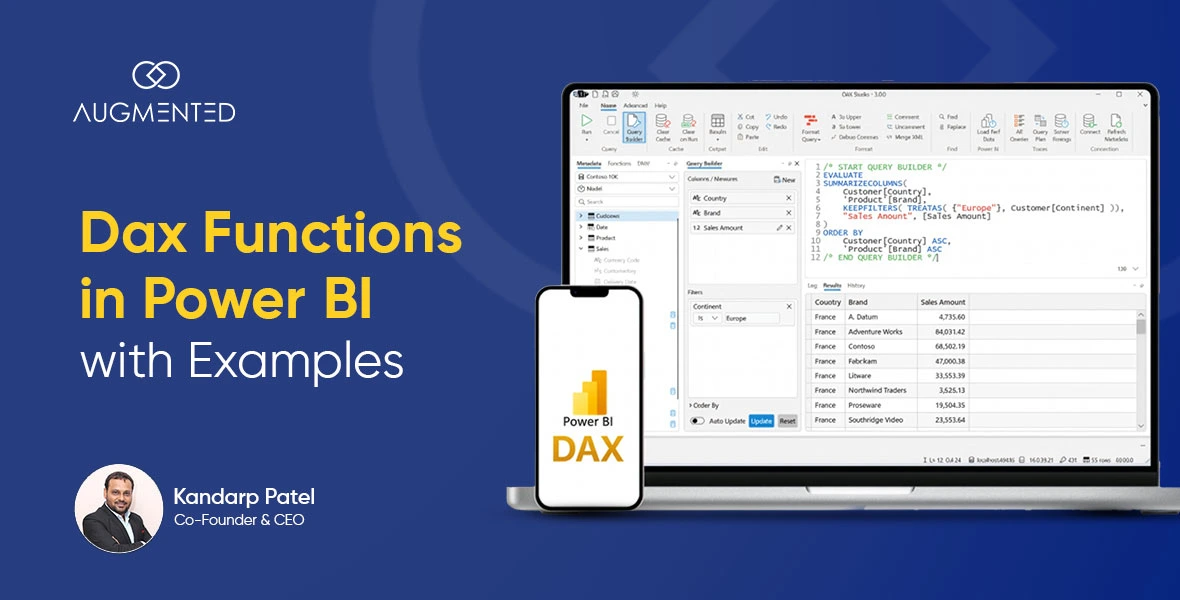
DAX Functions in Power BI with Examples: A Simple Guide

Overview

Ever wondered what DAX functions in Power BI are and how they can help you unlock advanced analytics? 

In simple terms, Data Analysis Expressions (DAX) functions are pre-built formulas that can perform specific calculations in Power BI.

Using these Power BI DAX functions, you can solve common business problems. These include calculating totals and analysing trends from your data.

In this blog, I will break down how to use DAX functions in Power BI for your needs. This will allow you to streamline your reports and make complex calculations easier and effortless. 

___________________________________________________________________

Power BI has proven itself to be a very powerful tool for categorising raw data. Many global businesses use it for advanced business analytics.

But even today, I observe many Power BI users struggling to uncover deeper insights from their data.

This is mainly because they have yet to master the powerful applications of Power BI DAX functions.

Are you such a user who is struggling to move past the beginner levels of Power BI reports? I am here to help you understand how using DAX (Data Analysis Expressions) can address this issue. 

In this blog, I will show you how you can make the most out of DAX functions in Power BI using practical examples.

Let’s dive in!
What are DAX Functions?
Simply put, DAX functions in Power BI are ready-to-use formulas that can help you perform complex calculations and derive actionable insights.


These are shortcuts that you can use to streamline common data tasks. 


Using Power BI DAX functions, you can: 

  • Calculate averages and totals
  • Compare values across different time periods
  • Analyze and filter specific data ranges 
  • Create your own custom business metrics


In my experience, using DAX functions in Power BI is the fastest way to unlock meaningful analysis. 


They help in moving beyond basic reporting and derive actionable insights from your data points.

Why Learn Power BI DAX Functions?

You may be wondering, “Can’t I just use Power BI’s built-in visuals?”


But if you are looking to unlock deeper analysis with more insights, you will need to use Power BI DAX functions.  


These functions remain essential as they provide: 


  • Custom Metrics: Useful for creating business-specific calculations. 
  • Time Intelligence: Can analyse trends over days, months, or years. 
  • Comparative Analysis: Provides the ability to measure performance across different targets and past time periods. 
  • Data Cleaning: Streamlines data in your reports. 

Without DAX functions, you are limited to visualising only what is readily available from your raw data using basic Power BI features.

Power BI DAX Functions List: Categories Explained

Understanding the different categories of DAX functions can help you choose the perfect tool for each task: 


  1. Aggregate Functions: These are useful in calculating totals, averages, and counts.
     
  2. Examples: SUM, AVERAGE, COUNT, MIN, MAX
  3. Filter Functions: Mainly used to change the context of the calculations.
  4. Examples: CALCULATE, FILTER, ALL
  5. Time Intelligence Functions: These functions work with calculating dates and periods.
  6. Examples: TOTALYTD, SAMEPERIODLASTYEAR, DATEADD
  7. Text Functions: Useful for manipulating text data
  8. Examples: CONCATENATE, LEFT, RIGHT, UPPER
  9. Logical Functions: Use these to make decisions with your formulas.
    Examples: IF, AND, OR, SWITCH


The list of Power BI DAX functions below showcases the most commonly used categories in business analysis.


Essential DAX Functions in Power BI with Examples


Let’s talk about how you can practically use DAX functions in Power BI to solve the most common business problems:


1. SUM Function
This is a function that is useful for Basic Totalling. 


Scenario: Calculate the total sales revenue from your data. 


Total Sales = SUM(Sales[Revenue])


What it does: Adds the values in your Revenue column of a typical sales table.


2. CALCULATE
FUNCTION

You can use this function to specify the exact data DAX uses for the calculation.


Scenario: Only calculate the sales of the “Electronics” category


Electronics Sales = CALCULATE(SUM(Sales[Revenue]), Products[Category] = “Electronics”)


What it does: Sums the specific revenue of Electronics by only including the rows of that particular product category.

3. TOTALYTD Function

Useful for Year-to-Date calculations, providing useful insights for the entire financial year. 


Scenario: The overall sum of your year-to-date sales


Sales YTD = TOTALYTD(SUM(Sales[Revenue]), ‘Date'[Date])


What it does: Calculate the running total of every sale from January 1st to your report’s current date.

4. IF Function

This provides conditional logic to your calculations. Using these, you can compare different values and mark them as better or worse than others. 


Scenario: Categorise your products as “High” or “Low” based on their performance. 


Performance Category = IF(Sales[Revenue] > 1000, “High”, “Low”)


What it does: Returns the value as “High” if revenue exceeds 1000. Otherwise, the value will return as “Low”.

Real-World DAX Examples in Power BI

Now that you know the basic functions of DAX in Power BI, let’s learn how to combine multiple functions. 


These can help you solve complex problems in a single DAX formula without using external data sources via Power BI connectors.

Example 1: Sales Growth Calculation


Sales LY = CALCULATE(SUM(Sales[Revenue]), SAMEPERIODLASTYEAR(‘Date'[Date]))

Growth % = DIVIDE([Total Sales] [Sales LY], [Sales LY])


Use case: This formula will compare current sales with the same period last year to calculate overall percentage growth.

Example 2: Customer Segmentation 


Customer Tier = 

SWITCH(

    TRUE(),

    [Total Spending] >= 5000, “Platinum”,

    [Total Spending] >= 2000, “Gold”,

    [Total Spending] >= 500, “Silver”,

    “Bronze”

)

Use case: Categorise every customer on the basis of their total spending. 


These examples show just how versatile Power BI reports can be once you understand how to use DAX formulas. 


Using these functions, you can solve real business problems within your reports in a fraction of your current time. 


Just make sure you double-check your formulas and avoid the common mistakes shown below.

Common Mistakes with Power BI DAX Formulas

Using DAX in Power BI is not an easy feat, especially if you are a beginner. 


It has a steep learning curve and can lead to tiny errors that can mess up your entire visualisation. 


Make sure that you don’t repeat the common mistakes listed below: 


  1. Wrong Context: Forgetting the right filters and relationships between multiple DAX functions in your formulas can lead to wrong results.
  2. Circular References: Formulas that reference each other endlessly due to wrong function inputs.
  3. Performance Issues: Writing an inefficient formula that significantly lowers the response speed of your reports.
  4. Incorrect Syntax: Missing parentheses or using the wrong column references, leading to invalid outputs. 

So what is the best way to avoid these issues? I recommend that you start by using simple Power BI DAX formulas and gradually advance to complex equations.

Next Steps in Your DAX Journey

Mastering your DAX functions journey in Power BI can provide incredible results. 


You can gain useful insights and data visualisations while saving considerable time building your reports. 


Just make sure that you remember these key steps:


1. Always Start Simple

Begin your learning journey with basic DAX functions like SUM, AVERAGE, and COUNT.


2. Practice Your Context

Master the CALCULATE function to ensure that you are providing the right context in your formulas. This will clearly mention what values DAX needs to calculate from your table.


3. Add Time Intelligence

You should regularly use time-based functions like TOTALYTD, TOTALQTD, and TOTALMTD to calculate large amounts of data without making your formulas longer.


4. Build Complexity

Once you have practical experience with the basics, you can start combining multiple DAX functions in the same formula. 


The Power BI DAX functions list may seem very long and difficult to understand. 


But don’t worry! Speaking from experience, you will mainly use the same 10-15 functions for most of your work. The rest of the DAX functions are very use-case dependent and will rarely need your attention.

Still, if you are facing issues or confusion, you can always consult an expert to help with your understanding.

When to Work with a Data Visualization Specialist

Learning how to use DAX functions in Power BI on your own can be quite scary. 


There will be times when consulting an expert is the right choice. 


I recommend working alongside a data visualisation specialist when: 


  • Your business logic seems extremely complex
  • Your reports are slow and are suffering from performance issues
  • You need to build enterprise-level solutions in Power BI
  • Your team lacks the required time and expertise for scaling

Experienced data visualisation experts from Augmented Systems LLP can help you build solutions and train your team. Our experts can also collaborate with you to identify the best DAX functions in Power BI for your business needs.


Established in 2020, Augmented Systems has cemented itself as a pioneer of business intelligence and cloud development. We excel at leveraging technologies like DAX functions in Power BI to enhance your daily workflow. 


Connect with our team today, and we can help you understand advanced DAX Functions that will bring the best out of your Power BI reports!

FAQs

1. What are the most important DAX functions in Power BI for beginners?

Start with SUM, CALCULATE, FILTER, and basic time intelligence functions. These cover the most common business scenarios.

2. Where can I find more Power BI DAX formula examples?

Microsoft’s documentation and community forums offer extensive DAX examples in Power BI. Practice with your own business data for the best learning.

3. How long does it take to learn DAX functions in Power BI?

With regular practice, you can learn the essential Power BI DAX functions in a few weeks. Mastery comes with continued application to real problems.

4. Can I become a data visualization specialist by learning DAX?

Understanding DAX functions in Power BI is a crucial skill for a data visualization specialist, but you’ll also need expertise in data modeling, design principles, and business analysis.

5. What’s the best way to practice Power BI DAX functions?

Work with your own business data. Start by recreating the DAX examples in Power BI from this guide, then modify them for your specific needs.

Categories
Blog Data Visualization

Top 10 Tableau Functions Every Analyst Should Know

As one of the more advanced data visualization and analysis tools, using Tableau can be challenging at first.


And to truly master Tableau and make the most of it?


You will need to understand how its functions work!

Tableau functions are like Excel formulas: they work inside Tableau’s data editor and help you perform complex calculations in seconds.

More importantly, they will help you clean and segment data so that you can use it to create visualizations that actually help you make smarter decisions!

In this blog, I am going to give you a data visualization consultant’s Tableau functions cheat sheet.

It’s a selection of 10 functions that you can use to both simplify and enrich your Tableau data visualization experience.

Let’s get started!

Tableau Functions List: Table of Contents

  • What are Tableau Functions?
  • 10 Tableau Functions You Need to Know in 2026
  • Make the Most of Tableau with Augmented Tech Labs
  • Tableau Functions: FAQs

What are Tableau Functions?

Tableau functions are pre-built formulas that help us perform complex calculations without any manual heavy lifting.

In my experience, they are extremely important for three reasons:

  • Functions eliminate human error since the calculations are computerized. 
  • They help you clean, transform, and analyze data directly in Tableau. 
  • Using functions in Tableau allows you to control how your data is grouped. 


The best way to understand this is to consider Tableau as a toolbox and the functions as individual tools that allow you to get the job done!


How to Use Functions in Tableau?

To use a Tableau function, you will have to add it to a calculated field following a pattern such as this one: 


  • FUNCTION_NAME (Argument 1, Argument 2, …)

For example, if you enter the following function:

  • ROUND (AVG([Profit]), 2)


Tableau will calculate the average of the Profit data field and round the result to 2 decimal places.

10 Tableau Functions You Need to Know in 2026

1. DATEPART()

With this simple Tableau function, you can extract one part of the following data: 


  • Year
  • Month
  • Day


So, if you need to group your sales data by the quarter or any specific time unit, this is the function you will need to use!

For example, let’s say you need the details of every sale you made on 7th January, enter the function in this format: 

  • DATEPART (‘January’, [7]) 

This function can be very helpful if you need to recall faulty products or understand sales patterns over specific dates, like the 4th of July!


2. DATETRUNC()

Next up, we have one of my favorite functions: date truncate.

It helps you standardise your data to a “nearest point.”

So, if you want to find out all the purchases you made in the second quarter, this formula will reduce every entry from April to May to “1st April 2025.”

Here’s the function you can use to do this: 

  • DATETRUNC(‘quarter’, [Order Date]).

With this function, Tableau will go through the entire datasheet and add the relevant date to each entry!

3. DATEDIFF()

Data difference is a very simple and basic function. 

It calculates the difference between two given units in your dataset. 

However, it is also handy because you can use it to calculate things like the difference between the order date and shipping date for an entire dataset!

Here’s the formula for this function: 

  • DATEDIFF(‘unit’, [Field 1], [Field 2])

For example, to calculate the number of days it took to ship every order in your data set, just enter the function: 

  • DATEDIFF(‘day’, [Order Date], [Ship Date]) calculates shipping time

As I said, a straightforward but also extremely useful function!

4. IF / THEN / ELSE

If/then/else is one of the most important functions in Tableau. 

With it, you can define conditional logic that operates on the following basis: 

  • If A
  • Then B
  • Else C

The most common use case for this function is to segment data into different categories.

For instance, you can use it to differentiate between every deal where you earned a profit vs. every deal on which you lost money. 

Here’s an example of this function: 

  • IF [Profit] > 0 THEN “Profitable” ELSE “Loss” END

Similarly, you can use it to define your own conditional logic. 

To do this, just substitute the fields following the operators (If, Then, and Else) with the logic or condition you want to specify.

5. CASE

Next up, we have a Tableau function that builds on the If/Then/Else formula. 

That is because it helps you specify more than one condition in your if/then/else statement. 

Simply put, it allows us to break down complex statements into much cleaner formulas. 

For example, you can use a function like: 

  • CASE [Region] WHEN “West” THEN 1 WHEN “East” THEN 2 ELSE 3 END

Based on this formula, Tableau will segment your data into entries based on East, West, and “Other” regions!

This function is also very important if you want to create Tableau dashboards for specific regions, products, or teams! It will help you quickly separate and organise data into different fields. 

Also Read: Top Tableau Dashboard Examples for 2026

6. ISNULL()

ISNULL is one of the most important formulas on my Tableau functions cheat sheet. 

Its job is very simple: to help you find any missing or empty fields in your dataset. 

For example, let’s say you want to find out the difference between the sales for two sets of products: 

  • Those with discounted prices.
  • Those without discounted prices. 

The first thing you will need to do is separate the two products. 

That’s where you can use ISNULL!

Just enter the following formula: 

  • ISNULL([Discount]) 

And it will return “TRUE” for every transaction or entry on your dataset where the “Discount” field is blank!

7. CONTAINS()

Contains is basically the same as pressing Control+F on your keyboard. 

It helps you find all those strings on your data sheet that have a specific substring containing the combination of letters and numbers you have mentioned. 

It can be your go-to for filtering records based on partial matches. 

For example, if you enter the following function: 

  • CONTAINS([Comment], “urgent”) 

Tableau will flag all customer queries that mention the word “Urgent”!

8. FIND()

Find is similar to Contains: both of them help you filter fields on your sheet.

But find is for exact matches, whereas Contains is for partial matches. 

So, if you want to find all the transactions involving a specific serial number, just enter the following formula: 

  • FIND(“0123456789”, [Serial Number])

And Tableau will find all the products with the serial number you’ve entered!

One innovative use of this Tableau function is to create a “cluster” of customers who are purchasing the same product and compare their other purchases!

9. { FIXED } (LOD Expression)

The last two entries on my list are both LOD functions in Tableau. 

You can think of them as mini calculations that you can ask Tableau to perform on the data that underlies your visualizations. 

For example, say you are viewing the visualization of your sales data for the last year, and you notice a specific customer’s entry. 

Now, if you want to know their lifetime value, all you have to do is enter: 

  • { FIXED [Customer ID] : SUM([Sales]) }

In return, Tableau will find all the transactions associated with the customer and tell you their lifetime value!

10. { INCLUDE } (LOD Expression)

Another LOD expression you could end up using very frequently is Include. 

Let me show you how it works by contrasting it with the FIXED function we saw above: 

  • FIXED can perform calculations on a dataset that lies outside your visualization.
  • The INCLUDE function helps you understand the same dataset that underlies the view on a more granular level!

For instance, if you are looking at the sales data for 2025 and you want to know the sales for a specific region, enter the function: 

  • { INCLUDE [City] : AVG([Sales]) }

This way, you can get a quick insight into the average sales for a specific region!

Pro Tip: While Tableau’s LOD expressions are pretty good, I have had a lot of success using Tableau alternatives for performing quick calculations within a visualization.

Make the Most of Tableau with Augmented Tech Labs

Through this post, I have walked you through 10 of the most useful and commonly used functions in Tableau.

Now, the only thing you need to do is find out if they work like they are supposed to!

And if you run into trouble?

That’s where we at Augmented Tech Labs come in!

As a leading data visualization consultant based out of India, we have been working with Tableau and clients who use it for the past 2 decades…

And we can help you troubleshoot common Tableau problems, whether they lie in the underlying dataset or in the specific formula you need to use.

So, whether you want to solve a recurring Tableau functions error or find more formulas you can use to make data-driven decisions, why not connect with us?

We will help you make the most of your data and Tableau’s capabilities with our expertise!

Tableau Functions: FAQs


1. Where can I find a reliable Tableau functions cheat sheet for quick reference?

Tableau’s own online help is the best cheat sheet, where it lists every function with examples. But if you want to create a tailored cheat sheet, I recommend working with a data visualization consultant like Augmented Tech Labs!


2. I’m new to this. How do I actually write a Tableau functions list into a calculation?

All you need to do is open the calculation editor and start typing! Tableau will suggest functions as you type. The key is knowing the basic patterns, like FUNCTION(Argument).

3. When should I use LOD functions in Tableau versus regular calculations?

My suggestion: use LOD expressions when your question is about a different level of detail than your chart shows, like “average sales per customer” in a monthly sales report.

Categories
Blog Data Visualization

What is Power Query in Power BI: A Beginner’s Guide

Power BI is one of the best data visualization tools on the market.

But what is it that makes Power BI such a popular tool?

There’s the cost: it’s cheaper than most other tools like Tableau.

There’s also the connectivity: it’s a Microsoft tool, and so the go-to data visualization software for most Microsoft users.

But there’s also another feature that makes Power BI actually easy to use for everyone, from data visualization consultants to everyday users to beginners:

Power Query.

In this blog, I’m going to tell you what it is, explain what it does, and walk you through 5 of its best features.

I’ve also answered some important FAQs at the end to help you clarify some concepts, like the Power Query editor in Power BI.

Let us dive in!

Power Query in Power BI: Table of Contents

  • What is Power Query in Power BI?
  • Top Features of Power Query in Power BI: Breakdown for Beginners
  • Transform Your Data in Power Query with Augmented Tech Labs
  • Power Query in Power BI: FAQs

What is Power Query in Power BI?

Power Query is Power BI’s native Extract, Transform, and Load engine built on the M language programming framework, whose job is to help you prepare data for visualization in Power BI.

But what exactly does all this mean?


Think of it like this: if your data visualization (like a Power BI dashboard) is the finished meal, Power Query is the kitchen where you prepare the ingredients for it!

Simply put, it helps you extract data from sources like: 

  • Cloud warehouses.
  • Excel sheets.
  • Websites.
  • Databases.

 Once you’ve extracted the data, you can transform it

  • Standardise fields.
  • Fix dates.
  • Remove errors. 
  • Combine tables into one. 

The last job of Power Query is then to help you load the data into Power BI. This happens via its native and deep integration with Power BI itself!

Also Read: Power Query Excel vs. Power BI – Which is Better?

Power Query in Power BI Examples

To understand how to use Power Query in Power BI, let us take a small example:

Let’s say you’re a sales manager and have two sales reports:

  • An Excel file with a date column that has mixed formats (dd/mm/yy, mm/dd/yy, mm/dd/yyyy, etc.).
  • A CSV file from your website with product names in ALL CAPS. 

In this case, you can use Power Query in Power BI to:

  • Load both these files into the Query Editor with 2 clicks.
  • Standardise the date column by using the “Change Type” > “Date” function.
  • Change the product fonts by clicking on “Capitalise Each Word”.
  • Remove any blank rows that might be there in the middle with one click.
  • Use “Append Queries” to combine the tables together in one click.

And, finally, you can load the table straight into Power BI Report Builder to create your first report!

Top Features of Power Query in Power BI: Breakdown for Beginners

In this section, I want to give you a quick overview of the 5 most common features that you might have to use at the beginning of your Power Query journey:

  • Connect & Combine
  • Clean & Shape
  • Pivot & Unpivot
  • Automatic Data Type Detection
  • Applied Steps

1. Connect & Combine

This will probably be the feature you use the most.

Its task is simple: to help you bring data from several different sources into one table.

Let’s take one of the simplest Power Query in Power BI examples to understand this:

Say you have two (or more!) tables with the same type of information: Sales-January, Sales-February, and so on.

You can use Connect & Combine to stack them into one long table! This is what we call the Append function.

But what if the two columns you want to combine aren’t of the same type?

In that case, you can use the Merge function. For instance, you can take two different tables, like:

  • Table A: Customer IDs + Order ID
  • Table B: Customer IDs + Customer Name

And merge them based on the common field: Customer IDs!

However, the two tables will definitely have to be related to each other in some way, i.e., by at least one common field!

2. Clean & Shape

This is the function that helps you fix common errors and organise messy information in your datasets.

So, how exactly can you use it?

Most of the Clean & Shape Queries are one-click functions that you can use to:

  • Remove errors, duplicates, or blank fields.
  • Filter rows to hide them when you don’t need them.
  • Split columns like Full_Name into First Name and Last Name.
  • Replace a set of values with another (0 to N/A). 

This way, the Power Query editor in Power BI helps you save time and clean your data so that your data visualization process remains as simple and smooth as possible!

3. Pivot & Unpivot

Next up, we have a very interesting Power Query function: Pivot and Unpivot.

And its name holds the key to understanding it:

It helps you convert rows into columns and columns into rows!

Let’s quickly see how Power Query does this:

  • Pivot: Power Query will take a set of unique values from one column and create new column headers with them. 

For example, if you have a list of sales in one column and the months in the next column, it will make different columns for each month.

This way, you will have a month-wise sales table!

  • Unpivot: This does the opposite. Power Query will take a row of Column headers and turn them into a single column of unique values.

Let’s take the same example here: say you have a wide list of sales by month. Clicking Unpivot will consolidate it into a tall list!

This function is very important because it helps you organise data such that it is ideal for:

  • Storage.
  • Analysis.
  • Visualization.

4. Automatic Data Type Detection

This is one of my favorite functions: it automatically detects the kind of data in a given column.

So, when you first scan a file using Power Query, it will automatically assign a small icon next to each column:

  • “123” for Number/Integer
  • “ABC” for Text
  • “Calendar” for Date
  • “$” for Currency

Now, Power Query is not perfect. So, the detection might not be accurate every single time.

But the good part is that you can manually change it in case the auto-detection isn’t accurate.

One reason this is crucial is that without the correct description for each column, you won’t be able to apply the relevant filters.

For example, Power Query will let you filter only the “date” column by month or the sum function for the “currency” column.

So, if you want Power Query to automatically show you the relevant filters that should be applied to each column, you must either use Auto Detect or label the columns manually!

5. Applied Steps

Lastly, we’ve got Applied Steps.

Here’s how it works: it automatically saves and lists every single step you’ve taken in the course of cleaning your data.

Let me show you one example of what it does:

  • Open the Power Query editor in Power BI.
  • Go to “Applied Steps” – you’ll find it on the right side of the screen.
  • There, you will see a list of steps, like “Pivot”, “Unpivot”, etc.
  • You can click on any step, and Power Query will show you what your data looked like at that particular point.

And here’s the best part: you can delete one of the steps to undo that specific action without affecting the later steps!

Transform Your Data in Power Query with Augmented Tech Labs

That was a lot of information!

And if you’re a beginner, things can get very confusing…

So, let me quickly recap the key points we’ve covered:

Power Query in Power BI is the native extract, transform, and load engine.

It helps you gather data from different sources, clean it with a lot of different “queries”, and load it straight into Power BI for data visualization.

Now, it’s time for you to take your first step into the world of Power BI by using Power Query to clean a dataset for visualization!

And if you get stuck?

Not a problem: reach out to us at Augmented Tech Labs – one of India’s leading data visualization consultants!

From learning how to use Power Query to creating a complete data visualization infrastructure, we can help you leverage the full capabilities of Power BI, one step at a time…


Power Query in Power BI: FAQs

1. What is the Power Query Editor?

The Power Query Editor is the dedicated window inside Power BI Desktop where all data cleaning and shaping happens. It’s where you access the tools we’ve explored in the blog and see your “Applied Steps”!

2. Is Power Query available online in Power BI Service?

Absolutely: you can use the Power Query Editor for transforming data on the Power BI Service. This wasn’t the case earlier, when it was only available on Power BI Desktop. But it is not available on the Power BI Service as well.

3. Does learning Power Query require coding?

No, you won’t need to write a single line of code to use Power Query. Most transformations use a graphical, “point-and-click” interface. However, advanced users like data visualization consultants and analysts do have the option to write custom formulas in M language.

Categories
Blog Data Visualization

Top 15 Tableau Features You Should Know

Overview

Tableau is a popular tool used by many businesses for data visualization. Using its powerful tableau features, people can derive valuable insights from their data.

This blog lists the top 15 Tableau features that you can use to convert raw data into business intelligence.

From fundamentals to advanced AI features, we will explore how you can use Tableau to make data analysis easier. 

__________________________________________________________________________________


Data can only be as powerful as your understanding of what it represents.

Merely storing raw data in spreadsheets does not mean you can gain any valuable insights from it.

This is why understanding Tableau’s powerful features is essential for using your data more effectively.

Using key Tableau features, you can turn complex data points into interactive showcases.

It will also help you save time by automating various steps in your workflow.

To help you better understand, I will walk you through the best Tableau features you can use today.

Let’s begin! 

A Quick Look at Key Tableau Features


FEATURE CATEGORY

WHAT IT ENABLES

WHY IS IT USEFUL

Explain Data

Uses AI to explain why a data point is unusual

Automatically finds insights you might miss

Tableau Accelerators

Provides customizable dashboards

Saves development time

Data Stories

Automatically writes summaries of key insights

Turns dashboards into plain-language reports

LOD Expressions

Performs complex calculations at precise data levels

Answers multi-level questions in a single view

Hyper

Powers high-speed data queries and extracts

Helps you work with massive datasets smoothly

Read our dedicated blog on various Tableau dashboard examples to better understand how its features are implemented. 

The Top 15 Tableau Features Explained

1. Explain Data

Confused about what a particular data point means in your table?

Clear your doubts by using Explain Data. It is precisely what it sounds like.

Using AI, this feature explains the relationship between a particular data point and the rest of the table.

Explain Data also allows you to create visual representations of data trends from the table.

This will help you understand the data in a more engaging manner.

So how do you use it? Right-click on any data point and select the option “Explain Data”.


Tableau then automatically analyzes the data point (or points) you selected and shows why they are significant within the table.

Benefit: Provides AI-driven answers that can save you hours of manual investigation. 


Example: A retailer clicks on a sudden spike in a store’s sales. Using Explain Data, they can identify the specific promotion in a particular region that led to the spike.

2. Tableau Accelerators

Accelerators are ready-to-use dashboard templates that can help you reduce your work considerably.

Think of them like pre-built worksheets in Google Sheets that let users quickly start logging their work.

These accelerators are a great way to save time. They enable you to access the format you need, ready for immediate use.

Benefit: Accelerators can significantly shorten your time-to-insight.


Example: A marketing team uses the ‘Web Traffic Accelerator’ to immediately start monitoring the performance of their campaign without building a new dashboard.

3. Data Stories

Confused about what the insights stand for on your dashboard?

Data stories can help you generate helpful narrative insights in plain English.

Data stories are summaries that explain what the boring numbers on your worksheet actually represent.

This can help other non-technical team members to realize what your data indicates.

Benefit: Makes insights generated from data easier to understand for everyone.

Example: An executive uses Data Story to generate an automated summary of their insights. They then use it to make other team members understand what the data represents.

4. LOD Expressions 

Level of Detail (LOD) is a term that enables you to perform complex calculations based on different demographics.

Using LOD Expressions in Tableau, you can fine-tune how specific your analysis is and what details are included in the output.

This is an advanced feature that can help you perform calculations at the source level of your data.

Benefit: Can solve sophisticated analytical questions, like calculating a customer’s lifetime value on a Tableau view showing your monthly sales.

Example: An analyst uses LOD Expressions to calculate average sales per customer while the view is on product categories.

5. Hyper 

Hyper is Tableau’s high-performance data engine technology.

This is what powers quick queries and fast dataset loads in your Tableau project.

It also enables rapid analysis of millions of rows of data.

Benefit: Powers real-time insights from extensive, complex data sets with minimal lags.

Example: An analyst connects their dashboard to a billion-row dataset, and Tableau remains responsive due to Hyper.

6. Data Bins

Bins allow you to group collective measures, such as age or revenue, into discrete time intervals.

This allows you to create eye-catching histograms and analyse data patterns.

Benefit: Simplifies how you analyse continuous data by creating helpful groups.

Example: A retail manager groups their customer data into specific age ranges (20-30, 30-36, etc.) for easier categorising.

7. Image Role


Using Image Role, you can directly import and use your images in your visualisations.

It lets you map your images as data points in the Table. This makes your visualisations seem more attractive and descriptive.

The best part?


Since the actual image file is still stored externally, your workbooks remain ultra-responsive.


Benefit: Creates a more visually engaging dashboard.

Example: An e-commerce dashboard can display actual product thumbnails next to annual sales figures using this feature.

8. Keep Only 

Keep Only might seem like a simple filter tool.

But when used correctly, it can change the way you analyse specific data points.

Using Keep Only, you can target a particular data point (mark) and zoom into the view to show only the marks you selected.

It can help you filter the entire dashboard to show only the specific marks you selected.

Benefit: Allows intuitive exploration of data points across the dashboard.

Example: A logistics manager clicks on the top-performing product in a chart and uses “Keep Only” to check its performance across both logistics and marketing data.

9. Tableau Catalog 

Catalog is a very integral data management feature in Tableau.

It automatically documents multiple data assets, such as tables, columns, and workbooks, in a central inventory.

This can help you show exactly where the data you are showcasing came from and how trustworthy its source is.

Benefit: Used to build trust in the validity of your data by providing a visual representation of its source and quality.

Example: A user can use the Catalog to track a data source and whether it was flagged for quality before using it in a critical report.

10. Tableau Prep Conductor

Using this tool, you can schedule, run, and monitor your Tableau Prep data cleaning.

This can help you automate workflows in both Tableau Server and Tableau Cloud.

Benefit: Ensure your reports are based on the most recent data points.

Example: A quality officer uses an automated flow to clean the previous day’s data every night.

11. Dynamic Parameters

Dynamic Parameters are continuously updating values that can change automatically.

Using a dynamic parameter, you can designate numbers or values that change depending on other external values.

For example, you can create a parameter that automatically updates the current date in your visualisation.

This allows you to enter values, such as data or numbers, that can change the visualisation on its own.

Recent updates to the Tableau platform have made these parameters even more powerful. For example, they have introduced dynamic spatial parameters for maps.

Benefit: Creates interactive scenarios that can change depending on user-based conditioning.

Example: A sales manager uses this feature to adjust a “Target Revenue” parameter. This lets them see which sales reps are above the required threshold to meet the target figure in real time.

12. Custom Themes

Brand consistency is very important to maintain in any organisation.

Tableau’s custom theme features let companies apply a specific color and font to all workbooks.

Benefit: Apply corporate branding and formatting to all workbooks for added uniformity.

Example: A brand manager applies the company’s official brand theme to all Tableau reports for added workbook consistency.

13. Resource Monitoring Tool (RMT)

RMT is mainly used as an administrative tool.

It allows collecting data from your dedicated Tableau server to check its health and performance.

Using RMT, you can diagnose common issues and errors, such as slow loading times and visual irregularities.

Benefit: Ensures a smooth, reliable experience across all Tableau dashboards.

Use Case: An IT admin uses RMT to troubleshoot why a server process is slowing down dashboards for all users.

14. Slack Integration 

Looking for a better workflow? Tableau offers its own handy integration with Slack.

This allows you to send automated data alerts and share your dashboards directly in Slack channels.

Benefit: Allows you to put your insights directly into your current Slack workflow for better team collaboration.

Use Case: An account manager uses this integration to automatically post a daily KPI summary on the company’s Slack channel.

15. Ask Data 

Your data in Tableau can sometimes be quite confusing to understand.

Have questions? Why not ask your data directly!

Ask Data lets you get easy-to-understand answers by creating inquiries for your data.

Think of it like doing a Google Search, but on the data present inside your workbook visualisation.

Benefit: Makes data exploration very easy and less technical for uninitiated users.

Example: A business manager uses Ask Data to search for targeted sales for a particular area.

Conclusion 

Tableau has amazing undiscovered features that can make your data more dynamic and easier to visualise.

Such Tableau features can help you gain deeper insights from your data.

It can also reduce the time it takes to visualise your data by automating your slower manual methods.

However, implementing these features effectively will require expert assistance.

This is where working with a data visualization consultant from Augmented Tech Labs can prove valuable.

Partnering up with a dedicated data visualization consultant can help you tailor Tableau features to your needs.

Consult our experts today and use advanced visualization to draw meaningful insights from your data.

Frequently Asked Questions

1. What are the most important Tableau features for a beginner?

Beginners should start with Ask Data, basic dashboard interactivity (filters and highlighting), and the drag-and-drop interface. These core tableau features provide immediate value with a low learning curve.


2. How do I stay updated on new Tableau features?

Follow the official Tableau blog and product announcements to learn about the latest Tableau features. The “What’s New” section in the product and community forums is also a great resource.


3. What is the best way to learn these Tableau features?

Practice with your own data is the best method. Tableau Public offers a free platform to explore how others use these Tableau key features.


4. When should my company consider hiring a data visualization consultant?

A data visualization consultant is helpful when you need to scale your analytics, build complex data models, or train your team to use advanced Tableau features like LODs and data modeling effectively.


5. Are Tableau AI features available to all users?

Advanced Tableau AI features, like Tableau Agent, are often part of newer offerings and may require specific licensing. Check Tableau’s website for the latest details.

Categories
Blog Data Visualization

What Is Dax in Power BI?

Overview

Data Analysis Expressions (DAX) is a popular formula language that enables custom calculations in Power BI.

Using DAX, you can extract new information from the data that is already present in your model.

Need help in creating your own business metrics and calculating growth indicators? DAX can help you with that as well.

In this blog, I will explain what DAX is in simple terms. I will also show you how to create your own DAX formula in Power BI.

_________________________________________________________________

Whether it’s Google or Tesla, most successful businesses around the world are now entirely dependent on data for their daily functioning.

Understanding your data has become more critical than ever to stay one step ahead of your competition. 

But to make smarter choices using your data, you need to go beyond just raw numbers.

You need tools that can help you answer complex questions using your data.

That is where DAX in Power BI comes in! It enables you to obtain deep insights from your raw data.

Want to learn how? Read the guide below, which includes detailed tutorials on what DAX is and its various functions in Power BI.

By the end of this guide, you will learn how to unlock the full potential of DAX in Power BI.

Let’s dive in!

What Is Dax in Power Bi?: Table of Contents

  1. What is DAX?
  2. Key Characteristics of DAX
  3. Why is DAX so Important?
  4. DAX Formulas vs. Excel Formulas
  5. Core Concepts of DAX
  6. Common and Useful DAX Functions
  7. How to Start Using DAX: A Simple Power BI DAX Tutorial
  8. Introduction to Power BI DAX Variables
  9. When Do You Need Professional Data Visualization Services?
  10. Final Verdict: Unleashing the Power of DAX
  11. FAQs

What is DAX? 

DAX is the formula language of Power BI. It is what makes doing complex calculations in Power BI possible.

So what is it? In essence, DAX is a collection of operators, functions, and constants.

Think of DAX as a simple math problem you give to Power BI to get the result you need in your table.

Why Use DAX in Power BI? 

DAX is a versatile tool that can be used to:

  • Obtain new information from the data you have collected 
  • Perform multiple complex calculations and data comparisons 
  • Build dynamic business logic that changes according to user inputs 

I use DAX daily to create powerful data visualizations from my Power BI reports. It has helped me move beyond doing simple sums and counts in my tables.

Want to learn how DAX can help you? Let’s start by exploring it’s key features:

Key Features of DAX

Here are some of the best features that DAX can unlock for you in Power BI:

  1. Versatile Applications: DAX is a great tool for anyone who needs more depth in their results. For example, DAX can calculate key metrics like profit margins, YOY growth and running totals directly from your data. 
  2. Enhances Data Models: DAX can create an intelligent layer on top of your raw data. This means that DAX can automatically tag sales to “High” or “Low” priority, helping you see patterns that you may have missed.
  3. Fully Interactable: DAX adapts to user inputs and provides many automated features. For example, you can click a filter to specify a time or region, and DAX will automatically update your entire dataset to match your filter.
  4. Rich Function Library: The formula language boasts a massive library of ready-to-use functions. Functions like SUM and CALCULATE can be combined into a single DAX formula for more straightforward calculations.

The characteristics above show just how powerful DAX is for analyzing data in Power BI. It might take you some time to master it, but its payoff is truly worth it when you create a Power BI dashboard.

Why is DAX so Important? 

You are probably wondering, “Why can’t I just build charts without using DAX in Power BI?” Technically, you can. But your charts will never have the same depth and clarity as visualisations built with DAX formulas.

DAX can help you:

  • Unlock custom calculations for business-specific metrics. 
  • Enable complex comparisons for advanced analytics. 
  • Improve data integrity through consistent business logic. 

Thus, using DAX in Power BI can significantly improve your data analysis.

Pro Tip: Make sure to revisit the basics of Power BI and what Power BI is before you move on to explore advanced DAX features. 

DAX Formulas vs. Excel Formulas

In many ways, DAX in Power BI is similar to using formulas in Excel. However, there is a key difference between these two features:   

Feature

How it Works

Excel Formulas

Primarily work on cell ranges (like A1:A10).

DAX in Power BI

Primarily work with tables and columns.

This is why a simple formula using DAX follows a format like: 

Total Sales = SUM(Sales[Revenue])

While an Excel formula for the same purpose would look like:
Total Sales = SUM(B2:B10)

Core Concepts of DAX: Syntax, Functions, and Context

To better understand what DAX is in Power BI, you need to understand these three concepts:

1. Syntax

This is the base structure of every DAX formula. Syntax shows the relationship between two or more variables in the formula.

Example: Profit margin = SUM ( financials[Profit] ) / SUM ( financials[Sales] )

 2. Functions

These are the verbs in DAX that help describe the action to be performed:

  • Aggregation: SUM, AVERAGE.
  • Filtering: CALCULATE.
  • Time Intelligence: TOTALYTD.

3. Context

Context specifies exactly what the user needs to include in the formula during the calculation. DAX works by understanding which data you are pointing to, so it can calculate the correct values taken from your table. 

The two main types of contexts are: 

  1. Row context: This lets the DAX formula know which row to use. 
  2. Filter context: This is applied on top of a row context to signify a subset of a row or column. 

Example: In the formula USA Profit Margin = CALCULATE ( SUM ( financials[Profit] ))

Here, CALCULATE is a filter context, and [Profit] is a row context signifying the exact row of the table. 

Common and Useful DAX Functions 

Let’s look at primary functions in DAX that you are likely to use regularly:  

  • SUM: Used to add up numbers in a particular column. 

Example: Total Revenue = SUM(Sales[Revenue])

  • CALCULATE: A powerful function that can change the context of the calculation. 

Example: US Revenue = CALCULATE(SUM(Sales[Revenue]), Sales[Country] = “USA”)

How to Start Using DAX: A Simple DAX Tutorial

Excited to start using DAX in Power BI?
Let’s make things easier by first understanding how you can measure values using DAX in Power BI.
For this, we will use an example scenario that demonstrates how to use DAX to calculate the total and average sales for a report. 

  1. Open your Power BI report and go to report view. 
  2. Create a New Measure by right-clicking on the table. 
  3. Type the DAX: Total Sales = SUM(Sales[Revenue]). 
  4. Press Enter
  5. Use this Measure by dragging the Total Sales measure onto a new canvas.

Great work! You have now completed the first step towards learning how to use DAX in Power BI. Now let’s learn about other DAX variables you can use in Power BI. 

Introduction to Power BI DAX Variables

As formulas continue to grow, your workflow may get cluttered. Power BI DAX Variables can make them look cleaner.
For example: 

  • Without a Variable:  

text

Total Profit YTD =

CALCULATE([Total Sales] – [Total Cost], DATESYTD(‘Date'[Date]))

  • With Power BI DAX Variables (Cleaner):

text

Total Profit YTD =

VAR TimePeriod = DATESYTD(‘Date'[Date])

VAR TotalProfit = [Total Sales] – [Total Cost]

RETURN

    CALCULATE(TotalProfit, TimePeriod)


Using DAX variables in Power BI can thus provide a more refined look to your tables. It can help you understand clearly what each line of the formula represents. 

When Do You Need Professional Data Visualization Services?

This is just the beginning! Learning DAX in Power BI can be quite difficult for advanced use cases like Time Intelligence and Dynamic Segmentation.

This is where an expert can help make your learning journey easier.

Consider opting for professional data visualization services when:

  • Your business logic seems very complex 
  • Reports have become slower in response 
  • You require a more scalable data model 
  • Your team lacks the required expertise 

An experienced provider of data visualisation services can help you build the right solution.

They can also help train your team in using DAX for advanced reporting. 

Final Verdict: Unleashing the True Power of DAX

In this blog, I have helped you understand the basics of DAX and the required beginner steps of this journey. But implementing this in real-world scenarios to solve Power BI issues can pose serious challenges.

Luckily, you can always reach out to our experienced team at Augmented Tech Labs!

We have helped many leading enterprises build their own DAX-based models using Power BI.

Connect with us today, and we will help you understand the next steps in how you can use DAX to streamline your next project!

FAQs

1. What is the main use of DAX in Power BI?

The main use of DAX in Power BI is to create custom calculations and business metrics that are essential for advanced analysis.

2. Is DAX in Power BI similar to SQL?

They are quite different in practice. DAX in Power BI is for analyzing data within a model, while SQL is for database querying.

3. What is the best way to learn DAX in Power BI?

The best way is to start using DAX on your own. Begin with simple measures and follow a Power BI DAX tutorial to understand context.

4. Can I use DAX in Power BI without coding?

Yes, but only for the basics. Advanced DAX in Power BI requires logical thinking and practice, alongside an experienced software partner to help you along the way.

5. Why are my DAX in Power BI measures slow?

Slow measures in DAX in Power BI are often due to a poor data model. Using Power BI DAX variables and our recommended practices can help boost your measures significantly.

Categories
Blog Data Visualization

11 Best Data Visualization Examples from History and Today

Overview

Data visualization is not new.

Its techniques may have changed over time to accommodate more and more data, but the basic principle has remained the same, and can be dated back to at least 3 millenia.


For example, a painting is a visual depiction of qualitative data – the feeling of a population destroyed by a pandemic or the victory of a king crossing the Alps.

However, even data-based visualizations are not new: the oldest known data visualization is the Turin Papyrus Map – a map depicting the quantity of minerals (including gold) around Egypt.


And here’s the thing: this map is from around 1,150 BCE – more than 3,000 years ago!


In this blog, I’m going to walk you through 11 of the best data visualizations: each using a different data visualization technique to tell a story as simply as possible. 

Best Data Visualization Examples: Table of Contents

  • 11 Best Data Visualization Examples
  • Augmented Tech Labs: Your Ideal Partner for Data Visualization
  • Best Data Visualization Examples: FAQs

11 Best Data Visualization Examples

The 11 effective data visualization examples I’ve chosen depict different things at different times and at different points. But one thing brings them all together: they make optimal use of the data visualization technique that they are using.

Let’s explore them in more detail:


1. The Best Simple Bar Graph

First up, we have a simple and elegant bar graph. 

It depicts more than four variables: famous writers, the types of works they produced, the number of works they produced, and the accolades they won.

But all of them at a single glance!

There are three things that make this simple bar graph one of the best data visualization examples.


First, it inverts the axis such that the bars appear on the Y-axis instead of the X-axis. It tells us that we can adjust a graph according to the data we need to present.

Second, it uses colors very well: this helps us contextualize the achievements of different authors. In other words, it helps understand the data better.

Third, it uses stars on the right as an added parameter.

Simply put, this bar chart uses all the data visualization components in the right way and shows us why even the most basic of charts can have innovative applications!

2. Innovative Use of Line Charts

Next, we have an innovative application of line charts on a completed dataset. 

What you see below is the finishing order of every single participant in a Formula 1 Grand Prix held in Austria in 2021. 

On the left is the starting order, on the right is the finishing order, and every driver has a line that depicts their progress throughout the race. 

This line chart is a remarkable example of data visualization for a couple of reasons. 


First, it shows a lot of information in a very small graph: it tells the race story of every single driver through 71 laps of the race. 


Second, it uses the colors that every racing team uses itself. This makes the graph very easy to read and follow. For example, the light greens represent the Mercedes drivers. 


So, with just a brief glance towards the right, you can see that the team finished 2nd and 3rd in the race. 

3. Informative Bubble Chart


Below, we have a great example of a Bubble Chart.

It shows the world’s top 50 websites ranked by the number of users or visitors it has.

Apart from the bubbles themselves, which clearly tell the main story, you also have a great color combination for the top websites.

However, this bubble chart makes one of the most common data visualization mistakes to avoid.

That is, it doesn’t use similar colors for similar types of websites: red for search engines, blue for social networks, yellow for e-commerce websites, etc. Using consistent colors could have made this bubble chart even easier to read.

This goes to show that even the best of creators can use some help from data visualization consultants!

4. Best Infographic


Infographics are notorious for being too lengthy, and the one I’ve selected doesn’t disappoint!

It shows the history of pandemics from the 1st century AD all the way up to the 21st century.

This infographic is a product of the COVID-19 pandemic: a result of our need to contextualize the pandemic that affected our lives, but in the age of data visualization.

It uses colors, years, and differently sized bubbles to depict diseases, time, and the scale of the deaths caused by pandemics over 2,000 years in one snapshot.

You can think of it as our equivalent of a painting created in the 14th century depicting the black death.

5. Alluvial Chart


Next, we have an alluvial chart.

The purpose of alluvial charts is to show us two things: the whole quantity and the proportion occupied by specific elements within it.

What you see here is the number of people who have migrated to the US from different countries since the early 1800s. On the right are numbers, going up to 10 million a year.


While it might be confusing to match the numbers with the curving lines, the colors do a fine job of saving the day: all you have to do is see the color of the country and match it with the waves depicting the numbers that flow towards the right.

So, you can clearly see the mass wave of Italian immigration dominating total migration to the US in the late 19th and early 20th centuries. This visualization is also one of the best examples of how to use data visualization best practices to effectively communicate the story of your data.

With the help of some expert data visualization services, you can make a similar chart showing the sales of different products your company has offered over the years!

6. A Donut Diet Chart

A donut chart is like a pie chart with a hole in the middle.

As you can see below, it is great for depicting the distribution of a whole quantity.

We can clearly see the average caloric distribution of the average person, divided into different colors for the source of the calories.

What’s interesting is how we can use the same donut chart to understand the caloric sources for different countries around the world!

7. World Population Area Chart

Below, we have what is probably the best example of an area chart.

It uses the image of a globe to show the distribution of world population among the different countries.

As you can see, it also uses bounded areas that are proportional to the country’s population. 


Plus, what’s great is that countries that are closer together are also placed near each other on the map, making it easier for us to identify and contextualize the data.

8. Florence Nightingale’s Coxcomb Chart

One of the oldest examples of data visualizations is Florence Nightingale’s Coxcomb Chart. 


Nightingale, a politician in the United Kingdom, used it to show the number of preventable deaths that occurred in the Crimean War. 


This data visualization is an example of a radar chart: the slices all have equal width, but varying radii. 


As a result, you can use the radii to show the different magnitudes of the same data in the same chart. 

9. Line Chart Depicting Chip Prices

Next up, we have another line chart.

It tracks the correlation between the price of Ethereum and Graphical Processing Units that are used to mine the cryptocurrency.

This chart also tracks the value of CPUs as opposed to GPUs against the mining of Ethereum units.

You can use this type of line chart to understand how much you might have to pay for the supply of your raw materials.

But that’s not all: you can also use data modeling with such charts and the underlying data to anticipate price changes for the main raw materials you use.

10. Supply Chain and Manufacturing Dashboards


Building on the last chart, we have an executive dashboard for supply chain management.

It gives you a snapshot of your entire supply chain at a glance.

On the left, there is the date range, followed by a breakdown of shipping timelines in the center, and late deliveries highlighted on the right. 


At the bottom, you can see the shipment status of all the orders within the given date range. 


This dashboard is also one of the best interactive data visualization examples: you can link it with your supply chain management software.

This will ensure that you always see the latest information updated in real-time.

11. Interactive Sales Dashboard for Business Executives


The last example shows us that the use of data visualization is becoming more and more important for businesses.

Whether you are an SDR, a revenue professional, or an executive, it gives you a visual snapshot of the state of your operations.

For example, below we have a sales dashboard that shows:

  • The average deal value, deal closing rate, and average sales cycle length.
  • Rep-wise demos delivered and total deals closed per week.
  • The overall quarterly sales performance. 
  • A record of the best opportunities. 

All of this in one dashboard that can be updated in real-time when integrated by your data visualization consultant with your CRM!

Augmented Tech Labs: Your Perfect Partner for Data Visualization
Through this blog, I’ve walked you through the best data visualizations that tell stories using simple lines and shapes rather than words.

From the world of sports to the state of the world population, we have seen bubbles, donuts, lines, and bars being utilized to break down complex data and communicate it as easily as possible.

So, if you too want to use the power of the best data visualization techniques available to tell the story of your data, all you need is the right tools.

These include a data visualization tool or a data visualization consultant.

And that’s where we at Augmented Tech Labs come in!

We have both the experience of working with the best data visualization tools on the market and the expertise it takes to convert complex data into easy-to-understand images.

Connect with us today for a free consultation to find out how we can help you tell the story behind your data!

Best Data Visualization Examples: FAQs

1. Can you show me creative data visualization examples for business?

Yes. Creative data visualization examples include interactive sales dashboards and innovative race progress charts. These turn complex performance data into an easy-to-understand visual story.

2. What makes an effective data visualization example?

Effective data visualization examples tell a story simply. They use techniques like bar graphs, bubble charts, and alluvial diagrams optimally to make complex data instantly understandable.

3. Do you offer interactive data visualization in your services?

Yes, our data visualization services include creating interactive data visualizations like real-time sales dashboards that integrate with your CRM for live business insights

Categories
Blog Data Visualization

Cognos vs. Power BI: 5 Key Differences

Overview

Cognos and Power BI differ across five key features: 

  • Cognos is an enterprise-grade, governed platform; Power BI is an agile, self-service tool.
  • Cognos is priced for large enterprises; Power BI uses an affordable per-user subscription.
  • Cognos is built for complex, pixel-perfect reporting; Power BI excels at interactive visual dashboards.
  • Cognos is traditionally an on-premise tool; Power BI is cloud-native by design.
  • Cognos has a steeper learning curve for IT; Power BI is more intuitive for business users.

In this blog, I will break down the differences between Cognos and Power BI, and help you pick the right BI tool for your business.

In today’s data-driven landscape, choosing the right BI tool is crucial.

And both Cognos and Power BI are powerful business intelligence tools. 93% of Power BI users recommend it for self-service analytics, while Cognos dominates enterprise reporting.

So, if you need to know more about how they are different from each other before you can decide which one to choose, I’m here to help!

In this blog, I’m going to walk you through the key differences between Cognos and Power BI across five specific features. 

I have also added a table of differences you can use to get a quick rundown of the key differences, along with a breakdown of use-cases to help you pick the right BI tool.

 Let’s dive in!

Cognos vs. Power BI: Table of Contents

  • TL;DR: Cognos vs Power BI – Quick Overview
  • What is Cognos?
  • What is Power BI?
  • Cognos vs Power BI: Detailed Breakdown of Key Differences
  • How to Choose Between Cognos and Power BI?
  • Cognos or Power BI: Final Verdict
  • Cognos vs Power BI: FAQs

TL;DR: Cognos vs Power BI – Table of Comparison

Here’s a quick breakdown of the key differences between Cognos and Power BI:

Feature

IBM Cognos

Microsoft Power BI

Best For

Large enterprises

Small to large businesses

Pricing Model

Enterprise capacity-based

User subscription ($9.99-$20/user/month)

Deployment

On-premises focused

Cloud-native

Learning Curve

Steeper

More intuitive

Reporting Style

Pixel-perfect reports

Interactive dashboards

AI Capabilities

Built-in AI assistant

Azure AI integration

Company Type

Fortune 500, regulated industries

Startups to enterprises, Microsoft users

What is Cognos?

G2 Rating: 4.1/5


Best For: Large enterprises and corporations requiring governed, scalable, and pixel-perfect enterprise reporting in a secure, managed environment.


IBM Cognos Analytics is an AI-powered, enterprise-grade business intelligence platform. 

 It is designed to cater to complex reporting environments. It thus offers very strong governance features and centralized management. Plus, it has highly advanced modeling capabilities, which make it perfect for dealing with large volumes of data.

 By using Cognos, you can thus create a consistent and secure data analysis and visualization infrastructure for your organization. Let me walk you through some of its key features. 

Key Features of Cognos

  1. Managed Self-Service with AI Assist: With Cognos, you get a governed self-service experience. Like with several other data analysis software, you can ask its AI assistant (Cognos Assistant) questions in plain language. However, it lets you control the framework to maintain data integrity and security.
  2. Enterprise-Grade Reporting Suite: Cognos excels at producing highly formatted, “pixel-perfect” reports like financial statements and regulatory submissions. You can use this suite to create complex, multi-page documents that require precise layout control.
  3. Integrated Data Modeling Module: Unlike many BI tools, Cognos includes a powerful built-in data modeling layer called Framework Manager. With it, your IT team can create a unified, business-friendly semantic layer that hides underlying SQL complexity from end-users (like sales and marketing teams).

Cognos is thus one of the most powerful business intelligence and analysis tools on the market. However, you will either need a strong in-house IT team or data visualization consultants to fully leverage its abilities. 

What is Power BI?

G2 Rating: 4.4/5


Best For: Small to large businesses prioritizing self-service analytics, deep integration with the Microsoft ecosystem, and agile data exploration.

Power BI is Microsoft’s cloud-native business intelligence software.

You can connect it to diverse data sources, create interactive reports and dashboards, and share insights with your teams or clients. 

It is one of the best BI tools out there if you want to make data-driven decision-making accessible across your organization.

Key Features of Power BI

  1. Seamless Microsoft 365 Integration: Power BI is natively integrated with tools like Excel, Azure, and Teams. So, if your organization already uses Microsoft products, your team will find it very easy to use. It also allows you to easily embed reports into collaborative workspaces and manage access using the “Active Directory”.
  2. Massive Library of Data Connectors: One of the best things about Power BI is that you can use it to import data from various sources using over 166 pre-built connectors. These sources include cloud services like Salesforce and Google Analytics, databases, and simple Excel spreadsheets.
  3. AI-Powered Insights: Power BI comes with built-in AI capabilities that will automatically find patterns, generate forecasts, and even create narrative summaries from your data. So, you don’t need advanced knowledge of statistics and modeling to uncover hidden trends.

Power BI is my recommendation to all small or medium business organizations, especially those who want to create shareable reports.

To find out more about how it works, check out my complete guide: What is Power BI?.

Cognos vs Power BI: Detailed Breakdown of Key Differences

1. Core Philosophy & User Experience

  • Cognos: Operates on a top-down, IT-centric model. It emphasizes and works best for governance, security, and standardized reporting. The interface is powerful, but Cognos comes with a steep learning curve. This is because Cognos is inherently designed for creating complex, enterprise-scale reports with strict control over data sources and outputs.
  • Power BI: Champions a bottom-up, self-service model. Its intuitive, drag-and-drop interface is designed for business analysts and power users to quickly connect to data, explore, and build ad-hoc reports. It prioritizes agility and user-friendliness over centralized control.

Which is Better? 

It depends. Power BI is better for fostering a culture of data exploration and speed. Cognos is better for environments with strict compliance and governance requirements, like finance or healthcare.

2. Pricing & Total Cost of Ownership (TCO)

  • Cognos: Cognos is expensive. It uses an enterprise-level, capacity-based licensing, which can be complex and requires you to directly contact the IBM sales team. The initial cost is generally high since it is an enterprise-grade solution. The pricing model is best suited for enterprises that have large, predictable user bases.
  • Power BI: Offers a transparent, user-based subscription model. For example, Power BI Pro is $9.99/user/month, while the cost of the Premium plan is $20/user/month. This makes it highly accessible for teams of all sizes, though costs can scale significantly with the number of users.

Not sure which plan will suit your data analysis and visualization requirements? Here’s a blog I’ve written that breaks down the pricing in detail: Power BI Premium vs Pro.

Which is Better?

Power BI for most SMBs and departments due to its low entry cost and predictability. For Cognos to be cost-effective, you’ll need a lot of employees and a strong IT team that can help you make use of its capabilities.

3. Deployment & Architecture

  • Cognos: Has its roots as an on-premises solution and is one of the best BI tools for this type of environment. While it also offers a cloud version, its architecture is often favored by orgs with significant on-premises data investments or those enterprises that are not allowed or unable to move sensitive data to the cloud.
  • Power BI: Is cloud-native by design, i.e., it is a SaaS business intelligence tool. While it offers an on-premises gateway for hybrid scenarios and a dedicated on-premises server (Power BI Report Server), its strength is in the seamless updates it provides with the cloud version.

Which is better? 

Depends: Power BI should be your go-to if you want a cloud-first or cloud-heavy BI tool. If you prefer or are required by low to maintain on-premise IT ecosystems, Cognos is the one you should choose.

4. Advanced Analytics & AI

  • Cognos: Features powerful embedded AI capabilities that you can directly regulate via an IT team or with the help of a data visualization consultant. For example, the Cognos Assistant acts as a natural language query interface, which you can use to ask questions and even generate visualizations. Its AI is focused on automating insights and making the platform more accessible within a governed framework.
  • Power BI: Provides deep integration with the broader Azure AI and ML ecosystem. While you can use it to generate limited AI visuals (e.g., decomposition trees, key influencers), its true power lies in connecting to Azure Machine Learning models. This allows you to create custom, advanced predictive analytics.

Which is better? 

Cognos offers better out-of-the-box AI for business users. However, Power BI is better for organizations already invested in the Azure tech stack and want to leverage custom machine learning models.

Reporting Style & Output

  • Cognos: Cognos is the undisputed leader in managed, pixel-perfect reporting. It is designed to produce highly formatted, complex reports like financial statements, regulatory filings, and operational reports. So, if you want a tool that offers precise layout control and pagination, Cognos is the tool you should choose.
  • Power BI: Excels at creating interactive, visual dashboards. Its strength lies in creating dynamic reports where you can manipulate data in a lot of different ways. While it can also produce paginated reports, you’ll have to subscribe to a plan that unlocks the “Power BI Report Builder” tool.

Which is better? 

Cognos for standardized, formatted document generation. Power BI for interactive, exploratory data visualization and dashboarding.

How to Choose Between Cognos and Power BI?

Still not sure which BI tool is the one for you? No problem: just go through the following scenarios and see which one describes your requirements the best.

1. Choose Cognos When:

  • You operate in an industry that demands strict regulatory compliance and governance (e.g., finance, healthcare, public sector).
  • You need to create “pixel-perfect” enterprise reporting (like financial statements or regulatory filings).
  • You have or want an on-premises data infrastructure and are backed by a strong, central IT team.
  • You need to provide governed self-service analytics while retaining tight control over your data to prevent misinterpretation or misappropriation.
  • Your user base is large & predictable.

2. Choose Power BI When:

  • You need a self-service tool that offers ad-hoc analytics capabilities.
  • Your organization is heavily invested in the Microsoft 365 ecosystem (Teams, Excel, Azure).
  • You want to create interactive dashboards and explore data visually with cleanly formatted reports.
  • You are a growing or mid-sized business seeking a low-cost BI tool.
  • You want a tool built for the cloud.

If you think Power BI is the tool for your business, here’s a guide to Power BI’s top features you can use to explore its capabilities.

Cognos or Power BI: Final Verdict

Creating a robust business intelligence analysis and data visualization ecosystem is a two-step process.

First, you’ll need to choose the right BI tool: in this case, that’s between Cognos vs Power BI. 

That’s what I’ve helped you do through this blog.

But the second is implementing the ecosystem: customizing it to your needs and training your team to use it.


And that’s where we can help!


As an experienced data visualization service provider, Augmented Tech Labs helps you navigate this journey seamlessly. 

Our certified data visualization consultants specialize in both platforms, ensuring you maximize your investment

So, whether you need more help deciding between Cognos and Power BI or a detailed implementation plan + guide, connect with us today for a tailored consultation!

Cognos vs Power BI: FAQs

1. What is the main difference between Cognos and Power BI?

Cognos excels in governed enterprise reporting, while Power BI leads in self-service analytics and Microsoft ecosystem integration.

2. When should I hire a data visualization consultant?

Engage a consultant when choosing between platforms, implementing complex deployments, or training teams to ensure optimal ROI.

3. What are the key Power BI features for small businesses?

Key Power BI features include: Low-cost entry, an intuitive drag-and-drop interface, Excel integration, and extensive data connectors. These features make it ideal for SMBs.

4. What are Cognos’ strongest features?

Cognos’ strongest features include: pixel-perfect reporting, robust governance, advanced data modeling, and AI-assisted analytics within a controlled framework.

5. What are Power BI’s main pros and cons?

Pros: Power BI is affordable, user-friendly, and cloud-native. Cons: It comes with limited advanced formatting, costs scale with users, and lacks enterprise-grade governance features.