
Categories
Blog Data Visualization

Domo vs Power BI: Which Business Intelligence Tool Should You Choose?

Did you know that nearly 75% of all enterprises rely on business intelligence tools like Domo and Power BI to make data-driven decisions?


In fact, both Domo and Power BI are among the biggest BI platforms on the market.

  • Domo is used by 15% of all large enterprises due to its AI and embedding capabilities
  • Power BI dominates the market with a share of 60% and a familiar interface. 

But which one is right for you?

Which BI tool suits your use case, aligns with your requirements, and falls under your budget?

In this blog, I’ll answer all your questions with a detailed comparison between Domo vs Power BI.

I’ll also tell you which one you should choose based on your requirements and priorities.

Let’s dive in!

Domo vs Power BI: Table of Contents

  • TL;DR: Domo vs Power BI – Table of Comparison
  • What is Domo?
  • What is Power BI?
  • What are the Main Differences between Domo vs Power BI?
  • How to Choose Between Domo vs Power BI?
  • Final Thoughts
  • Domo vs Power BI: FAQs

TL;DR: Domo vs Power BI – Table of Comparison

Need a quick comparison between Domo and Power BI? I’ve got you covered!

Here’s a detailed, feature-wise BI tools comparison between Domo and Power BI:

Feature

Domo

Power BI

Best For

Enterprises, AI-driven BI

SMBs, Microsoft users

Data Connectors

1,000+ built-in connectors

100+, some only available with premium subscriptions

Interface

Drag-and-Drop, Interactive Dashboards

Tabular Form, Library of Standard Charts & Visualizations

Data Visualization Capabilities

Wide Range of Custom Visualizations, Offers Embeds for Customer-Facing Apps

Basic Visualization Features, Offers Customization via the Visuals Marketplace

AI & Automation

Advanced AI Agents, AutoML queries

Basic AI (Copilot)

Ease of Use

Intuitive but complex for advanced tasks

Beginner-friendly (similar to Excel)

Governance

Strong compliance (SOC 2, HIPAA)

Microsoft Purview integration

Pricing Model

Credit-based (~$10K+/year)

Per-user ($14-$24/month)

Ideal User

Large enterprises, AI adopters

Microsoft shops, budget-conscious teams

What is Domo?

Domo is a cloud-powered business intelligence solution.

It integrates AI-drive analytics, automation, and data visualization into a single, heavy-duty platform.

Domo is one of the best data visualization tools on the market for enterprise-grade requirements.

Source

This is especially true because Domo offers exceptional real-time insights you can use to make decisions and embedded analytics you can integrate with customer-facing applications.

Standout Domo Features

Let me quickly show you some of the features that have made Domo one of the most popular tools among data visualization service providers:

1. AI & Automation

Automation is one of Domo’s core features: it acts like a smart assistant that automates repetitive tasks, helps you predict future trends, and lets you raise NLP queries (like “Show sales trends for Q3).

In other words, it helps you save time, minimize manual work, and boost efficiency & productivity.

2. Connectors

Whether you use Salesforce, Google Sheets, Snowflake, or other databases, Domo offers native connectivity with them all!

Source

Apart from 1,000+ connectors, Domo also offers single-click integrations. This makes it one of the best options for non-technical users.

What’s even better is that Domo can compile data from different sources into one single dashboard.

3. Low-Code App Builder

If you want a platform that doesn’t just help you visualize data, but also build customized apps or project trackers that include data visualization capabilities, Domo is a great option.

Plus, Domo does all this without requiring you to write a single line of code!

Its drag-and-drop interface means you can just select the capabilities you want in your app/project.

You can even embed them into enterprise or customer-facing websites.

Domo Pros and Cons

While Domo has a lot of great features, it also has its own set of strengths and limitations. Here’s how they stack up: 

Pros of Domo

  • Advanced & intuitive AI that automatically gives you insights based on your data. 
  • Strong governance and security with SOC 2, HIPAA, and GDPR compliance.
  • Supports unlimited users with all paid plans.
  • Strong support for mobile-based dashboards for on-the-go access.

Cons of Domo

  • Might be too expensive for small businesses as its pricing starts at $10K/month.
  • The learning curve is steep if you want to use it for advanced analytics.

Who Should Use Domo?

The ideal users and use cases of Domo include:

  • Industries that need an AI-driven automation platform (especially in retail and finance).
  • Enterprises that want to embed analytics into customer-facing applications.
  • Teams that need frequently refreshing dashboards for real-time collaboration.  

Domo Pricing

Domo offers a free trial for 30 days, where you get access to all its features and capabilities. Its paid plans start at around $10K/year and come with credit-based pricing.

What is Power BI?

Power BI is Microsoft’s native business intelligence platform.

It comes with strong self-service business intelligence capabilities, support for interactive dashboards, and decent enterprise reporting features.

What makes it a particularly attractive option for users is that it connects seamlessly with Microsoft 365, Azure, and Excel.

Source

So, if you’re already using a lot of other Microsoft products, Power BI might be worth a shot!

Also Read: How to Use Power BI in 2025? The Ultimate Guide

Standout Power BI Features

Power BI isn’t just great because it’s an extended part of the Microsoft ecosystem. Here are three of its other standout features: 

1. Direct Lake Mode

With Power BI’s support for the Direct Lake Mode, you can say goodbye to importing data every time you need to analyze it.

Power BI will automatically connect with Direct Lake and let you analyze huge datasets without waiting for imports or creating duplicates.

In fact, Power BI’s connection with Lake is so fast that you’ll feel as if you’re just using another Excel sheet!

2. Paginated Reports

When you’re generating invoices, reports, or other enterprise documents, uniformity is critical. That means you can’t have even a single letter or line out of place.

That’s where Power BI comes in.

It helps you create precisely formatted reports that are pixel-perfect. So, your tables, headers, and footers stay fixed, and you always hand out clean, uniform reports.

3. AI-Powered Insights

Power BI leverages Microsoft’s Copilot AI to help you raise NLP queries like “show top products by revenue in July 2025”.

Source

Plus, it also enhances Power BI’s capabilities as a data visualization tool by suggesting charts and layouts that can best represent your data.

Lastly, Power BI will also automatically detect anomalies in your data and tell you that “June sales dropped unexpectedly”.

Power BI Pros and Cons

Let’s quickly explore Power BI’s pros and cons to find out if its strengths outweigh its limitations: 

Pros of Power BI

  • One of the most affordable BI tools on the market (starts at $14/month).
  • Its Deep ecosystem integration makes Power BI ideal for Microsoft users. 
  • Offers DAX and Power Query features that support advanced modelling.

Cons of Power BI

  • Premium connectors cost extra.
  • Not designed to support embedding.
  • Limited automation and AI capabilities. 

Who Should Use Power BI?

Power BI is best suited to the following users and/or use cases:

  • SMBs and enterprises already using Microsoft products.
  • Teams that want scalability and analytics similar to Excel’s.
  • Organizations that require on-premise reporting ( via Power BI Report Server).

Power BI Pricing

Power BI offers three different types of pricing plans:

  • Free version: Limited sharing capabilities.
  • Pro: $14/user/month (full sharing & collaboration).
  • Premium Per User (PPU): $24/user/month (larger datasets, AI features).

Also Read: Microsoft Power BI Pro vs. Free vs. Premium: Which One Is Right for You?

What are the Main Differences between Domo vs Power BI?

Domo and Power BI differ in their capabilities, features, integration, interface and use cases. Let me walk you through the biggest and most relevant differences between both BI tools: 

1. Data Connectors

Domo offers native integration with a large variety of CRM and databases through 1,000+ connectors.

Power BI, on the other hand, offers only 100+ connectors. And even some of these connectors require you to have a premium subscription.

Domo is the clear winner in this BI tools comparison metric!

2. AI & Automation

Domo features an advance AI which is capable of auto-forecasting and creating automated reports when it detects patterns in your data. It also integrates well with chatbots.

Power BI’s AI and automation features are comparatively limited. They detect anomalies and report suggestions, but don’t have the same level of depth as Domo’s AI.

So, if advanced automation is non-negotiable for your workflow, Domo is the expensive but more suitable option.

3. Ease of Use

Both Domo and Power BI are user-friendly, but in different ways.


Domo lets you build dashboards through a drag-and-drop interface. This makes it ideal for anyone who wants to put together a no-code application or a project-specific KPI tracker.

Power BI, on the other hand, is beginner-friendly. That’s because it works very similarly to Excel, and even offers advanced modelling features.

4. Data Visualization & Dashboards

When it comes to data visualization and dashboard capabilities, Domo lets you build highly customizable dashboards with ease. It also features a lot of different visualization options you can use depending on your data.

Plus, Domo’s dashboards refresh more frequently compared to Power BI. And you can embed them directly into consumer-facing applications!

Power BI also excels at visualization and dashboard building. However, its strength lies in the fact that it integrates well with Excel. So, you can access quick reports and pivot tables just like you do with Excel sheets.

5. Governance & Security

Domo is one of the most secure and compliant enterprise-grade BI tools on the market. It complies with HIPAA, SOC 2, and GDPR standards, which makes it ideal for industries like finance and healthcare where compliance is critical.

Power BI, on the other hand, uses Microsoft Purview for data security and governance. It also comes with Row-Level-Security, to ensure that you can regulate access per your requirements.

6. Pricing Model

Domo is definitely the more expensive of the two BI platforms. Its licenses start at $10K/month, while the actual price depends on the number of credits you need.

In fact, I’ve seen data visualization services strike deals with a million dollars for the annual use of Domo! So, it’s more suited to enterprise-grade requirements as well as budgets.

Power BI, on the other hand, is far more accessible, with plans starting at just $14/month/user. Even more expensive plans don’t cost a lot, especially compared to Domo.

So, our price-based BI tools comparison has a clear winner – Power BI.

Domo vs Power BI: How to Choose the Right BI Tool?

Let me quickly walk you through some scenarios you can use to decide which BI tool is right for you: 

Choose Domo When You:

  • Need AI-driven automation & real-time insights.
  • Require embedded analytics in customer apps.
  • Have a large budget for enterprise-grade BI.

Choose Power BI When You:

  • Use Microsoft 365/Azure and want seamless integration.
  • Need a cost-effective BI tool for SMBs.
  • Prefer Excel-like analytics with scalability.

Domo vs Power BI: Final Thoughts

Domo and Power BI are excellent business intelligence and data visualization tools.

Both have their own features, capabilities, applications, and pros & cons.

Through this blog, I’ve shown you the most important differences between the two:

  • Domo is an enterprise-grade platform with strong embed and AI capabilities.
  • Power BI is an affordable tool that can support advance modelling.

If you’re still not sure which tool is right for you, I totally get it!

I’ve also tried and tested multiple BI tools for some of my most important projects before I finally decided to lock one in.

In fact, at Augmented Systems, we’ve helped out a lot of market leaders in a wide range of industries choose the ideal BI tool that aligns with their use case.

So, whether you need help selecting the right BI platform or expert data visualization services to make the most of your choice, we’re here to help!

Connect with our data visualization experts for a free consultation, and let us help you grow your business with cutting-edge insights powered by the right tool…

Domo vs Power BI: FAQs

1. Which is better for small businesses: Domo vs Power BI?

From what I’ve seen, Power BI is better for SMBs. At $14/user/month, it’s far more affordable than Domo’s $10K+/year pricing. Plus, its Excel-like interface reduces training time. Domo is better suited for enterprises with big budgets and complex AI needs.

2. Can Power BI handle real-time data like Domo?

Yes, but in very different ways. Power BI’s Direct Lake Mode enables real-time queries, while Domo specializes in embedded real-time dashboards for customer-facing apps. My advice: choose Domo if live embeds are critical. Go for Power BI if you need speed within Microsoft’s ecosystem.

3. Does Domo’s AI outperform Power BI’s?

For advanced automation, yes: Domo’s AI outperforms Power BI’s AI. Domo’s AI Agents auto-forecast trends and power chatbots, while Power BI’s Copilot focuses on report-building assistance and anomaly detection. If AI-driven decisions are a priority for you, Domo might be more suited to your use case.

4. Which tool has better data connectors: Domo vs Power BI?

Domo has better data connectors compared to Power BI. With 1,000+ built-in connectors, it integrates with niche SaaS tools out of the box. Power BI supports ~100 connectors, and some require premium plans. For all-in-one connectivity? Domo wins!

5. Should I choose Power BI if I use Microsoft products?

Yes, you should choose (or at least try) Power BI if you already use Microsoft products. Power BI integrates seamlessly with Excel, Azure, and Teams, reducing workflow friction. Domo is platform-agnostic but lacks native Microsoft synergy. If your team lives in Microsoft 365, Power BI is the natural fit.

Categories
Blog Data Visualization

Executive Dashboard Examples for C-Suite Decision Making

It’s 2025, and businesses are drowning in data.

So, if you’re overwhelmed by data from CRMs and ERPs and HRISs, I don’t blame you!

However, the truth is that you can’t make a single decision without actionable data.

And that’s where executive dashboards can help you: they act as mission controls for your enterprise as a whole and specific departments in particular.

You can use them to visualize complex data, break down trends, predict bottlenecks, and ultimately, make profitable decisions.

In this blog, I’m going to help you do just that! I’ll cover:

  • The best executive dashboards you can create.
  • The data visualization tools you need to create them.
  • The data you need for creating them.

Let’s dive in!

Executive Dashboard Examples: Table of Contents

  • What is an Executive Dashboard?
  • 9 Executive Dashboard Examples that Drive Smarter Decisions
  • Create Your Executive Dashboard with Augmented Tech Labs!
  • Executive Dashboard Examples: FAQs

What is an Executive Dashboard?

An Executive Dashboard is a visual report that helps you, the decision maker, track the most important data on a single screen.

Think of it like a GPS for your business: it tells you where you stand and when and where to turn to stay on track.

From what I’ve seen over the years in the data analysis segment, all high-performing executives use these C-suite dashboards to gain key insights and make smarter business decisions to grow their enterprises.

Key Features of Executive Dashboards

All good Executive Dashboards have some things in common. So, before we get to the examples of the best Executive Dashboards, let me quickly walk you through their common features:

  • Real-time Data: Your dashboard should be able to sync with your data sources in real-time to ensure you get accurate insights, not outdated suggestions. 
  • Customizable KPIs: The best Executive Dashboards are tailored to specific roles, like CEOs, CFOs, CTOs, CMOs, etc. 
  • Interactive Visuals: Your dashboard should be able to create visuals that help you simplify your data.
  • Multi-Source Integration: Wherever your data is, be it on CRMs, ERPs, or project management apps, your dashboard should be able to fetch and interpret it. 
  • Instant Collaboration: Your dashboard should be shareable to facilitate quick and easy collaboration with key decision makers. 

9 Executive Dashboard Examples that Drive Smarter Decisions

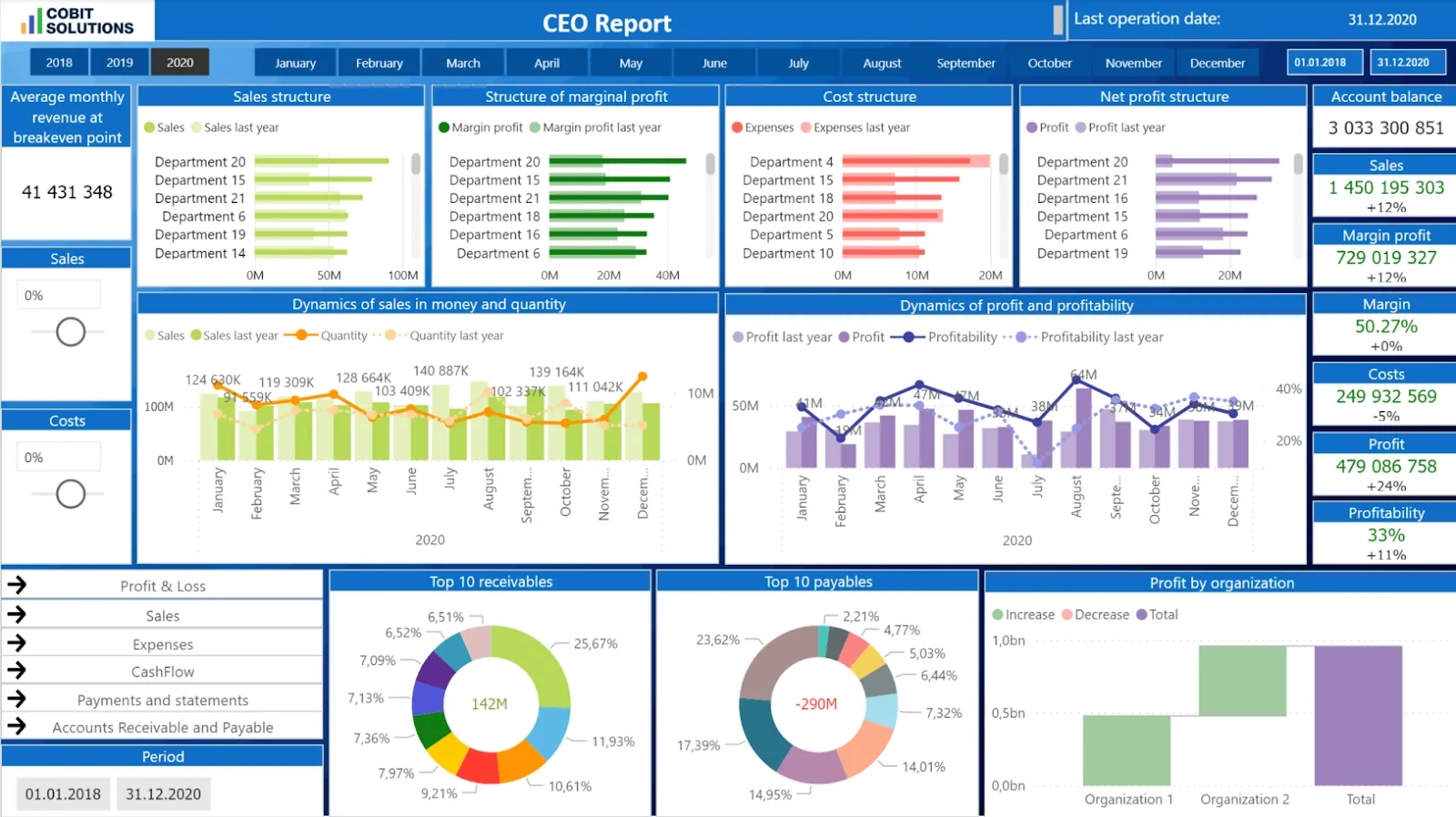
1. CEO Strategic Overview Dashboard

Best For: High-level strategic alignment for Chief Executive Officers.

A CEO Strategic Overview Dashboard is like the mission control of your enterprise.

It measures company-wide KPIs, such as:

  • Revenue Growth
  • Profit Margin
  • Customer Satisfaction
  • Market Share

And more!

Source

What Data Do You Need for a CEO Strategic Overview Dashboard?

To create your CEO Strategic Overview Dashboard, you’ll need:

  • Financial Reports
  • CRM Data
  • Operational Metrics
  • Market Analytics

Which Data Visualization Tool is the Best for Making CEO Strategic Overview Dashboards?

From what I’ve seen, the best platforms for making CEO Strategic Overview Dashboards are Domo for enterprise-level needs or Microsoft Power BI for SMEs and startups.

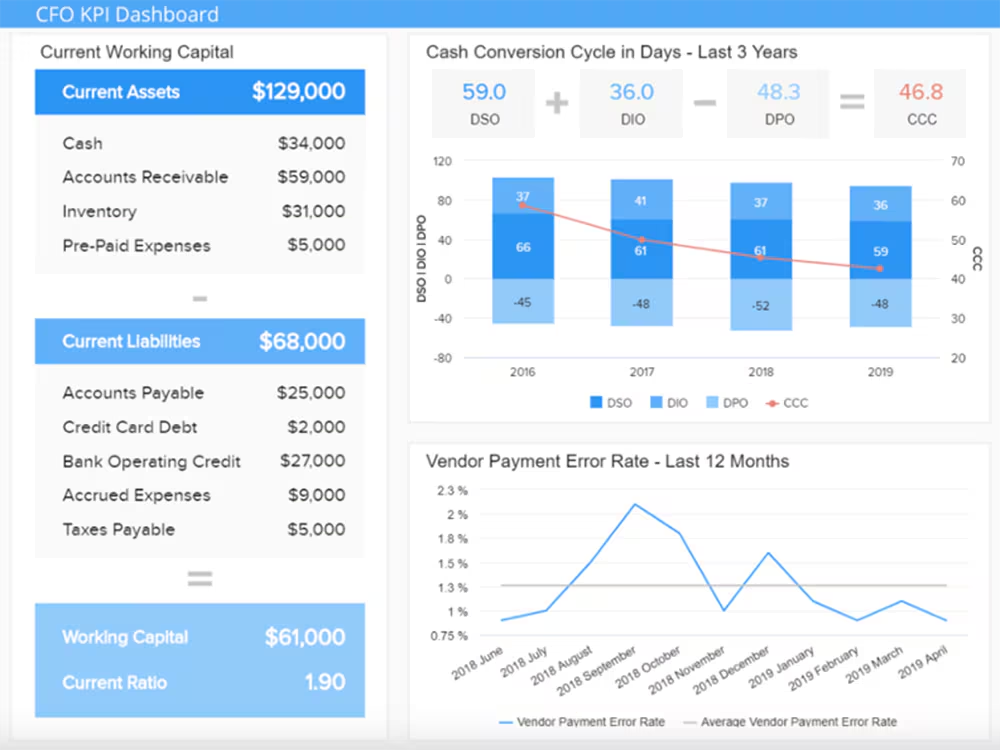
2. CFO Financial Health Dashboard

Best For: Financial oversight and forecasting.

The CFO Financial Health Dashboard helps you break down the underlying numbers that drive profitability. They measure KPIs like:

  • Cash Flow
  • Budget vs. Actual Expenses
  • Debt-to-Equity Ratio
  • EBITDA

Source

What Data Do You Need for a CFO Financial Health Dashboard?

This dashboard requires limited but very structured data that you can get from:

  • ERPs
  • Accounting Software like QuickBooks or SAP
  • Bank Statements

Which Data Visualization Tool is the Best for Making CFO Financial Health Dashboards?

CFO Financial Health Dashboards require robust data visualization tools. So, you might want to check out Tableau or Power BI for advanced financial modeling. Alternatively, if you’re operating Zoho and using their accounting software, Zoho Analytics is also an SMB-friendly option.

Also Read: Best Examples of Good Power BI Financial Dashboards

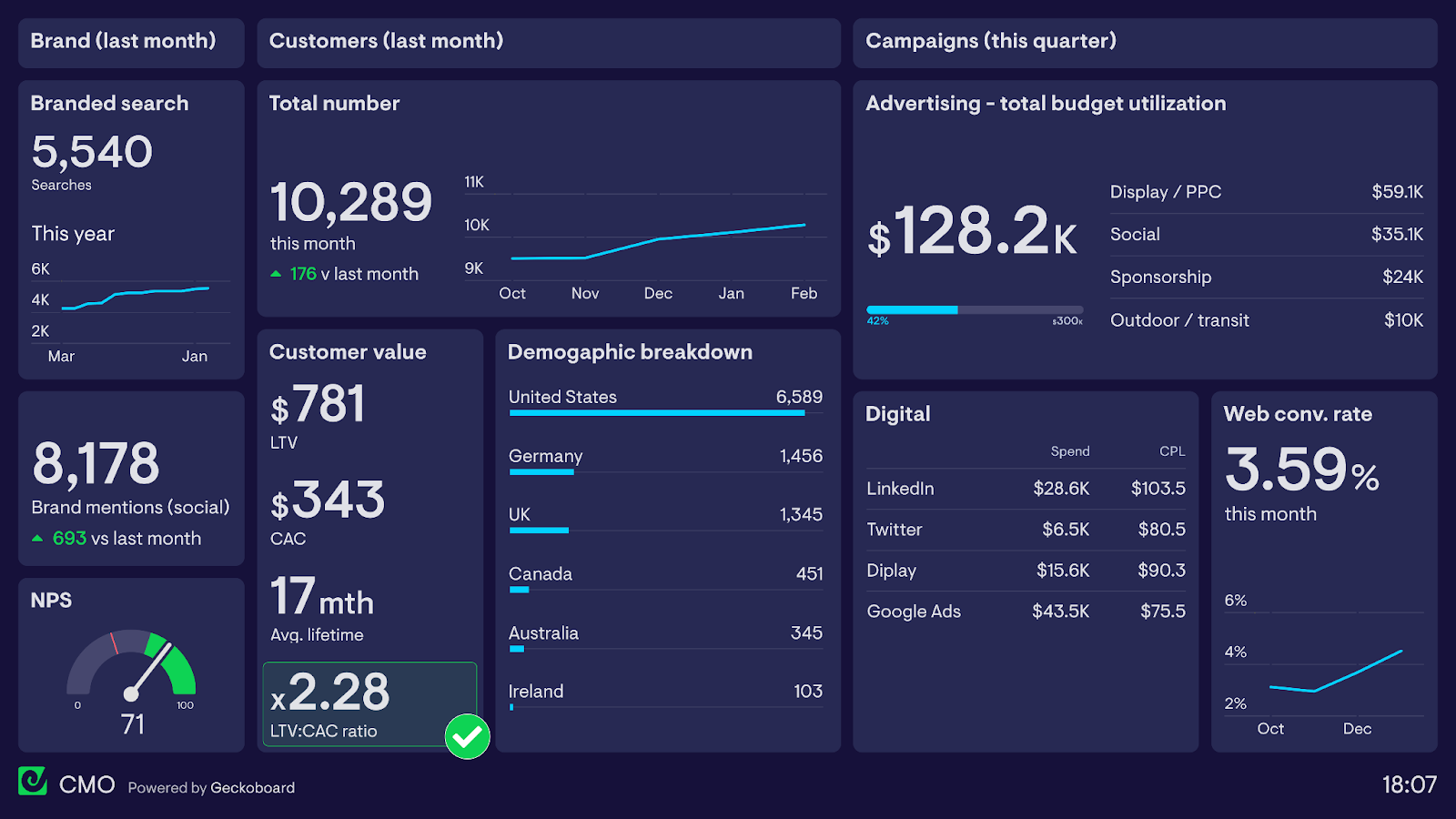
3. CMO Marketing Performance Dashboard

Best For: For CMOs who want to optimize marketing spend and engagement.

The CMO Marketing Performance Dashboard is designed to help you understand whether your marketing campaigns are working as intended. They measure KPIs like:

  • ROI on Marketing Spend
  • Customer Acquisition Cost
  • Conversion Rates
  • MQLs and SQLs

Plus, you can also create region- or market-specific reports for detailed breakdowns.

Source

What Data Do You Need for a CMO Marketing Performance Dashboard?

Here’s everything you need to create your own CMO Marketing Performance Dashboard:

  • Google Analytics
  • CRM Data from HubSpot or Salesforce
  • Ad Data from Meta, Google, Yelp, etc.

Which Data Visualization Tool is the Best for Making CMO Marketing Performance Dashboards?

In my experience, Google Looker Studio is a great free tool for creating CMO Marketing Performance Dashboards. They also integrate very well with Google Analytics and Ads.

If you want real-time tracking of marketing metrics, I suggest exploring Klipfolio!

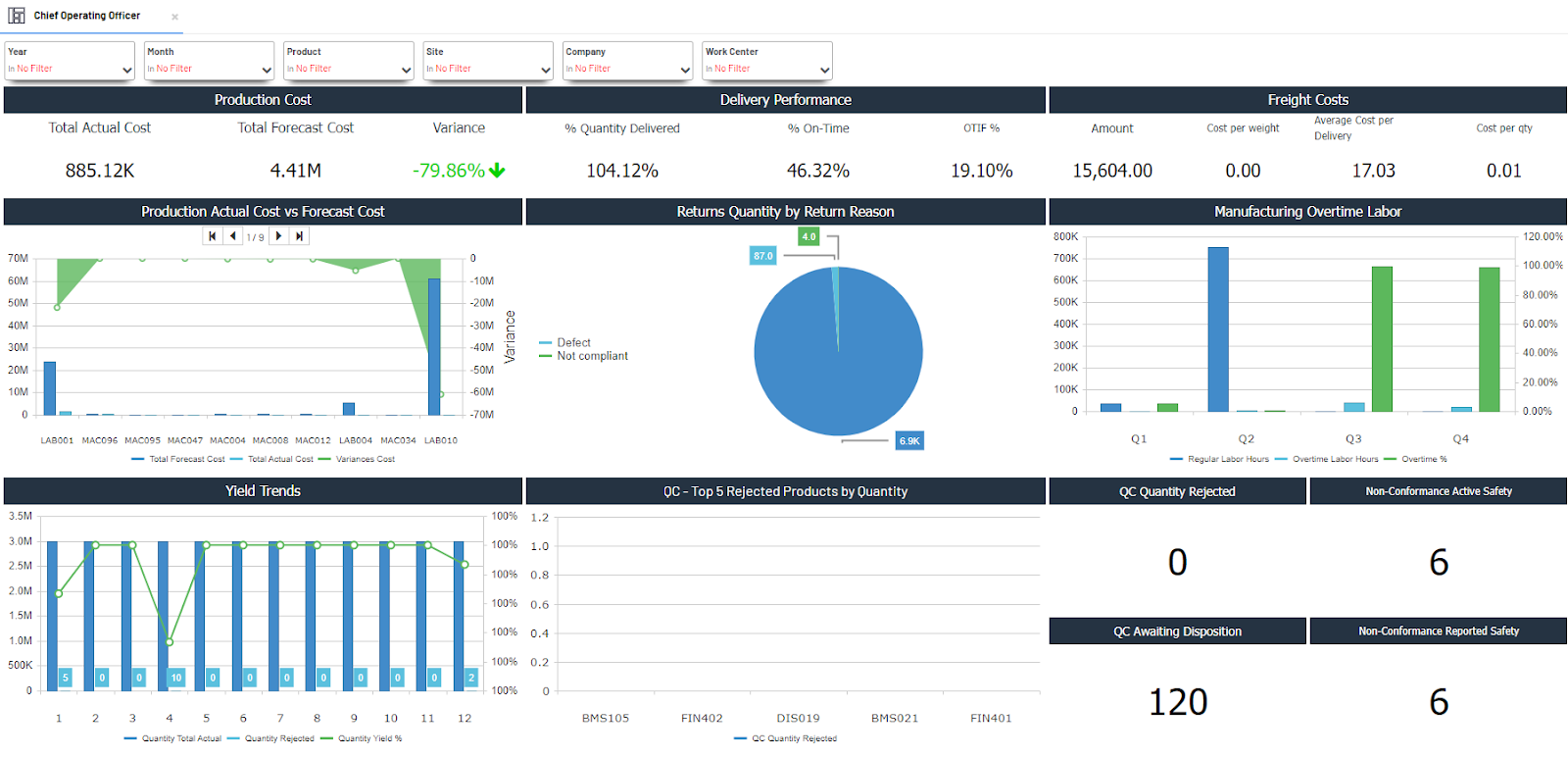
4. COO Operational Efficiency Dashboard

Best For: COOs of manufacturing to streamline workflows and promote collaboration.

A COO Operational Efficiency Dashboard helps you visualize your production and operational workflows. They use KPIs like:

  • Production Cycle Time
  • Inventory Turnover
  • Average Supply Chain Delays
  • Employee Productivity

In short, COO Operational Efficiency Dashboards enable you to spot bottlenecks, optimize operations, and increase productivity.

Source

However, since a lot of operational data is often unstructured, you might want to work with an expert data visualization service provider to clean and structure your data for simple visualizations.

What Data Do You Need for a COO Operational Efficiency Dashboard?

To create a COO Operational Efficiency Dashboard, you’ll need:

  • ERP Data through platforms like SAP or Oracle
  • IoT sensors to track inventory and production
  • Warehouse or logistics management software

Which Data Visualization Tool is the Best for Making COO Operational Efficiency Dashboards?

The best COO Operational Efficiency Dashboards I’ve come across were all created with Sisense, which integrates well with IoT devices, or Power BI, which offers good operations analytics capabilities. 


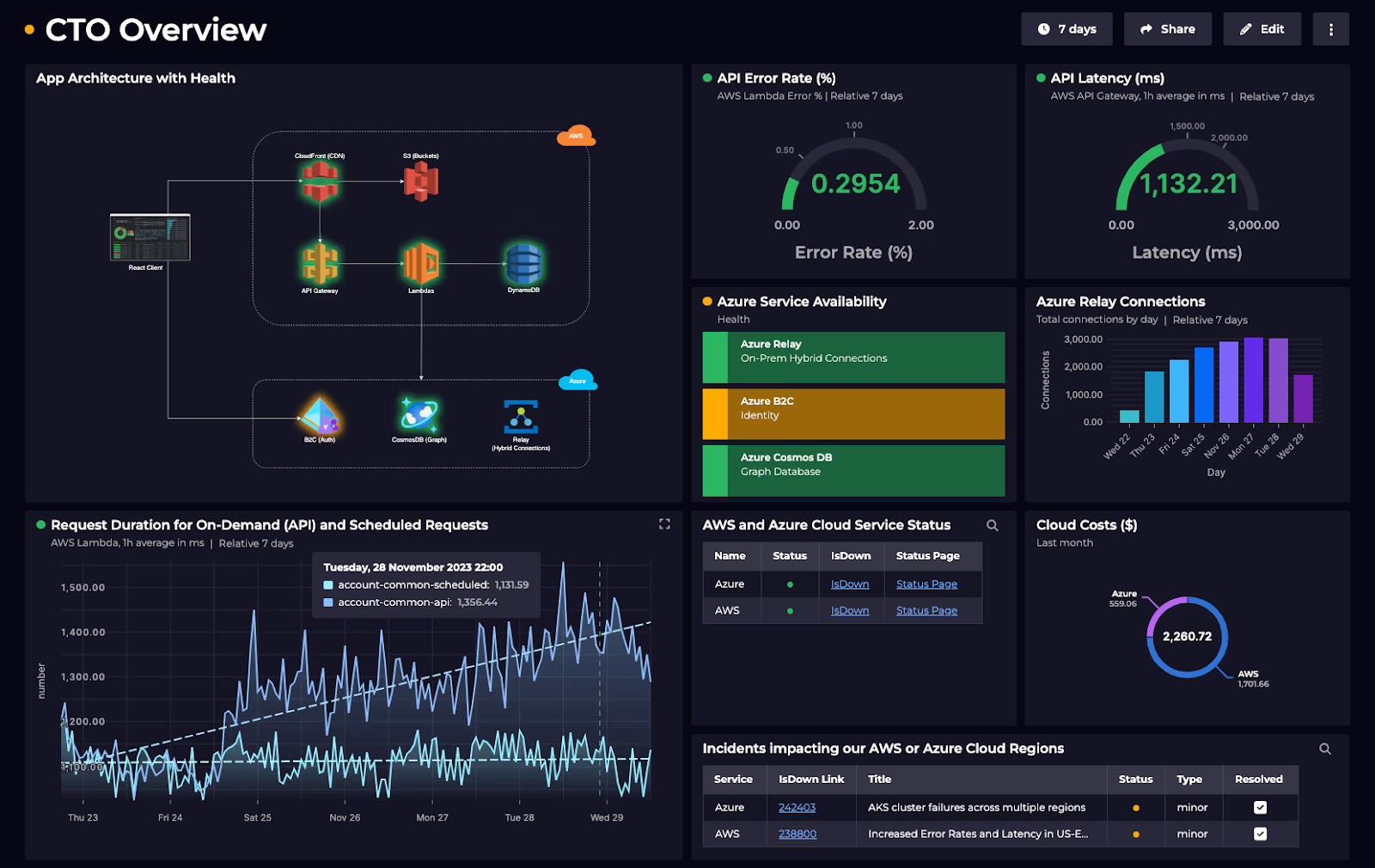
5. CTO Tech & IT Performance Dashboard

Best For: CTOs who want to measure tech scalability and ensure that the security protocols are working.

A CTO Tech & IT Performance Dashboard can be a critical report for your enterprise. It allows your IT team to track KPIs like:

  • System Uptime
  • Cybersecurity Threats
  • DevOps Efficiency
  • Cloud Costs

It’s also your best option to track the overall health of your digital infrastructure in one place.

Source

What Data Do You Need for a CTO Tech & IT Performance Dashboard?

To create your CTO Tech & IT Performance Dashboard, you’ll need:

  • IT logs through platforms like Splunk or Datadog.
  • Jira for tracking DevOps cycles
  • AWZ/Azure Cost Reports

Which Data Visualization Tool is the Best for Making CTO Tech & IT Performance Dashboards?

Grafana is a great platform for making CTO Tech & IT Performance Dashboards because it offers real-time monitoring. I would also recommend ThoughtSpot if you want to get AI-driven insights into your digital infrastructure.


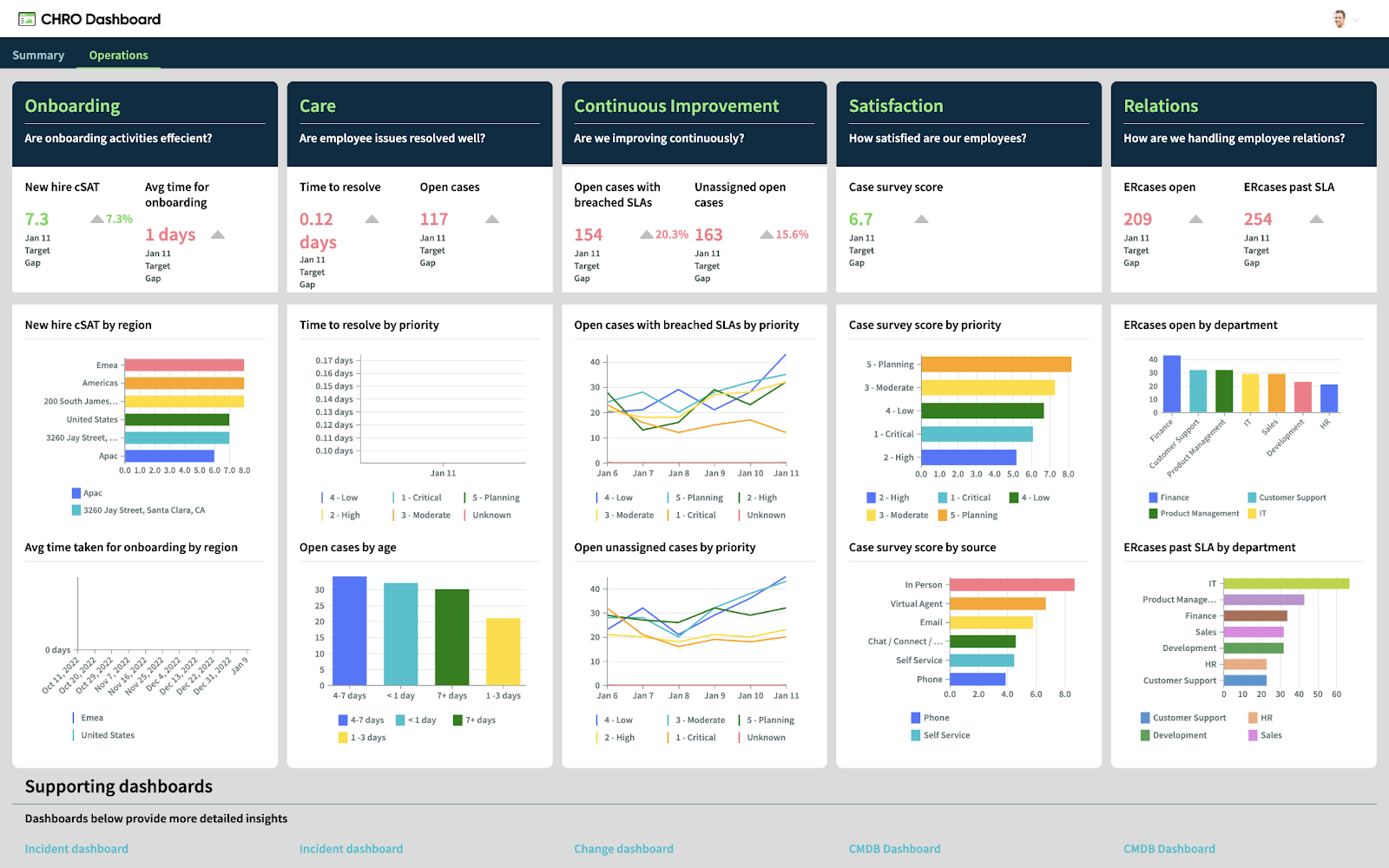
6. CHRO Talent Management Dashboard

Best For: Human resource executives who want detailed insights for workforce planning.

If you’re noticing a high churn rate or mounting hiring costs, what you need is a CHRO Talent Management Dashboard. It integrates with HR management and hiring platforms, measuring the following KPIs:

  • Employee Turnover
  • Training TOI
  • Time-to-Hire

You can even use it to understand the skillset vs. requirements for your current workforce, so you know what profiles to hire in the next cycle!

What Data Do You Need for a CHRO Talent Management Dashboard?

To create your CHRO Talent Management Dashboard, you’ll need: 

  • HR Software data from platforms like BambooHR or Workday
  • Past Performance Reviews
  • Payroll Data

You can also add any other quantitative metrics that you collect for your workforce, such as average daily productivity per employee. 

Source

Which Data Visualization Tool is the Best for Making CHRO Talent Management Dashboards?

From what I’ve seen, Zoho People is a good platform for making CHRO Talent Management Dashboards. However, Visier is also good for people analytics, whereas Tableau and Power BI are evergreen solutions for HR Dashboards!

Also Read: Best Tableau Dashboard Examples for Executive Reports

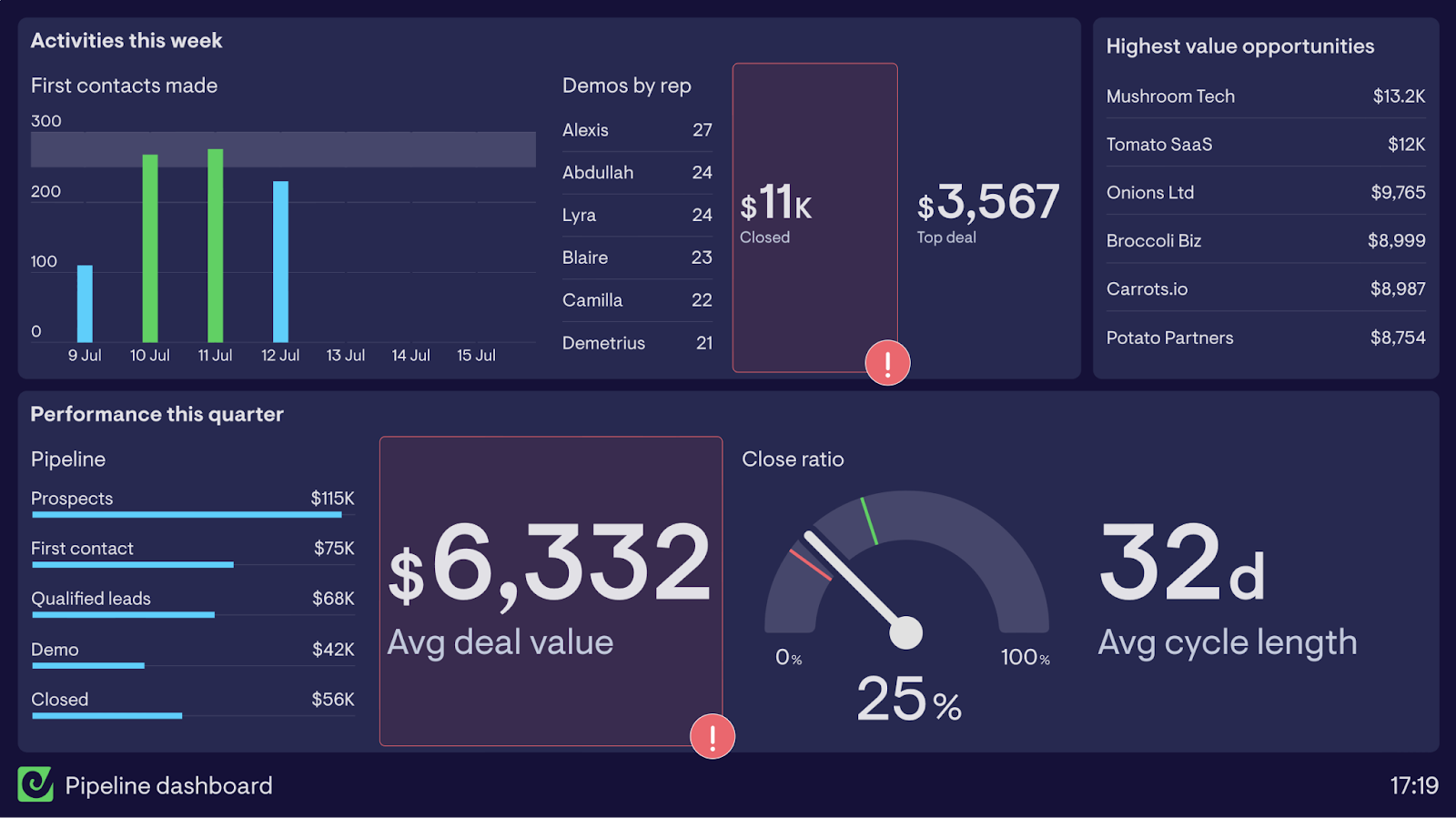
7. CRO Sales Pipeline Dashboard

Best For: Visualizing and analyzing revenue growth strategies.

One of the most important executive dashboards I’ve come across is the CRO Sales Pipeline Dashboard. It gives you a bird’s eye view of:

  • Deal Velocities
  • Win/Loss Rates
  • Quota Attainment
  • Churn Risk

It’s critical to your sales cycles, especially if you’re executing specific strategies like Account-based Marketing.

Source

What Data Do You Need for a CRO Sales Pipeline Dashboard?

To create a CRO Sales Pipeline Dashboard, you’ll need: 

  • CRM Data from platforms like Salesforce or Pipedrive
  • Sales Call Logs
  • Customer Contracts

You might also want to integrate your prospecting platform, like Apollo.io or ZoomInfo, for measuring your outreach efforts.

Which Data Visualization Tool is the Best for Making CRO Sales Pipeline Dashboards?

In my opinion, you don’t really need a separate platform for making Sales Pipeline Dashboards if you’re already using a good CRM like Salesforce or HubSpot.

However, you might want to use Tableau or Power BI if you’re already using one of them to create all your other dashboards. It’ll ensure uniformity and quick collaboration.

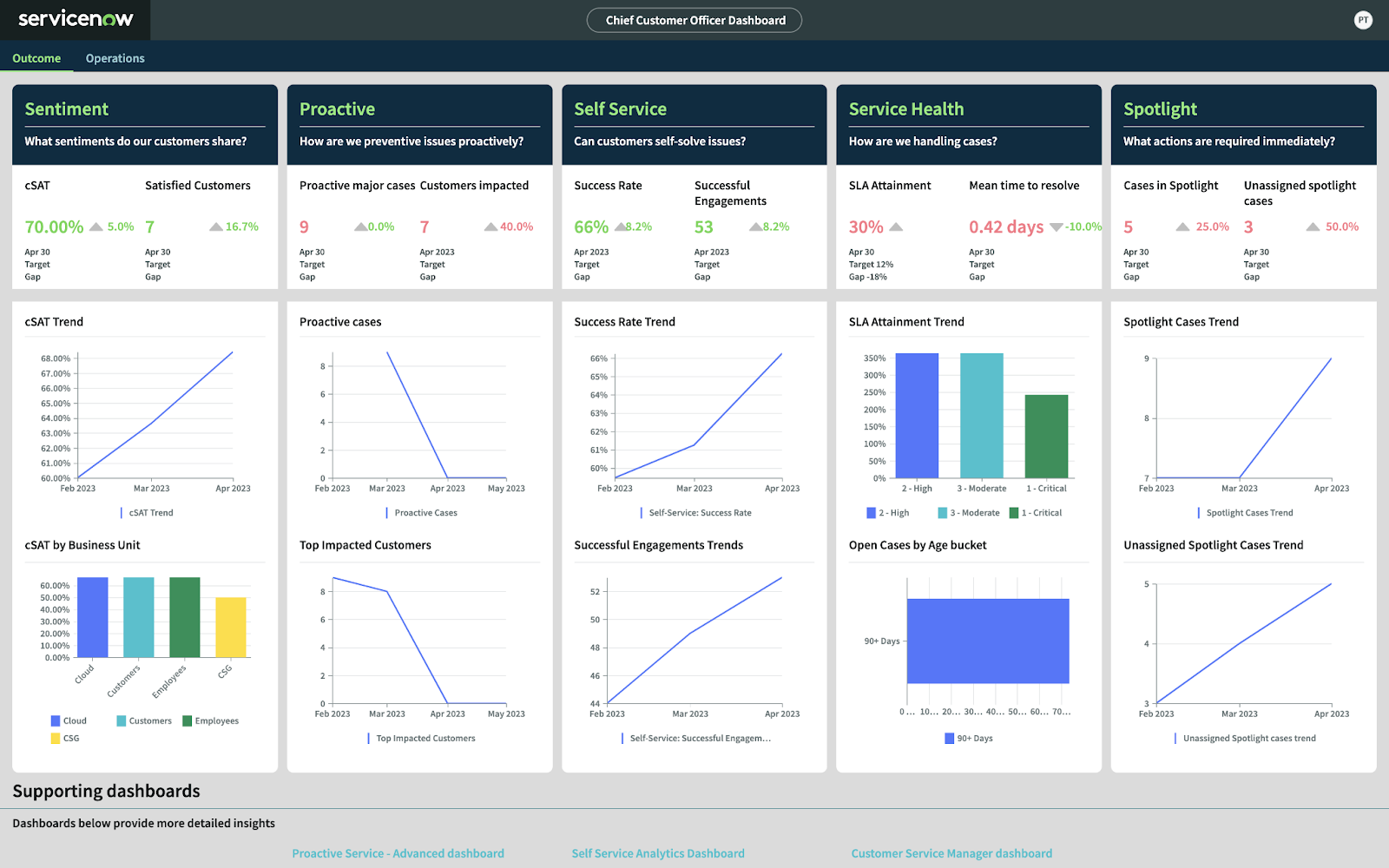
8. CCO Customer Success Dashboard

Best For: Improving customer retention rates for B2B enterprises.

If you’re running a high-value B2B operation where a few clients make up a huge share of your revenue, you absolutely need a Customer Success Dashboard. It’ll help you get an overview of: 

  • New Promoter Score
  • Churn Rate
  • Ticket Resolution Time

It’ll also tell you when and where you’re gaining or losing customers. Based on this, you can decide which strategies to double down on and which ones to modify. 

Source

What Data Do You Need for a CCO Customer Success Dashboard?

To create a Customer Success Dashboard, you’ll need:

  • Zendesk Data
  • Intercom Numbers
  • Survey Tools like SurveyMonkey
  • Ticket Resolution Stats

If you’ve recently implemented a chatbot on your website or app, you might also want its analytics to understand whether it’s improving your Cx workflows.

Which Platform is the Best for Making CCO Customer Success Dashboards?

I highly recommend checking out Gainsight, a customer success platform, for making Customer Success Dashboards.

Again, Tableau and Power BI are my standard recommendations if you’re already familiar with their ecosystems.

Pro Tip: You can hire data visualization services to help you structure and organize your scattered Cx data to create dashboards that deliver actionable insights.

9. Board of Directors Executive Reporting Dashboard

Best For: Board members who want to assess enterprise governance and maintain oversight.

I’ve saved one of the most important dashboards for last: the Board of Directors Executive Reporting Dashboard.

Its purpose is to provide a high-level overview to the most critical stakeholders of your enterprise and empower them to quickly grasp critical metrics like:

  • Revenue Growth
  • Risk Exposure
  • Shareholder Value

It’s a complete breakdown of the consolidated company-wide information that captures your company’s financial and operational health.

Source

What Data Do You Need for a Board of Directors Executive Reporting Dashboard?

To create a Board of Directors Executive Reporting Dashboard, you’ll need aggregated data from all departments, like finance, operations, sales, and others.

You might want to work with professional data engineers to create clean, structured datasets for building clean BoD Executive Summary Dashboards.

Which Data Visualization Tool is the Best for Making Board of Directors Executive Reporting Dashboards?

To create informative BoD Executive Reporting Dashboards, use heavy-duty data visualization tools like Domo or Power BI.

I’d recommend first trying Power BI, it’s easier to use and doesn’t compromise on data processing speed. However, if you find it too slow, you might want to explore Domo. 

Create Your Executive Dashboard with Augmented Tech Labs!

Executive dashboards can help you break down complex data and make smarter decisions through visual insights.

And through this blog, we’ve shown you the kind of executive dashboards you can create, along with what data to pull and the best tools that get the job done.

But if you’re thinking: “I don’t have time to test 5 platforms…I just need one solution that works!”

Don’t worry: That’s where we at Augmented Systems come in!

We offer data visualization services that take your messy spreadsheets, SaaS tools, and legacy systems and turn them into clean dashboards that tell you exactly what to do next.

Think of us as your executive dashboard engineers: we do all the heavy lifting, from data collection and cleaning to report creation and sharing, so you can focus on what matters most: making profitable moves that drive growth.

Connect with today and start making better decisions for tomorrow!

Executive Dashboard Examples: FAQs

1. What is an executive dashboard, and why do I need one?

An executive dashboard is a real-time, visual snapshot of your company’s most critical metrics, like revenue, customer satisfaction, or operational efficiency. From what I’ve seen, successful executives use these dashboards to spot trends, avoid risks, and make faster decisions without digging through spreadsheets. Think of it as your business’s GPS, guiding you toward growth.

2. What are the key features of a good executive dashboard?

I’ve noticed that all good Executive Dashboards have the following features in common:

  • Live data updates without any outdated numbers.
  • Role-specific KPIs, such as CFOs track cash flow and CMOs monitor ad spend.
  • Interactive charts and visuals for a simple breakdown of complex data.
  • Multi-platform integration so you can pull data from CRMs, ERPs, and other sources.
  • Shareability to instantly collaborate with key decision-makers.

I also suggest using expert data visualization services to create clean dashboards without investing too much time or resources.

3. Which executive dashboard tools are the best?

Based on my experience, I recommend the following Executive Dashboard platforms:

  • Power BI: Best for Microsoft users.
  • Tableau: Ideal for deep financial analysis.
  • Domo: For enterprise-grade requirements.
  • Google Looker Studio: A free tool for marketing teams.
  • Klipfolio: Great for real-time sales/marketing dashboards.

4. How do I build an executive dashboard for my role?

Here’s my step-by-step approach to building an Executive Dashboard for your role:

  1. Pick your KPIs: CEOs need revenue growth; CTOs track system uptime.
  2. Gather data sources: CRM, accounting software, HR tools.
  3. Choose a platform: I suggest Power BI for beginners, Tableau for complex data.
  4. Design visuals: Bar graphs for comparisons, Line charts for trends.
  5. Share with stakeholders: Use built-in collaboration features for instant sharing.

5. Can executive dashboards improve decision-making?

Absolutely! I’ve seen companies cut reporting time by 80% and boost revenue by 15–20% just by using dashboards. For example:

  • A CFO dashboard can flag cash flow issues before they escalate.
  • A CMO dashboard reveals which ads drive the most ROI.
  • A COO dashboard identifies production bottlenecks in minutes.
Categories
Blog Data Visualization

Tableau vs MicroStrategy: Which One is Better?

Struggling to choose between Tableau and MicroStrategy?

You’re not alone!

After all, both BI and data visualization tools have their own strengths and weaknesses, as well as different use cases.

But when you have so many features to compare, deciding between the two can be frustrating…

Don’t worry: in this blog, I’m going to help you eliminate your decision fatigue and help you pick the perfect tool for your data goals.

I’ll break down key differences, pros and cons, and where each tool excels in the world of BI.

Let’s dive in!

Tableau vs MicroStrategy: Table of Contents

  • Tableau vs MicroStrategy Comparison Table
  • What is Tableau?
  • What is MicroStrategy?
  • Tableau vs MicroStrategy: Key Differences
  • Choose Your BI Platform!
  • Tableau vs MicroStrategy: FAQs

Tableau vs MicroStrategy Comparison Table

Feature

Tableau

MicroStrategy

Ease of Use

Drag & Drop, User-Friendly

Steeper Learning Curve, IT-Heavy

Data Visualizations

Vibrant, interactive dashboards

Pixel-perfect, structured reports

ETL and Integrations

Needs external tools (Alteryx)

Built-in ETL, deep ERP/CRM ties

Scalability

Millions of rows (mid-sized)

Billions+ rows (enterprise)

Mobile and Offline

Basic offline sync

Full offline + barcode scanning

Advanced Analytics

Basic forecasting (Ask Data)

HyperIntelligence, predictive ML

Pricing

Transparent tiers ($75+/user)

Custom enterprise pricing

Best For

Startups, SMBs, and visual storytelling

Large enterprises, regulated industries

Not happy with MicroStrategy?

Check out our detailed comparison of Power BI vs Tableau to see if it suits your needs better.

What is Tableau?

Tableau is a user-friendly business intelligence platform from Salesforce.

Its main selling point is that it helps you tell stories based on your data sets through vibrant visuals.

Tableau should be your go-to BI platform if you’re already using Salesforce as your CRM platform.

Tableau Features

Here’s what you get with Tableau:

  • AI-powered insights into customer trends.
  • Simple but powerful data analysis.
  • Interactive dashboards you can create quickly.

Check out our complete guide to building interactive dashboards in Tableau to create immersive, visual data stories!

Let me quickly tell you the pros and cons of Tableau:

Pros of Tableau

  • You can drag and drop data fields to create dashboards.
  • Comes with strong community support and resources.
  • Its flexible pricing tiers make it suitable for individuals as well as enterprises.

Cons of Tableau

  • You’ll have to pay a lot for the advanced features.
  • Offers limited data pre-processing and governance capabilities.
  • You might notice performance issues with very large datasets.

Tableau Pricing

Tableau offers two different types of subscriptions: Tableau and Tableau Enterprise.

The Tableau subscription is tailored to the needs of individuals, SMEs, and startups. The entry plan, Tableau Explorer, costs $75 (per month, billed annually).

As the name suggests, Tableau Enterprise is designed to meet enterprise-grade requirements. Enterprise Explorer, the start plan, will set you back $115 (per month, billed annually).

What is MicroStrategy?

MicroStrategy, now known as Strategy from February 2025, is an enterprise-grade business intelligence platform.

It’s known for its strong data governance and scalability. Simply put, if you’re a part of a large organization and need to handle large datasets, MicroStrategy should be your go-to BI platform.

However, you might need the help of advanced data visualization services or an in-house IT team to make the most of MicroStrategy’s advanced features. 

MicroStrategy Features

Here’s what you can expect from MicroStrategy:

  • Advanced querying for unlocking insights from structured data.
  • Robust security and embedded analytics features.
  • Out-of-the-box predictive modeling and deep analytics.

Let’s take a quick look at MicroStrategy’s pros and cons:

Pros of MicroStrategy

  • The mobile and offline features are very strong.
  • Hyperintelligence helps you integrate analysis with your native CRM or email client.
  • You get enterprise-grade security and scalability.

Cons of MicroStrategy

  • The licensing is both expensive and complex.
  • The learning curve is steep compared to Tableau.
  • You might find the UI slightly outdated compared to other BI platforms.

MicroStrategy’s Pricing

Strategy offers three different pricing plans for its BI platform:

  • Standard
  • Enterprise
  • Government

However, all three come with custom pricing. Plus, the Enterprise and Government plans offer some tailored features that aren’t available with the Standard plan.

Tableau vs MicroStrategy: Key Differences

In this section, I’ve compared Tableau and MicroStrategy across five key aspects:

1. Ease of Use

Tableau

Beginner-friendly business intelligence platform with a drag-and-drop interface.

All you have to do is select a data pane, drop it into Tableau’s shelf, and you’re good to go! If you’re just starting out with data analysis and need a BI platform that doesn’t require coding skills, this one’s for you!

MicroStrategy

Strategy is definitely the more complicated of the two BI platforms.

However, it also allows you to analyze complex and large datasets. If your organization is backed by either IT support or dedicated analysts, choose MicroStrategy.

2. Data Visualization

Tableau

If creating compelling narratives is your priority, you can’t go wrong with Tableau.

With it, you can create heat maps, geo-visualizations, charts, graphs, and more for your data. Plus, you can customize your visualizations with a range of features like marks, colors, labels, and fonts.

MicroStrategy

While MicroStrategy also lets you visualize your data, its visualizations are more traditional.

Simply put, it helps visualize structured data and pixel-perfect dashboards (called “Dossiers”) for enterprise-grade requirements. And while MicroStrategy also allows you to customize your visualizations, it also offers more advanced options through scripting and SDKs.

3. Connectivity and Integrations

Tableau

Tableau offers a diverse range of lightweight integrations.

So, you can easily connect it with Excel, Sheets, Salesforce, SQL databases, and even Google Analytics. However, if you want to perform ETL (Extract-Transform-Load) operations, you’ll need external tools like Tableau Prep or Alteryx.

MicroStrategy

Strategy offers robust and deep integrations suited to heavy ETL operations.

You can integrate it with ERPs, such as Oracle, CRMs like Salesforce, or even legacy systems that have their own connectors. Plus, Microstrategy is optimized for handling complex queries: you can use it to execute SQL queries and federated analytics without any drop in performance!

4. Scalability

Tableau

Tableau scales very well for mid-sized enterprises and can handle millions of rows without glitches.

However, I’ve noticed that it’s not as good for a billion+ rows. So, it may cause performance bottlenecks for huge datasets. Plus, it’s not highly suited to handling granular data for ultra-regulated industries like banking and finance, where you need to analyze financial transactions.

MicroStrategy

Unlike Tableau, MicroStrategy is optimized for a billion+ rows.

On top of this, it gives you centralized governance abilities with role-based access control for sensitive data. Plus, Microstrategy complies with GDPR and HIPAA regulations, making it ideal for analyzing healthcare and finance data.

5. Mobile and Cloud Support

Tableau

Tableau offers iOS and Android apps you can use for offline access.

It also automatically syncs when you’re reconnected to the internet. Tableau also offers its own SaaS platform, Tableau Cloud, which you can use for quickly sharing information and collaborating with your team. However, I’ve heard many users complaining that Tableau struggles with frequent refreshes.

MicroStrategy

Strategy offers an advanced mobile BI platform that offers fully dashboard capabilities even in offline mode.

Strategy also offers a QR code scanning functionality, which makes it highly suited to inventory management and retail operations. Plus, you can use the customizable SDKs for mobile analytics and hybrid deployments for Azure and AWS integration. However, MicroStrategy’s mobile app definitely feels less intuitive compared to Tableau’s.

Tableau vs MicroStrategy: Choose Your BI Platform!

Through this blog, I’ve shown you how Tableau and Microstrategy differ from each other.

While Tableau is the leader among data visualization tools, MicroStrategy’s features make it ideal for enterprise-grade applications.

So, which one should you choose?

In my opinion, you should go for Tableau when you’re dealing with less than a billion rows of data, your priority is storytelling, and you want a more intuitive tool.

Go for MicroStrategy if you’re working with healthcare or finance data, you need advanced analytics, and you’re backed by a strong in-house IT team.

If you’re still not sure which tool is right for you, the best thing is to leverage data visualization services to help you make an informed decision.

And that’s exactly what we at Augmented Systems offer!

Whether you’re just starting out or looking for a robust solution for your data management needs, we’ll help you evaluate your requirements and tell you which tool is right for your operations.

Plus, we offer end-to-end data visualization and BI services to help you gain actionable insights, analyze trends, and anticipate problems & opportunities!

Connect with us, and start making the most of your data right away…

Tableau vs MicroStrategy: FAQs

1. Which is better for beginners: Tableau vs MicroStrategy?

From what I’ve seen, Tableau is the best of all data visualization tools for beginners. Its drag-and-drop interface and vast community resources make it easy to learn. On the other hand, you’ll need either technical expertise + IT support or data visualization services to use MicroStrategy.

2. Which is better at handling big data: Tableau vs MicroStrategy?

After working with both Tableau and MicroStrategy, I’ve noticed that while Tableau works well with millions of rows, it often struggles with billion+ rows.  So, Microstrategy is better at handling big data: it is built for massive datasets and complex queries.

3. Does MicroStrategy support real-time data analysis?

Absolutely: MicroStrategy’s HyperIntelligence embeds real-time insights into apps like Outlook or Salesforce. Tableau relies more on scheduled refreshes, and I’ve often noticed that users have complained about the frequent refreshes disrupting their workflow.

4. Which tool is more cost-effective: Tableau vs MicroStrategy?

Tableau is the more cost-effective of the two data visualization tools. It offers clear, transparent pricing ($15–$75/user/month), whereas MicroStrategy’s custom enterprise plans are significantly more expensive (and often require setup fees!).

5. Is MicroStrategy’s mobile app better than Tableau’s?

Yes, MicroStrategy’s mobile app is better than Tableau’s, especially for offline access. This is because Microstrategy supports full dashboard use offline as well as barcode scanning. On the other hand, Tableau’s mobile app is simpler and more intuitive, but is view-only in offline mode.

Categories
Blog Data Visualization

9 Common Power BI Issues and How to Fix Them

Power BI is one of the best business intelligence tools on the market.

But, it’s not completely flawless!

Even after continuous updates, a lot of Power BI issues are frustrating its users:

  • Slow data loading 
  • Failing data refreshes 
  • Inconsistent visual outputs

All these problems can derail your decision-making and productivity pretty quickly!

Let’s say your report takes 20 seconds to load. That delay, multiplied across hundreds of users and daily refresh cycles, turns into lost hours.

And that’s not what you signed up for!

Thankfully, while Power BI has its issues, there are also tried-and-tested solutions available to address them.

So, in this blog, I’ll walk you through 9 common Power BI issues and how to fix them like a pro. 

Common Power BI Issues and How to Fix Them: Table of Contents

  • What are the common Power BI issues, and how to solve them?
  • Power BI issues? Let the experts handle it
  • 9 common Power BI issues and how to fix them: FAQS

What are the Common Power BI Issues and How to Solve Them? 

Here, I’ll discuss with you some of the most commonly occurring Power BI issues and the strategies you can take to solve them.

First, here’s a list of the issues that users may face:


1. Slow Reports or Dashboard 

2. Data Refresh Failure

3. Broken or Incorrect DAX Measures

4. Visuals Not Displaying Correctly

5. Too Many Relationships Slowing Model

6. File Size Is Too Large

7. Mismanaged Row-Level Security (RLS) 

8. Gateway Configuration Problems

9. Permissions Mismanagement


Note: If you are unable to resolve these issues after several attempts, you may want to consider consulting with experts who provide data visualization services.

Issue 1: Slow Reports or Dashboard

Suppose you’ve built a visually rich dashboard immediately after hitting the publish button, but it keeps loading and doesn’t end.

This is where you or any other user may feel compelled to abandon the report, as it not only affects productivity but also undercuts the value of real-time analytics.

Causes of a slowed-down report or dashboard

There’s no single culprit behind Power BI performance issues. Some of the most frequent technical reasons include:

  1. Large Datasets: Heavy data loads and complex transformations can slow performance. 
  2. Inefficient Data Model: Poorly structured models with redundant or complex relationships reduce speed. 
  3. Complex DAX Calculations: Heavy DAX formulas can bottleneck performance. 
  4. Too Many Visuals/Filters: Overloading reports with visuals increases processing time.

How to fix the issue?

Here’s how to fix a slow Power BI dashboard and bring your performance back on track:

1. Use Performance Analyzer: Your first step should be to utilize the built-in Performance Analyzer (View > Performance Analyzer) to identify which visuals or DAX queries are causing slowdowns.

2. Reduce Visuals Per Page: Next, consider keeping fewer than 10 visuals per page. Use bookmarks, drill-throughs, or tab-based navigation to logically split content.

3. Optimize DAX Measures: Use VAR, SUMMARIZE COLUMNS, and measure branching to simplify logic and reduce compute time.

4. Use Aggregation Tables: Summarize large fact tables by key dimensions, such as Month or Region, to reduce load time.

Issue 2: Data Refresh Failures

Everything might look alright when you first open your Power BI report. But try refreshing it, and then it hangs. Or throws some odd error.

Honestly, this Power BI error has annoyed me multiple times!

The worst part? The data doesn’t change. It just sits there, stale, still showing yesterday’s numbers when you’re trying to plan today.

That’s not something you want happening before a client call or a team review.

Causes of Data Refresh Failures

Power BI needs to connect to your data source (such as Excel, SQL, or SharePoint) to refresh the data. But sometimes:

  • Maybe the data file was moved, renamed, or deleted.
  • Your login expired or changed.
  • There’s a network issue or gateway problem.
  • The source data has too many rows and takes too long to load.
  • A change in the data structure (like a renamed column) breaks the connection.

How to fix the issue?

The data refresh failure issue can be resolved using the following methods:

  • Go to Power BI Service > Refresh History to see the error message.
  • Reconnect or re-enter your credentials.
  • If using a data gateway, make sure it’s installed and running.
  • Remove any extra columns or rows you don’t need.
  • Avoid complex steps in Power Query that may block refresh.

Issue 3: Broken or Incorrect DAX Measures

You’re building a report, but some numbers just don’t add up. Perhaps your totals appear significantly off, or the logic works in one visual but not in another. This usually means that your DAX (Data Analysis Expressions) formulas are either incorrect or not performing as expected.

DAX is the formula language that Power BI uses to calculate various functions, such as totals, averages, comparisons, and more. It’s similar to Excel formulas, but designed for data models.

Causes of Broken DAX Measures in a Power BI report or a dashboard

Here are a few common reasons why this happens:

  • Sometimes, your total doesn’t match what the visuals show, usually because the measure isn’t picking up filters correctly.
  • Perhaps you’re using the wrong function, such as dropping in SUM where SUMX would be more appropriate. Or placing CALCULATE somewhere, it doesn’t really work with the context.
  • The formula works fine for some visuals but fails when multiple filters are applied.
  • You’re using calculated columns instead of measures, or vice versa, when it’s not appropriate.

How to fix the issue?

  • Use Measures: Don’t use Calculated Columns; instead, use measures for dynamic results that change with filters.
  • Watch Your Filter Context: If your totals appear incorrect, your DAX may be ignoring filters. Use CALCULATE() to adjust filter behavior properly.
  • Use Quick Measures or DAX Studio: Power BI’s Quick Measures help beginners create common formulas. Install DAX Studio to test and debug complex logic.
  • Break Big Formulas into Smaller Ones: Split long DAX expressions into smaller, reusable pieces. It’s easier to read, test, and fix.

Issue 4: Visuals Not Displaying Correctly

Your Power BI report may display blank values, missing data, or fail to load as expected.

You might click on a slicer, and suddenly your visual disappears, or the numbers may look completely off.

Causes of Visuals Not Displaying Correctly

When building complex views, such as a Power BI financial dashboard, a single error can break an entire report page. It can happen if:

  • The column or field you used in the visual was renamed or deleted.
  • There’s no relationship between your tables.
  • Filters or slicers are removing all the data behind the scenes.
  • The visual is too complex and takes too long to load.

How to fix the issue?

Power BI visuals rely on clean data and strong connections, and you need to address these issues to ensure your charts work smoothly. Here’s how you can fix it:

  • Double-check that the fields used in the visual still exist in the data model.
  • Make sure your tables are properly connected with relationships.
  • Try removing filters one by one to see what’s causing the issue.
  • Simplify the visual or split it into smaller parts.

Issue 5: Too Many Relationships Slowing Model

Does your Power BI report feel slow? And, you’re not sure why? Probably, you’ve added all your tables, such as sales, customers, and products, and now the report takes longer to open or doesn’t respond quickly.

Causes of a Slowed-down Model

Power BI connects tables using relationships, just like links between spreadsheets. However, if you connect too many tables, Power BI struggles to figure out how to join all the data in real-time. It gets worse when:

  • You have many-to-many relationships.
  • You’ve used bidirectional filtering.
  • Some relationships are inactive or unnecessary.

How to fix the issue?

Here’s how you can make your reports faster and easier to work with:

  • Stick to a simple star schema: one big table (facts) in the middle, connected to smaller lookup tables (dimensions).
  • Avoid using too many relationships unless needed.
  • Turn off bidirectional filters unless you’re sure you need them.
  • Remove tables that aren’t used in your visuals.

Also read: The importance of the start schema in Power BI.

Issue 6: File Size Is Too Large

You’ve built a great report, but now the file size is huge. And now, it takes a long time to open, sometimes crashes, or may not even get uploaded.

You commonly encounter this type of issue in Power BI financial dashboards, where you often pull in large amounts of transactional or long-term financial data.

Why do Power BI Files Become Too Large for Processing?

Power BI files can become large when they contain excessive data. This often happens when you:

  • Load entire tables instead of just the needed columns.
  • Include high-detail data, like every single transaction.
  • Don’t filter out old or unused data.
  • Use unnecessary steps in Power Query that add to the file size.

How to fix the issue?

You need to keep your Power BI file light to make it work faster, and it becomes easier to share or publish the reports. These are the ways you can do it:

  • Load only the columns and rows you actually need.
  • Filter out old data that’s not important anymore.
  • Turn off “Enable load” in Power Query for helper tables.
  • Use summary tables instead of raw data if possible.

Issue 7: Mismanaged Row-Level Security (RLS)

You’ve set up a report where different users should see only their own data, such as regional managers seeing just their region.

But when users open the report, they either see everything or get no data at all.

Causes of Mismanaged Row-Level Security (RLS)

RLS is a Power BI feature that hides data based on who’s viewing the report. But it needs to be set up carefully. These are the common reasons why RLS fails:

  • The security rules were written incorrectly.
  • The user table isn’t connected to the rest of your data.
  • You forgot to test roles using “View As Role” in Power BI Desktop.
  • The report was shared without proper permissions.

How to fix the issue?

RLS works great when set up properly and keeps your data safe and personalized.

  • Go to Model View > Manage Roles and make sure the rules are correct.
  • Ensure the table with user data is related to your main data model.
  • Test roles using the “View As Role” option.
  • Use Dynamic RLS if different users need different views based on login.

Issue 8: Gateway Configuration Problems

Your data works fine in Power BI Desktop, but once you publish the report online, the data refresh fails, or Power BI says it can’t connect to the source. This is usually a gateway issue.

Causes of Gateway Configuration Problems

When Power BI connects to a data source stored on your computer, office server, or any location not in the cloud, it requires a tool called a data gateway.

It acts like a bridge between your data and the Power BI Service. The problems happen when the gateway:


  • Isn’t installed correctly.
  • Is offline or not running.
  • Uses the wrong data source settings.
  • Isn’t linked to the right user or permissions.

Pro Tip: If you are familiarizing yourself with Power BI and want to learn more about the data gateway, this guide will help you gain more knowledge.

How to fix the issue?

You can use the following methods to fix this issue:

  • Make sure the gateway is installed on a computer that’s always on and connected to the internet.
  • Keep the gateway updated regularly.
  • Check that the data source settings in Power BI Service match those in Power BI Desktop.
  • Use the Manage Gateways section to test and troubleshoot.

Issue 9: Permissions Mismanagement

You’ve shared your report, but users report that they can’t open it or view the data, or are receiving error messages.

On the other hand, someone may see data they shouldn’t. This is often due to the wrong permissions.

So, when you share a report, be it from Power BI Report Builder or desktop, you’ve got to be careful with permission settings.

Causes of Permissions Mismanagement

Here’s what usually goes wrong:

  • The report is shared, but the user doesn’t have access to the dataset.
  • The user doesn’t have access to the workspace.
  • You forgot to assign roles (like Viewer or Contributor).
  • Sensitive data is visible because Row-Level Security was not applied properly.

How to fix the issue?

Proper permissions keep your reports secure and your users happy, and here’s how you can maintain them:

  • Share reports using Power BI Apps or through workspace roles.
  • Make sure users have permission to both the report and the data source.
  • Use the viewer role for people who just need to see the report.
  • Always test with a non-admin user to check what they can access.

Power BI Issues? Let the Experts Handle It

No doubt that Power BI is one of the great data visualization tools out there, but let’s accept that it does come with its share of challenges.

The issues I discussed above can impact how your data is seen and used.

But if you follow the solutions that I mentioned above, you can effectively avoid them.

You may not need to handle it all by yourself if you connect with us.

Our team at Augmented Systems offers expert-led data visualization services and can help you:

  • With Power BI troubleshooting and audits
  • Fix the ongoing issues with the reports 
  • Build powerful dashboards that work flawlessly

Reach out to us today and make your Power BI work better, faster, and smarter!

9 Common Power BI Issues and How to Fix Them: FAQS

1. What are the challenges faced in Power BI?

Power BI users often face challenges like:

  • Slow reports
  • Data refresh issues
  • Broken visuals
  • Incorrect DAX formulas
  • Large file sizes
  • Permission problems

2. What causes Power BI data refresh failures?

Power BI data refresh failures can occur due to:

  • Missing files
  • Wrong credentials
  • Gateway issues
  • Network problems
  • Changes in the data source

3. How do you solve performance issues in Power BI?

You can solve the Power BI performance issues using these methods:

  • Reduce visuals per page
  • Use a proper star schema
  • Write efficient DAX
  • Enable incremental refresh
  • Avoid heavy data loads

4. When should I consider expert help for Power BI issues?

You must consider expert help for Power BI issues if:

  • The problems keep coming back
  • Reports run slow despite fixes
  • You’re unsure about DAX, gateways, or RLS
Categories
Blog Data Visualization

Tableau vs QuickSight: Which BI Tool Wins in 2025?

The business landscape is getting saturated with data.

If you want to make a difference in your business with such massive, unstructured and complex data, you need to visualize and act well on the data. 

A business intelligence (BI) tool can turn these raw datasets into actionable insights.

You’ll find various data visualization tools available in the market, but the question is, which one should you use? 

And, this is where the Tableau vs Quicksight debate starts. 

  • Tableau offers visual analytics and a comprehensive range of data connectors.
  • Amazon QuickSight also visualizes complex data, but through a serverless architecture and seamless AWS integration.

So, how do you decide which one is best for your business? 

To help you with that, my team and I conducted thorough research on both tools, and we found many important things.

In this blog, I’ll share everything we found from our study. 

Tableau vs QuickSight: Table of Contents 

  • TL;DR: Tableau vs QuickSight: Table of differences
  • What is Tableau?
  • What is Amazon QuickSight?
  • Tableau vs QuickSight: Pricing models 
  • Tableau vs QuickSight: Integration capabilities
  • Tableau vs QuickSight: Performance and scalability
  • Tableau vs QuickSight: Security and compliance
  • Tableau vs QuickSight: Use Cases
  • Let’s Find the BI Tool That Delivers Results!
  • Tableau vs QuickSight: FAQs

TL;DR: Tableau vs QuickSight: Table of Differences

Tableau: If you want detailed visuals, full control over your dashboards, and a powerful tool that can handle complex data from just about anywhere, this is the tool for you.

Quicksight: You can go for Quicksight if your business already runs on AWS and you need a fast, low-maintenance way to gain insights from your data.

For more clarity, let me compare their features for you:

Feature 

Tableau

Amazon QuickSight

Data Connectivity

Connects to 100+ sources and local files

Deep integration with AWS data sources and external databases

Data Processing Engine

In-memory engine with live and extract modes

SPICE (Super-fast, Parallel, In-memory Calculation Engine) for high-speed querying at scale

Visualization Flexibility

Highly customizable dashboards with advanced charts, animations, and interactive filters

Interactive dashboards with auto-suggested visuals, but the custom options are fewer compared to Tableau

AI and ML Capabilities

Includes Explain Data, Ask Data, and Einstein Discovery

Native ML-powered features like Forecasting, Anomaly Detection, and Auto-Narratives

User Interface

Feature-rich, but with a steeper learning curve

Simplified UI for faster adoption and with minimal training 

Data Preparation

Tableau Prep offers visual ETL workflows for cleaning and transforming data

Basic ETL is built-in and relies on upstream AWS services for advanced data transformation

Security and Compliance

Granular permission control, SSO, data encryption, and governance tools for enterprise compliance

AWS-native security, IAM policies, VPC support, and compliance with major standards like HIPAA and GDPR

What is Tableau?

Tableau is a data visualization tool owned by Salesforce, offering a complete suite of products. 

Tableau Dashboard example

With this tool, you can:

  • Connect to various data sources 
  • Create interactive visualizations and dashboards 
  • Share it with other workspaces

Check out what users are liking and disliking about Tableau


Top 5 Features of Tableau

Businesses of different industries find the Tableau features and benefits quite impressive, and I am going to discuss the top five features right here:

1. Data Connectivity: You can connect to multiple data sources such as Snowflake, AWS, Azure, Salesforce, and on-premises databases.

2. Interactive Visualizations: Tableau dashboards can be customized by adding filters, drop-down menus, and other elements to make them dynamic.

3. Collaboration and Sharing: The dashboards can be published and shared securely through Tableau Server, Cloud, or Slack integration.

4. AI-Powered Insights: Comes with built-in AI tools for automated insights using natural language queries.

5. Data Preparation: With the Tableau Prep Builder, you can clean, combine, and shape the data for clean and interactive visualization.

Also Read: Our detailed Tableau features comparison, which provides a comprehensive breakdown of its capabilities, helping you make a well-informed choice.

Tableau’s Range of Products

Tableau offers a product ecosystem that caters to individual analysts as well as enterprise teams. 

  • Tableau Desktop: Tableau’s flagship tool is used for creating visualizations, dashboards, and analytics models for free.
  • Tableau Cloud: A SaaS version of Tableau where you can publish and access dashboards from anywhere.
  • Tableau Server: Highly preferred by businesses that need private cloud deployment with full control over user management and accessibility.
  • Tableau Prep Builder: You can clean, combine and shape any dataset in this tool before feeding it into Tableau Desktop.
  • Tableau Mobile: A mobile app that is optimized for use on smartphones and tablets, and you get real-time access to dashboards.
  • Tableau Public: A free platform for creating and sharing dashboards publicly.

What is Amazon QuickSight?

Amazon QuickSight is a cloud-based data visualization service from Amazon Web Services (AWS). 

Quicksight Dashboard Example

Here you can create data visualizations and gain insights from the data that is stored in:

  • AWS
  • Third-party platforms
  • On-premises systems

Plus, you won’t have to worry about managing on-premises data infrastructure.

QuickSight leverages the cloud and built-in machine learning capabilities of AWS, making it easy to build dashboards, run large-scale queries, and identify trends with ease. 

Top 5 Features of Amazon QuickSight

Let me discuss the five best features of Amazon QuickSight, so that you can see if it offers what you need:


1. SPICE (Super-fast, Parallel, In-memory Calculation Engine): The in-memory calculation engine of this tool provides fast and scalable performance for data analysis.

2. Ad-hoc Analysis: Explores datasets and performs real-time analysis with filtering, pivoting, and drill-down capabilities.

3. Data Connectivity: Connects with all AWS data sources, as well as external or third-party sources.

4. Machine Learning Insights: Uses built-in ML features to forecast trends, detect anomalies, and generate auto summaries from the visualized data.

5. Scalability: The serverless infrastructure allows it to scale easily and support thousands of users access without performance degradation.

Our Recommendation: If you are still exploring options, start with a data visualization tools comparison based on your business size, data infrastructure, and team expertise. Understand how other platforms work and find the one that best suits your purpose.

Here’s a ground reality of the Amazon QuickSight pros and cons. Have a look at what users are saying!


1. Tableau vs QuickSight Pricing Breakdown 

The QuickSight vs Tableau pricing comparison is worth a closer look!

Both offer per-user pricing models, but are tailored to meet different business needs. Let’s check them out. 

Tableau Pricing

Tableau provides a per-user pricing structure:

Plan

Cost

For

Viewer

$15/user/month

Consuming reports only

Explorer

$42/user/month

Dashboard interaction and light authoring

Creator

$70/user/month

Full data prep and analytics


QuickSight Pricing

On the other hand, Amazon Quicksight plans are also user-based but are cost-efficient:

Plan

Cost

For

Standard

$5/user/month

Core BI features for small teams.

Enterprise

$18/user/month

Adds ML insights, encryption, and AD integration

Pay-per-session

$0.30 per session (Limited to 1 million sessions monthly) 

Occasional users or broad sharing

Summary

  • Tableau is ideal for consistent, high-volume usage across large teams.
  • QuickSight suits occasional users, startups, and businesses native to AWS.

2. Tableau vs QuickSight: Integration Capabilities

We have been providing data visualization services for the past few years, and during this time, we have observed that businesses prioritize flexibility in integration.

It means your BI tool must connect seamlessly with your existing tech setup.

Tableau Integrations

You’ll get one of the broadest integration ecosystems in Tableau, as it can connect with:

  • Cloud data warehouses like Snowflake, Google BigQuery, Amazon Redshift, and Microsoft Azure Synapse
  • CRMs and business apps like Salesforce, Google Sheets, and Excel
  • Cloud platforms like AWS, Azure, and GCP

QuickSight Integrations

If your company is already using Amazon Web Services, then QuickSight can be the go-to choice for you, as it can integrate with:

  • Amazon Redshift, S3, Athena, Aurora, RDS, and CloudWatch
  • External databases and services via Athena Federated Query or QuickSight APIs

You need custom connectors or third-party tools to connect with non-AWS services, such as Google BigQuery or Azure. 

Summary

  • Tableau is the clear winner for businesses operating in multi-cloud or hybrid setups.
  • QuickSight excels for organizations built on AWS. 

3. Tableau vs QuickSight: Performance and Scalability

As data volumes continue to increase daily, you require a BI tool that excels in terms of performance and scalability.

Tableau

Let’s see what Tableau has on offer in terms of performance and Scalability:


  • Offers Hyper, the in-memory data engine for high-speed performance 
  • Supports live data connections to major databases, minimizing data latency
  • Tableau Server can handle hundreds of users, which is ideal for large teams that require real-time access to shared dashboards and reports

Quicksight

As we discussed, Quicksight has a serverless architecture, which allows it to offer:

  • SPICE (Super-fast, Parallel, In-memory Calculation Engine) for high-speed querying across millions of rows
  • Automatic scalability with user demand, without any manual infrastructure management
  • Real-time scaling in organizations using AWS environments

Summary

  • Tableau excels at handling complex, high-volume visualizations with more customization options.
  • On the other hand, QuickSight stands out for its seamless scalability and zero-maintenance setup.

4. Tableau vs QuickSight: Security and Compliance 

In your business, you may be handling sensitive client data that requires secure handling, and both tools take care of that. 

Security in Tableau

The security provided by Tableau is of enterprise level and provides:

  • LDAP (Lightweight Directory Access Protocol) support
  • Row-level security
  • SAML (Security Assertion Markup Language) based authentication
  • Integration with major SSO (Single Sign-On) providers
  • The capability to define user access policies across data sources and dashboards
  • Compliance with SOC 2, GDPR, and HIPAA

Security in Quicksight

QuickSight is integrated into the AWS security ecosystem and supports:

  • IAM (Identity and Access Management)
  • KMS (Key Management Service)
  • CloudTrail for audit logs
  • VPCs (Virtual Private Clouds) for network isolation.
  • Compliance with FedRAMP, HIPAA, GDPR, and ISO 27001

Summary

  • If your organization requires flexible user access controls and diverse authentication systems, consider Tableau. 
  • However, if you prefer AWS-native environments with built-in security and compliance, you can opt for QuickSight.

5. Tableau vs QuickSight: Use Cases

Both the data visualization tools perform the same task, but are built for different business needs.

Let’s explore some situations where Tableau and QuickSight can be your ideal solutions: 

Choose Tableau If:

  • You require complex visualizations with high customization
  • Your team is working in multi-cloud environments, using platforms like AWS, Azure, GCP, and on-premise databases
  • You need advanced data modeling, calculated fields, and custom dashboards for executives, analysts, and operations
  • Your in-house IT team needs to manage infrastructure, performance tuning, and licensing
  • You operate in a regulated industry that needs role-based access control and compliance flexibility

Choose QuickSight If:

  • Your data infrastructure is built primarily on AWS, and you want native integration
  • You need a low-cost and scalable BI tool for large teams with variable usage patterns
  • You prefer a serverless solution that scales automatically
  • You’re looking to generate ML-powered insights, like forecasting or anomaly detection, with minimal setup
  • You need to publish or share dashboards quickly into web portals or SaaS apps without heavy developer overhead

Find the BI Tool That Delivers Results!

When it comes to the Tableau vs QuickSight decision, I would say the ideal BI tool is the one that integrates smoothly into your current setup and workflow.

However, this process may seem complex, and you may struggle with it. In such cases, it is advisable to consult professionals who provide data visualization services.

That’s where we can help. As a data solutions partner with deep expertise in BI implementation, we offer guidance tailored to your specific ecosystem.

Get in touch for a free consultation or data assessment, and let’s map your analytics journey together, with clarity and confidence!

Tableau vs QuickSight: FAQs

1. Which is better, Tableau or QuickSight?

The choice of the better platform, Tableau and QuickSight, depends on what your priorities are:

  • Tableau excels in advanced visualizations and customizations
  • QuickSight is ideal for AWS users who want a scalable, cost-effective, and low-maintenance BI solution with built-in machine learning capabilities

2. Which AWS service is a good option for business analytics dashboards and visualizations?

Amazon’s QuickSight is a good option for business analytics dashboards and visualizations that can:

  • Build interactive dashboards
  • Connects to diverse data sources
  • Generate ML insights
  • Integrate with the AWS ecosystem
  • Scale automatically based on your usage needs

3. What is the AWS equivalent of Tableau?

The closest AWS equivalent to Tableau is Amazon QuickSight. It provides:

  • Interactive dashboard
  • Seamless AWS integration
  • Analytics capabilities 
  • A Serverless BI solution
Categories
Blog Data Visualization

Top 10 Data Visualization Techniques All Professionals Should Know

In 2025, we collect, collate, clean and compile mountains of data.

But it can only drive better decision-making if we can extract and present key insights in visually appealing ways…

And that’s where data visualization techniques come in!

They help you present your findings in the best way possible so you can guide your peers, audiences, and colleagues to the right conclusions.

So, if you’ve gleaned brilliant insights from your data but can’t quite figure out which visualization to use, you’ve come to the right place!

In this blog, I will:

  • Walk you through the 10 best data visualization techniques
  • Help you understand which data visualization method to choose
  • Give you some suggestions on how to create highly influential data visualizations

Here’s everything you need to know:

Data Visualization Techniques You Should Know in 2025: Table of Contents

  • What is Data Visualization?
  • What is a Data Visualization Technique?
  • 10 Data Visualization Techniques to Master in 2025
  • How to Choose the Best Data Visualization Technique?
  • Data Visualization Best Practices
  • Connect with Augmented Systems to Choose the Right Data Visualization Technique!
  • Data Visualization Techniques: FAQs

What is Data Visualization?

Data visualization is the representation of structured information through images, graphs, charts and other illustrations.

Simply put, data visualization helps you to break down and present complex information in easily accessible ways. It allows you to translate numbers into actionable insights.

And in a world where both the complexity and availability of data are on the rise, data visualization is fast becoming a critical skill!

What is a Data Visualization Technique?

A data visualization technique refers to the different ways in which you can represent various types of data.

There are many different data visualization techniques because there are different types of data, and each set of data will have complex interrelationships.

This means there’s always a data visualization technique best suited to a specific form of data.

And the job of a good data visualizer is to match the right technique to the given data to extract the maximum information in eye-catching ways!

But if you want to master the skill of matching the right data visualization technique to the data in front of you, you must know all the best techniques out there.

Pro Tip: You can work with a data visualization consultant who uses Tableau Interactive Dashboards to create different visualizations from the same data to understand which suits your data the best!

10 Data Visualization Techniques to Master for 2025

In this section, I’ll walk you through the best data visualization techniques that can help you vividly represent different types of data.

1. Pie Charts

Best For: Communicating proportions to audiences that might not be familiar with the subject of the data.

A pie chart is one of the most commonly used visualization techniques.

This is because it helps you easily visualize proportions or compare part-to-whole data.

Simply put, a pie chart empowers you to indicate distribution patterns for audiences that might not be familiar with the subject of the data.

For instance, using different color combinations, you can easily show the best market for your product through a pie chart.

When to Use a Pie Chart?

If you have a limited number of proportions, use a pie chart. This will help you most effectively show the contrast or distribution between different factors.

When Not to Use a Pie Chart?

Avoid using a pie chart when you have too many proportions. In other words, a pie chart with too many sections might not be the best way to communicate distribution or proportions!

2. Bar Charts

Best For: Comparing two factors across the same metric, like sales from 2024 and 2025.

A bar chart is another very commonly used data visualization technique.

Its function is to depict the relationship between two different factors, such as profits from two different years, against the same metrics, such as dollar figures.

For instance, in this bar chart, you can see the sales being measured on the Y Axis and the categories or factors on the X Axis.

What makes a bar chart particularly useful is that you can increase its complexity by using different colors to visualize different subcategories within a larger category!

When to Use a Bar Chart?

Use a bar chart when you’re comparing three or fewer subcategories and a larger category across the same metric.

When Not to Use a Bar Chart?

Don’t use a bar chart if you’re comparing more than three subcategories within a given category. For instance, if you’re visualizing which Apple devices are most used in different years, you’ll need to compare iPhones, iPads, Macs, iWatches, Air Tags, and more.

This might make your bar chart too crowded!

3. Histograms

Best For: Visualizing the measurement of a single category against another, say sales numbers for each month in FY 2024.

The histogram is another very commonly used data visualization technique.

You can think of it as a simple bar chart – it has only one bar that captures a single category across one single metric.

When to Use a Histogram?

Use a histogram for comparing or visualizing a single, monolithic category against its measurement. For instance, the number of a specific car sold across the world in a given year.

When Not to Use a Histogram?

Avoid using histograms to depict complex relationships where you want to show more than one factor at work.

4. Gantt Chart

Best For: Visualizing project management timelines, like a Scrum or a sprint.

A Gantt chart helps you visualize time – and that’s why project management teams widely use it to visualize timelines for each phase.

You can think of it as a horizontal timeline with each day, week, or month divided into different colors – each corresponding to a different task, like R&D, minimum viable product, engineering, testing, and launch.


What makes Gantt charts particularly useful is that you can increase or decrease the vertical axis of each phase. For instance, R&D could last for 4 weeks, so it covers four sections on the Y Axis. But the MVP stage will only take 1 week, so it’ll only take up one section on the Y Axis.

When to Use a Gantt Chart?

Use a Gantt chart only to visualize timelines for project management.

When Not to Use a Bar Chart?

Avoid using a Gantt chart if you’re measuring anything other than time.

5. Heat Map

Best For: Depicting complex distributions across a map or a graph through colors.

Heat maps are a data visualization technique that helps you present distributions across different factors for a given quantity through the use of colors.

A heat map has two very important elements:

  • Color, used to measure intensity or heat
  • A legend, used to understand what each color represents


As you can see from the heat map above, there’s a legend at the bottom and different colors to represent the population of different age groups in various cities.

Also note how the heat map shows three variables – average ages, cities, and the year of recording!

When to Use a Heat Map?

Use a heat map if you need to show variations or commonalities across three different factors and a wide range of distribution.

When Not to Use a Heat Map?

Avoid heat maps if you want to show relationships between fewer than three variables or when you want to emphasize the importance of individual data points. 

6. Area Chart

Best For: When you want to highlight marginal differences between different quantities or highlight an overall trend between different categories.

Area charts are simple line graphs with an important twist: the area under the line is shaded with different colors.

The idea is to capture marginal increases, decreases, or differences between different factors that are measured across the same quantity.


For example, you can use it to show how GM cars are more popular than VW vehicles across different markets and years!

When to Use an Area Chart?

Use area charts when you want to highlight or emphasize marginal distinctions between different categories across fixed times.

When not to Use an Area Chart?

Avoid using area charts if there’s not a consistent increase or decrease in quantities, as this may lead a shade to drop down or be overshadowed by another!

It’s also not useful for comparing individual quantities, too many categories, or individual categories.

7. Scatter Plots

Best For: Showing correlation between different variables using different colors.

A scatter plot is one of the most commonly used data visualization methods. It indicates correlations between two different variables against a specific metric.

Think of them like bar charts, but with points instead of bars. However, instead of the full measurements, they signify only a specific quantity.

In my experience, they’re particularly useful in showing complex relationships for large datasets.

When to Use Scatter Plots?

Use scatter plots if you want to highlight or indicate a relationship between two continuous variables, like the sales of different cars in the same market.

When Not to Use Scatter Plots?

Avoid scatter plots if your dataset has too many categories or variables. This is because you’ll have to use too many points, which can lead to a lot of confusion.

I also suggest avoiding them if there’s a large concentration of data points in any one place.

8. Highlight Table

Best For: To show overall trends across a specific variable for different categories. For instance, if you want to show how many people are buying higher specifications of different cars.

A highlight table is a data visualization technique that uses colors or conditional formatting to indicate specific values and overall trends at the same time.

The key to a highlight table is to use shades of different colors to indicate the strength of its value.

You can also think of a highlight table as a heat map in tabular format: it’s a more structured data visualization technique that limits each quantity to a box!

When to Use Highlight Tables?

Use highlight tables if you want to emphasize specific hotspots or outliers in a structured format. 

When Not to Use Highlight Tables?

Avoid using highlight tables if you’re dealing with too many variables, as it might get confusing for the readers to understand overall trends.

9. Word Cloud

Best For: Marketing and sales teams that want to show the words associated with a specific brand or product.

A word cloud is a unique data visualization technique because it is more qualitative than quantitative.

It’s a cloud or collection of words where the size of each word corresponds to its quantitative importance.


It could be your ideal data visualization method if you want to show customer perception of your brand or identify the key queries that customers raise through a chatbot!

However, you must also ensure that the words in your cloud don’t appear in random places or are not connected contextually.

When to Use Word Clouds?

Use word clouds when you need to capture qualitative ideas backed by clean, consistent quantitative data. 

When Not to Use Word Clouds?

Avoid word clouds when you’re dealing with quantitative measures or you want to show overall trends. 

10. Network Diagram

Best For: Showing the number of interrelationships between different categories.

The network diagram is the last data visualization technique on my list. It uses bubbles with lines connected to each other to identify the relationships between different categories.

It is extremely helpful for visualizing IT-related data or depicting social connections.


In my experience, a network diagram has been critical to showing how customers are related to each other through their interests, hobbies, geographical locations, and other factors!

You can also use them to show the relationships between the different employees in your organization!

When to Use Network Diagrams?

Use network diagrams if you want to show complex interrelationships between a lot of different categories. 

When Not to Use Network Diagrams?

Network diagrams don’t reveal causation: they only show a link between different factors. They’re also not very useful for showing relationships between frequently changing variables.

How to Choose the Best Data Visualization Technique?

In this blog, I’ve walked you through the 10 best data visualization methods you can use to simplify complex data and present it in easily understandable forms.

But choosing the right visualization technique is critical to getting the most out of your data visualization.

So, here’s a list of questions you can ask yourself before choosing a visualization technique for the best results:

1. How many variables are you dealing with?

If you’re dealing with a limited set of variables, a bar chart or a pie chart might be your ideal data visualization technique. On the other hand, network diagrams or scatter plots might be more suited to large numbers of variables.

2. What is the nature of the variables?

You must always consider the nature of your variables before deciding which visualization technique you want to use. For instance, if you want to visualize time, the Gantt chart is your best option. If you want to show overall trends, highlight charts or heat maps could be your ideal visualization methods!

3. Who is going to see the data visualization?

The nature of your audience is also critical to selecting the best data visualization methods. For instance, if you’re going to show it to a neutral audience, you might want to go with a pie chart: it’s clean, clear, and easy to understand. On the other hand, you may want to go for a bar chart, highlight chart, or a heat map if your audience is likely to pay more attention and make key decisions based on the visualization.

4. Where are you going to deploy the data visualization?

Where you’re going to show your data visualization is as important as why and to whom. For example, if you’re going to use it at a sales event, you might want to choose one that can communicate data extremely simply with vivid colors. On the other hand, if you’re making a presentation for a sales pitch, you can safely go with a more complex visualization that projects information, research, and insight!

Data Visualization Best Practices

Next, let’s briefly explore some of the best practices you can use to create high-impact data visualizations:

1. Use Vivid Colors

Colors are very important for clean visualizations. You always want to use neutral colors to depict simple data, but you might want to go for conditional coloring or shading for highlight charts or area maps. 

2. Include a Clear Legend

A legend is the key to interpreting any data visualization. After all, not including a legend with your visualization might lead to confusion and therefore defeat the purpose of your visualization. So, I strongly recommend including a clean legend for high interpretative value!

3. Tell a Story

The most effective data visualizations always tell a story. They either utilize colors to show a contrast or shades to show a gradual trend. So, you should always pick a data visualization that best suits the story that your data indicates.

4. Make it Interactive

The best data visualizations are always interactive. This means viewers can choose to include and exclude factors, or even change the colors to gain more insights from the visualization. Plus, interactive visualizations will lead to increased viewer engagement!

5. Test Before Deploying

I also highly recommend you to show your data visualizations to colleagues before finalizing them. Their feedback might help you improve your visualization, change the colors, or even try different data visualization techniques to see which one delivers the most impact!

Also Read: Power BI vs Tableau – Which data visualization tool can help you create the best visualization?

Connect with Augmented Systems to Choose the Right Data Visualization Technique!

Choosing the best data visualization is not easy:

You need to understand your audience, have the right technique in mind, and then test it to get the best results.

But that’s not all!

You might also have to use specific data visualization tools to get the most out of your depiction…

And that’s where we come in!

At Augmented Systems, we work with the best data visualization consultants in the market with a wealth of experience in creating highly influential and interactive visualizations.

So, if you want to harness the power of cutting-edge visualizations to tell compelling, data-driven stories, connect with us!

We’ll help you cut through the clutter and create impactful data visualizations for better decision-making…

Data Visualization Techniques: FAQs

1. What data visualization technique is the best?

The best data visualization technique depends on the reason for which you want to create the visualization. Here’s a list to help you select the best data visualization method:

  • To show relationships between two variables: Histogram or simple scatter plots
  • To depict time: Gantt Chart
  • To show overall trends: Highlight tables or area charts
  • To capture complex networks: Network diagrams
  • For large audiences: Pie charts

2. Which data visualization tool is the best?

The best data visualization tools include Google Charts, Tableau and Power BI. Both are highly suited for creating visualizations based on large, complex datasets. They also help you keep your data and visualizations private while allowing you to seamlessly share them with authorized users!

3. What are the four keys to effective visualization?

The four keys to data visualization include:

  • Identify your audience
  • Choose the right visualization
  • Keep the visualization simple and contextual
  • Use best data visualization tools to A/B test your visualizations
Categories
Blog Data Visualization

7 Reasons to Use Microsoft Power BI

Data and its importance are increasing in this digital world!

You collect all this data, but what’s next?

You’ll need structured insights from that data, and that’s what’s more important for your business.

Business intelligence tools like Microsoft Power BI allow you to do it with data visualization.

So, you or a decision maker from your business can take strategic actions by seeing that data.

Several other data visualization tools are available on the market, but the reason we are talking about Power BI is because of its unique advantages, like:


  • Brings all your scattered data into one unified view
  • Offers real-time analytics 
  • It scales with your business

In this blog, we’ll discuss the top 7 Power BI benefits and why you should use it to give meaning to your business data.

Reasons to Use Microsoft Power BI: Table Of Contents

  • What is Microsoft Power BI?
  • What Should You Use Microsoft Power BI?
  • How Augmented Systems can give meaning to your data?
  • Reasons to Use Microsoft Power BI: FAQs

What is Microsoft Power BI?

Microsoft Power BI is a business intelligence tool that interprets your collected data, cleans it and represents it in a graphical form, or in a dashboard.

Through Microsoft Power BI, you can connect it to the various data sources you have, and combine them in a dashboard to create data-rich visuals that include:


  • Area charts
  • Funnel charts
  • Bar and column charts
  • Decomposition tree
  • Gauge charts
  • Pie charts
  • Combo charts
  • Doughnut charts

All these visuals can help you uncover crucial insights or reveal what you were missing from the data. 

What Should You Use Microsoft Power BI?

There are several Power BI Benefits that you can experience once you start using it. Let me walk you through them.

1. Integration With The Microsoft Ecosystem

This is one of the biggest Power BI advantages!

It can integrate with all the Microsoft software services which probably your business is already using, like:

  • Excel
  • SharePoint
  • Teams 
  • Azure SQL
  • Dynamics 365

Let me explain!

It can extract all the real-time sales data from the Dynamic 356 sales and visualize it immediately.

These visual reports can also be shared directly in Teams channels or SharePoint pages, making internal communication easier.

So, basically, if your organization is already using Microsoft tools, your team members will be familiar with the interfaces, Excel formulas and the drag-and-drop features.

As a result, you won’t have to invest much time and effort in training your employees, and they can quickly build reports.

This ease of integration is why using Power BI over other data visualization tools makes sense to businesses.

2. Quick Implementation With Prebuilt Dashboard

You can begin fast with Power BI!

And that makes it popular among startups and big organizations.

This data visualization tool is highly user-friendly, and you can build clear dashboards and reports within a few days, that too without much technical knowledge.

Plus, you’ll get pre-built dashboards for Salesforce, Google Analytics, Excel, and Microsoft Dynamics 365.

Do you get that? You don’t have to build everything from scratch.

Plus, with the free Power BI Desktop, you can easily create reports and dashboards to present your data visually. Also, there’s the mobile app for Power BI, which you can use to view dashboards instantly, anytime and anywhere.

3. Advanced Data Connectivity And Real-Time Dashboards

The business world of current times is competitive and fast-moving, and so, you cannot afford to lose time in getting reports and insights.

You need it in real time!

Power BI can easily do this by connecting all your scattered business data and bringing it into a single view in real-time.

It can extract data from 70+ connectors with just one click, some of which can be Salesforce, Google Analytics, AWS, Excel or APIs.

So, the real goal is not only collecting data but also gaining real-time insights from it.

For instance, if you are running a retail chain, you can use Power BI to track real-time data on sales, inventory, finances and more.

You can combine all this data in a dashboard to get an overall picture of the business’s operations and performance.

Pro Tip: You can use Power BI dataflows to automate data preparation and unify data models across departments.

4. Artificial Intelligence (AI) Capabilities

AI isn’t the future! It’s the present.

It is everywhere!

Power BI also has built-in AI capabilities like:

  • Key Influencers: Presents the exact factors that are bringing outcomes. 
  • Smart Narratives: Creates a summary of the charts and dashboards.
  • Decomposition Tree: Breaks down the data in a step-by-step form. 

Another plus point of Power BI is that it can be connected directly with Azure Machine Learning and Cognitive Services.

Through this, you can:

  • Predict sales or user engagement trends
  • Analyze customer sentiments
  • Detect data patterns in real time

One thing I really like about Power BI is its Q&A feature, where you can ask any question and instantly get an answer in a graph or chart format.

5. Scalability

When your company grows, your team size and data sets also expand!

So, to manage and extract data from those huge datasets, Power BI has a solution.

You can get Power BI Premium, a paid tool. I would say it is worth your investment because:

  • You’ll get dedicated cloud resources for handling large datasets
  • Its semantic scale-out model splits the work across multiple servers
  • Multiple users will be able to access the dashboard without affecting the loading time 
  • It uses gateway clusters to ensure that both cloud and on-premises data refreshes quickly

Plus, there are features like large data models and paginated reports, which are specifically for enterprise needs.

6. Data Security

With so much data in your directory, you need to handle it securely.

And security is something that you won’t have to worry about in Power BI.

It uses Microsoft Entra ID (formerly Azure Active Directory) for:

  • Secure sign-in
  • Single Sign-On 
  • Multi-Factor Authentication 

That’s not all!

You can add sensitivity labels to reports or dashboards to manage access and protect them.

And again, you can benefit from the Microsoft ecosystem by integrating it with Microsoft Defender. This will help you monitor abnormal activities, such as if anyone tries to download it from an unknown location or device.

It also supports row-level and object-level security, which allows other users to see the specific data you want them to view.

7. Cost-Effective

Irrespective of what level you operate your business, every dollar counts!

Power BI offers data visualization services to businesses of all levels and has flexible licensing options for them:

Power BI Desktop

This is a free version, and if you are new to Power BI and want to try it to better understand it, you can go for this. Here, you can build reports, transform data, and run visual analytics, but you cannot share them with others.

Best For: Data analysts, small business or startup owners, and anyone exploring Power BI for the first time.

Power BI Pro

This is the plan you should pick if you want to share the reports, collaborate with internal and external teams, and publish reports on Power BI Service.

Best For: Small or mid-sized companies and teams that need collaboration and report sharing.

Power BI Premium

If you run a large enterprise or handle huge datasets, you can upgrade to the Premium plan. It offers dedicated cloud capacity up to 400 GB per dataset and advanced AI features.


Best For: Large enterprises that need scalability and dedicated cloud capacity.

Augmented Systems Can Give Meaning To Your Data!

Microsoft Power BI is that bridge that fills the gap between your data and strategic action or decision.

Even though it is user-friendly, you may still need expert guidance to bring the most out of your data.

And that’s where the data visualization services of Augmented Systems come in!

We have a team of experienced data visualization consultants who know how to use Power BI smartly and transform complex data into clear, intuitive visuals.

Over the last few years, we have been building custom dashboards for our clients that have helped them:

  • Reduce data analysis time by 55% 
  • Increase overall productivity by 68%

So, contact our data visualization consultants and see what’s possible when business intelligence meets real strategy.

7 Reasons to Use Microsoft Power BI: FAQs

1. What are the benefits of using Microsoft Power BI?

These are the top benefits of using Microsoft Power BI:

  • Easy Integration with the Microsoft ecosystem
  • Quick Implementation
  • Scalability
  • Advanced Data connectivity
  • AI Capabilities
  • Data security
  • Cost Effectiveness

2. What is the main purpose of Power BI?

The main purpose of using Power BI is to:

  • Bring out understandable insights from the raw data.
  • Make decisions faster and smarter without using any complex tools or codes.

3. What is one reason to use the Power BI desktop?

One particular reason for using Power BI Desktop would be the free and easy data connection. You can process and clean the data to create visual dashboards in one place, and that too at no cost.


4. What is the best feature of Power BI?

The best feature of Power BI is its real-time dashboards. Using them, you can see the current data and track performance instantly, be it sales, operations, or marketing. Thus, you always remain updated and take strategic actions.

Categories
Blog Data Visualization

Power BI Report Builder: A Guide for Beginners

Using Power BI Reporting Builder can be challenging if you’re using it for the first time. 


There are 3+ options you can choose from – simple, expanded, paginated – and several other features you can use to create comprehensive, visually appealing reports. 


So, if you’ve signed into your Power BI interface but don’t know how to get started with your first report, I’m here to help!


In this blog, I’ll walk you through a step-by-step Power BI Report Builder tutorial to help you create your first report.


I’ll also tell you about some common challenges you might face and how you can fix them. 


Okay – let’s dive in and understand how Power BI Report Builder works!

Power BI Report Builder: Table of Contents

  • What Are Paginated Reports In Power BI?
  • Power BI Report Builder: Quick Walkthrough
  • What Are The Key Power BI Report Builder Features?
  • What Are The System Requirements For Installing  Power BI Report Builder?
  • How To Install Power BI Report Builder?
  • How To Create A Report With Power BI Report Builder?
  • Common Challenges And Troubleshooting
  • Make the Most of Power BI’s Features with Augmented Tech Labs
  • Power BI Report Builder: FAQs

What Are Paginated Reports In Power BI? 

A paginated report in Power BI divides the data or visualizations into several pages, just like an MS Word or PDF document.

Sample of a Paginated Report

It allows you to print and share these reports within or outside your organization.

This page-based approach allows you to control the page layout, design reports that perfectly fit complex data across pages, and present them how you want.

Plus, there’s consistency on every page as they have a set structure which includes:


  • Headers
  • Footers
  • Tables
  • Charts
  • Parameters


You create paginated reports like financial statements, invoices, regulatory submissions, and government reports.

Power BI Report Builder: Quick Walkthrough

Before we get to the step-by-step tutorial, let’s quickly recap what Power BI does:

Power BI Report Builder is an application designed to create paginated reports, and it is the only Microsoft platform with this capability.

Publishing a paginated report in your personal workspace is free.

But if you want to publish it on another workspace, you’ll need a Power BI Pro or Premium license.

One thing a lot of users get confused about is the difference between Power BI Report Builder and Power BI Desktop.

The difference is that you can’t create dashboards on Power BI Report Builder – for that, you’ll need to use the Power BI Desktop application.

On the other hand, Power BI Report Builder is designed for paginated reports with fixed layouts, which can be exported as PDFs.

To discover the kinds of paginated reports you can create, connect with our data visualization experts. We will provide you with a complete consultation, including Power BI report builder examples that can improve your decision-making processes.

What Are The Key Power BI Report Builder Features?

Power BI report builder provides more than just printing and sharing paginated reports. It provides a whole suite of features:


  • Report Definition Language (RDL) support: RDL allows you to create precisely formatted and expanded paginated reports. It also gives you total control over the page layout.
  • Workspace Integration: You can manage access permissions through the Power BI service and publish reports to Power BI Workspaces.
  • Advanced Dataset Querying: You can create and define customized calculations, logic, and metrics to manipulate the existing data from a pre-built dataset for use in paginated reports.
  • Table Query with DAX: You can easily reuse existing models by running Data Analysis Expressions (DAX) queries directly on Power BI datasets.
  • Beginner-Friendly: Power BI Report Builder’s interface is pretty simple, which makes it easy for new users to start immediately.


To see how these functions can help you, check out my full guide to Microsoft Power BI features. I’ve shown how professionals use the most advanced features in their paginated layouts for invoices, financial dashboards, or regulatory reports.

What Are The System Requirements For Installing  Power BI Report Builder?

If you’ve not already installed Power BI Report Builder on your device, here’s a quick rundown on what you need to do this:


  • Operating System: Windows 11, 10, or Windows Server 2016 and later. 
  • .NET Framework: Version 4.8 or higher is required. 
  • Processor: 1.4 GHz or faster
  • RAM: Minimum of 512 MB. For optimal performance,  4 GB or more is recommended. 
  • Disk Space: Minimum 80 MB of available space.


Note: You don’t need to download this program – you can also use Power BI’s website to use the Report Builder. 

How To Install Power BI Report Builder?

In case you do want to use the app, follow this quick and simple guide to install Power BI Report Builder:


1. To download the Power BI Report Builder, you need to visit Microsoft’s official download page

2. Next, click on the ‘Download’ button and let the installer wizard run

3. You see a few prompts popping up on the screen, which you need to follow, and the installation will be completed

Microsoft’s official download page

How To Create A Report With Power BI Report Builder?

Now, let’s get to the main part: our Power BI Report Builder tutorial.

Step 1: Launch The Application

Open your device’s Power BI Report Builder, and you’ll see options to start a Blank Report or use the Table or Matrix Wizard.

Step 2: Define The Data Source and the Dataset

Now, click the ‘Data Sources’ option, and select ‘Add Data Source’. Following that, you’ll need to define the dataset, which can be:


  • Power BI Dataset: Datasets meant to be published on the Power BI service
  • SQL Server: This is for SQL datasets that are on-premises or cloud-based
  • Azure SQL Database: This one is a cloud-based SQL database service from Microsoft

Data Tab

You must also provide the necessary connection details, such as server name, database name, and authentication method.

Step 3: Design The Report Layout

This is the beginning of the design phase of the report. 


Drag a table from the toolbox section and drop it on the canvas.


Once you see the table, you should: 


  • Assign fields to the right columns.
  • Customize the layout by adding headers and footers.
  • Apply formatting for better readability.

Step 4: Preview The Report

Once you have completed the formatting, click the ‘Run’ button and check how your report looks with the data you provided.


If you are unsatisfied with the results, make changes or adjustments to the report as you feel. 

Step 5: Export as PDF, Excel, Word, etc.

Now, if the report’s appearance is exactly as you wanted and looks ready to be exported, you can export it as a PDF, Excel, Word, or CSV file.


Export Tab

And that’s it! Now you know how to use Power BI Report Builder and can create simple or complex reports effectively!

Common Challenges And Troubleshooting

While creating a report on Power BI Report Builder, you might face some challenges, but no need to get stressed out in such situations!


We have prepared a comprehensive table to show you what you can do if you face the following challenges:

Challenges 

How to Troubleshoot?

Data source connection errors

Cross-check the credentials, firewall rules, and network access. When setting up the source, use “Test Connection.”

Expression syntax mistakes

Check for missing or incorrect fields in the syntax. To avoid manual errors, try using the expression builder.

Parameter not passing correctly

Set default values or make parameters visible in the prompt panel. Cross-confirm parameter names, too.

Report rendering issues in PDF vs. Preview

The layout may shift to PDF export. Use fixed-width elements, avoid dynamic sizing, and preview using the “Print Layout” mode.

Licensing limitations

Reports can’t be published or shared in the Power BI Service without Pro or Premium workspace access. Before publishing, get a license for either of them.


If you get stuck with a query, don’t worry: just connect with a data visualization consultant who can guide you through the issues with tried & tested strategies.


A good consultant can also help you make the most of your Power BI infrastructure, including both Power BI Desktop and Report Builder.

Make the Most of Power BI’s Features with Augmented Tech Labs

To summarize, Power BI Report Builder is the perfect and only solution for easily creating paginated reports. All you need to do is follow the simple steps I’ve outlined in this blog.


Now, it’s time for you to build your first report and gain the insights that Power BI’s capabilities can provide you with. 


And if you get stuck or want to create reports using the most advanced features of Power BI, I recommend reaching out to us at Augmented Systems.


We offer data visualization services through which you can use Power BI to turn your complex raw data into insightful, vibrant visuals.


Over the last four years, we have worked with 40+ clients and successfully delivered multiple projects that have empowered their decision-making processes.


Whether you want to create a dashboard in Power BI or automate reporting for compliance, financial, or supply chain operations, connect with us for a free consultation!

Power BI Report Builder: FAQs

1. How do I start Power BI Report Builder?

You can easily start the Power BI Report Builder by following these steps:

Step 1: Visit the official download page of Microsoft and download Power BI Report Builder from there.

Step 2: Next, follow the prompts of the installer wizard and get it installed on your device.

Step 3: Open the application.

Step 4: It will ask you to sign in with your Microsoft account.
Step 5: Finally, you can begin creating reports.


2. How do you create a Power BI report for beginners?

For beginners, there are easy steps to create a Power BI report, which are:


  • Open Report Builder
  • Connect to a data source
  • Create a dataset 
  • Insert a table or chart
  • Preview the report
  • Export it as a PDF, Excel, or Word file

3. What is the difference between Power BI Report Builder and Power BI Desktop?

The two platforms differ in one crucial aspect, which is:


  • Power BI Report Builder is specifically meant for paginated reports.
  • Power BI Desktop is focused on real-time interactive dashboards and visual analytics.

4. Is Power BI better than Excel?

Power BI is better than MS Excel due to its unique business intelligence features, such as automatic data visualization and the capability to analyze large datasets.

5. Does Power BI require coding?

No, you won’t need coding for the basic use of Power BI. However, you may need to learn DAX (Data Analysis Expressions) and Power Query M language to create advanced measures, filters, and custom calculations in reports.

Categories
Blog Data Visualization

Power BI Pro vs. Premium: Which Plan Fits Your Data Needs?

Aiming to use Power BI to turn your data into simplified visuals?


First, you will need to choose which Power BI plan best suits your needs. 

Is it the enhanced feature set of Power BI Pro?


Or, is Power BI Premium a required upgrade for your needs?

The guide below breaks down everything you need to know about Power BI Pro vs. Premium.

This will help you decide the features, pricing, and limits of each plan and make the right choice.

Ready to upgrade your free tier of Power BI? Let’s compare its premium offerings!

Quick Comparison


The two main premium plans offered by Power BI are: 

  1. Power BI Pro
  2. Power BI Premium. 

Power BI Pro has a per-user license fee. This means you will pay for each person who accesses Power BI dataflows


Meanwhile, Power BI Premium is a more expensive plan that offers additional features beyond the Pro plan. 

To remove the per-user limitation, you will need to purchase an additional “Premium” license. This works on both Power BI Pro and Premium, expanding your tool access to other team members.

Now that you understand how they work, let’s compare all plans stacked together:


Feature

Power BI (Free)

Power BI Pro

Power BI Premium Per User (PPU)

Power BI Premium Capacity / Fabric

Core Licensing Model

Individual

Per User

Per User

Dedicated Capacity (Pooled)

Monthly Cost (USD)

Free

$14 per user

$24 per user

Depends on the number of licensees

Key Purpose

Personal exploration & learning

Team collaboration & sharing

Advanced features for power users & small teams

Enterprise scale, unlimited distribution

Sharing & Collaboration

Cannot share

Share only with other Pro users

Share only with other PPU users

Share with anyone, including free users

Data Refresh Limit

8 times/day

8 times/day

48 times/day

48 times/day

Model/Dataset Size Limit

1 GB

1 GB

Up to 100 GB

Up to 400 GB (varies by SKU)

Premium Features (e.g., Paginated Reports, Advanced AI)

No

No

Yes

Yes


Power BI Pro vs. Premium Features 


Let’s see how each Power BI pricing plan can benefit your business: 

1. Power BI Pro Features 

A Power BI Pro subscription can unlock advanced access to your data visualization capabilities. It has features that allow your teams to show complex data in a simplified manner.


  • Share and Publish Reports: The best Power BI Pro feature for me is the ability to share your reports online for easy team access. However, only someone with a Premium license can access your reports.
  • Real-Time Collaboration: Using Power BI Pro, your team can work together to create meaningful reports. With this subscription, they can also leave comments on reports in real-time.
  • Live Data connection: Reports can be refreshed upto 8 times a day using local data access.

If you own an SME company with around 100 users at any given time, Power BI Pro is the plan for you.


It enables your team to create unified reports from your company data. 

2. Power BI Premium Features 

If you require advanced features, such as higher limits and additional functionality, Power BI Premium is the plan for you.

It provides support for more complex datasets and better analysis capabilities.


The difference between Power BI Pro and Premium becomes very clear once you scale to a larger company. It includes enterprise-level features like:


  • Higher Limits & Performance: Ability to handle larger datasets (up to 400GB) and daily data refreshes of up to 48 times per day. It also provides dedicated server capacity for faster analysis and reporting. 
  • Advanced Tools: Power BI Premium includes features such as Paginated Reports, which improve formatting. It also provides AI insights for superior visualization. 
  • Flexible Distribution: Unlike the Pro plan, Premium offers sharing to thousands of users at once. They don’t even require a Power BI paid license to access your reports. This brings the most significant difference between Power BI Pro and Premium Costing. 

Power BI Premium is an excellent option for large enterprises looking for a plan that supports large-scale reporting.

Power BI Pro vs. Premium Cost Analysis 

Power BI Premium is around 58% more expensive than Power BI Pro. Validating this massive cost increase will depend entirely on your Power BI usage.


For minimal data visualization, Power BI Pro is sufficient. But that is only applicable for personal usage, as you will have to pay for Premium to enjoy higher team limits.

Evaluating Power BI Pro vs. Premium cost based on my own usage, I recommend:

  • Stick with Power BI Pro ($14/user) if you have a limited number of viewers and team members. Its standard data model, with 1 GB and eight daily refreshes, is sufficient for small and medium-sized enterprises.
  • Consider the Premium plan ($24/user) if your team of analysts requires advanced Power BI Premium features.
  • Pay for ‘Premium Capacity’ if more than 500 users view your current Power BI reports. 

Making the Right Choice between Power BI and Power BI Pro

While choosing the plan that best suits your needs, consider asking:


  1. How many people view the reports daily? 
  2. How large are your data requirements? 
  3. Do you require advanced reporting features? 

Conclusion

Choosing between Power BI Pro and Premium is not an easy decision. Each plan has its own use cases and a significant cost difference.

Power BI Pro is great for basic team collaboration and features.

Meanwhile, Power BI Premium is built for large-scale data needs for large teams.

If you are feeling stuck while making your decision, consider partnering up with a dedicated data visualization consultant.

I recommend choosing Augmented Systems for your needs. 

They can help you make your Power BI usage more efficient by:

  • Choosing the best plan that fits your budget and requirements. 
  • Providing data visualization services for using your data in Power BI.
  • Optimizing your Power BI usage for the best results.  
  • Ongoing support and training for Power BI capabilities.

Start growing your business with the right data tools by contacting the experts at Augmented Systems today! 

FAQs

1. What is the main difference between Power BI Pro and Premium?

The main difference is licensing and scale. Power BI Pro is a per-user license ($14/month) for team collaboration. Power BI Premium offers a per-user option (PPU at $24/month) for advanced features and a capacity model for large enterprises to share content with unlimited viewers, even those on free plans.

2. What are the key Power BI Pro features?

Key Power BI Pro features include publishing and sharing dashboards with other Pro users, real-time collaboration, scheduled data refreshes (up to 8 times/day), and app creation. It’s essential for any team member who needs to distribute or consume shared content.

3. When should a company upgrade from Pro to Premium?

Consider upgrading to Power BI Premium when you need to share reports with hundreds or thousands of viewers (who can use free licenses), require datasets larger than 1 GB, need data refreshes more than 8 times a day, or want advanced enterprise features like paginated reports and AI insights.

4. How does Power BI Pro vs. Premium cost compare for a large team?

For a small team, Power BI Pro is more cost-effective. However, Power BI Pro vs. Premium cost dynamics change at scale. A Power BI Premium capacity license has a high fixed cost. Still, it allows unlimited report viewers, which can be significantly cheaper than buying Power BI Pro licenses for hundreds of users.

5. How can professional data visualization services help my company with Power BI?

Professional data visualization services provide end-to-end expertise, from planning and design to implementation and training. They can help you choose the right Power BI plan, design effective dashboards, optimize data models for performance, and train your team, ensuring you get the maximum value and insight from your investment.


Categories
Blog Data Visualization

9 Best Examples of Power BI Dashboards For Finance

The financial state of your enterprise gives you a bird’s-eye view of all of its operations. 

If the bottom line is trending upwards, the ship is steady; if it is trending down, you might have to turn it around. But even financial data can be misleading if you are only looking at things from one perspective.


That is where Power BI Financial Dashboards come in! They can help you translate complex financial data into easily understandable charts and graphs

So, you get a solid, data-backed basis for tracking performance, managing risks, and making decisions.

But here’s the challenge: not all dashboards are the same! Some provide great analysis, while others just look good on the screen.

So, how do you know which Power BI dashboard actually makes a difference? Which one offers real insights and not just complex visuals?

Don’t worry! I’ve done the research for you. I’ve tested several dashboards and finally shortlisted the 9 best ones.

Let me walk you through them so that you can select the one that suits your needs the best!

Examples of Power BI Dashboards: Table of Contents

  • Why Do You Need a Power BI Finance Dashboard?
  • Top 9 Power BI Finance Dashboards in 2025 
  • What Makes a Great Power BI Finance Dashboard?
  • Make Power Moves in Finance with Power BI + Augmented Systems

Why Do You Need a Power BI Finance Dashboard?

While spreadsheets are more commonly used for creating financial dashboards, they are more useful for measuring long-term results, not making quick changes!

A Power BI finance dashboard solves this problem by unifying your financial data and tracking it in real-time. Here’s how it provides a critical advantage:

  • Consolidated Financial View: A Power BI finance dashboard connects all your data sources into a single, trusted source of truth for a complete picture.
  • Real-Time Performance Monitoring: You get live updates on cash flow, revenue, and expenses to make timely, informed decisions.
  • Interactive Expense Analysis: You can easily drill down into spending data to instantly understand the “why” behind budget variances.
  • Customized Reporting: Power BI can help you build reporting dashboards that highlight the specific KPIs and metrics that matter to your role (executive, revenue manager, etc..
  • Proactive Forecasting: Advanced, interactive dashboards are very good at modeling future scenarios and trends. This can help you anticipate opportunities and mitigate financial risks.
  • Streamlined Reporting: You can generate and share interactive reports with stakeholders in just a few clicks, saving valuable time.
  • Enhanced Data Accessibility: Make complex financial data intuitive and understandable for technical and non-technical users alike.
  • Improved Cash Flow Management: Finance dashboards also help you accurately track receivables and payables to optimize working capital and maintain stability.

By moving beyond static spreadsheets, you empower your team to not just report on the past but actively shape your financial future. Now, let’s explore the specific types of dashboards that deliver these results.

Pro Tip: If you are unsure how to use these tools, you can connect with our expert data visualization consultants. They will guide you in setting up these dashboards according to your requirements.

Top 9 Power BI Finance Dashboards for Data-Driven Decisions

Generic dashboards can display data (even in real-time), the right custom-built dashboard turns your financial data into a truly strategic asset – an asset that actually helps you make decisions. 

At Augmented Tech Labs, we design these solutions to solve specific business challenges. Here are the 9 most impactful types of Power BI dashboards we build for our clients.

1. Executive Financial Dashboard

Ideal For: C-suite executives and financial leadership requiring a unified view of performance.

Source

The Executive Financial Dashboard delivers a high-level snapshot of an enterprise’s financial health. 

However, the main advantage is that it helps CFOs and business leaders gain key insights without having to sift through complex reports.

Key Business Outcomes You Can Expect

  • Monitor real-time KPIs like cash flow, revenue growth, and profit margins in one place.
  • Identify positive or negative trends early to make proactive decisions.
  • Improve board and stakeholder reporting with vibrant visual summaries.

2. Profit and Loss Dashboard

Ideal For: Financial controllers and department heads managing P&L responsibility.


Source

The Profit and Loss Dashboard provides a granular analysis of revenue, costs, and profitability across business segments. 

These dashboards transform your income statement into an interactive tool for strategic decision-making.

Key Business Outcomes You Can Expect

  • Pinpoint the most and least profitable products, services, or departments (with dynamic filtering).
  • Break down the relationship between rising revenue and declining net profit through comparative period analysis.
  • Use intuitive Power BI financial reporting to help non-technical stakeholders answer specific questions.

3. Cash Flow Analysis Dashboard

Ideal For: Treasury managers and CFOs focused on financial stability and operational continuity.


Source


This dashboard offers a real-time view of cash movements, helping you prevent shortfalls and optimize working capital. 

It’s one of the most critical examples of Power BI dashboards that actually helps you anticipate challenges like insolvencies.

Key Business Outcomes You Can Expect

  • Forecast your cash runway and predict potential shortages before they become critical.
  • Track the cash conversion cycle to identify operational inefficiencies impacting liquidity.
  • Manage outstanding invoices and payments proactively to maintain healthy cash flow.

4. Budget vs. Actual Dashboard

Ideal For: FP&A teams and budget managers responsible for fiscal discipline.


Source

The Budget vs. Actual dashboard is a dynamic dashboard that tracks planned budgets against real-time expenditure. 

With it, you can truly move beyond static spreadsheets: you will always have real-time information on whether or not you are overshooting your actual budget. 

This makes Budget vs. Actual a foundational Power BI finance dashboard for cost control.

Key Business Outcomes You Can Expect

  • Instantly identify departments or projects that are over or under budget with clear variance alerts.
  • Analyze historical spending patterns to create more accurate and defensible future budgets.
  • Provide department heads with self-serve access to spending data (while also reducing administrative queries).

5. Accounts Payable and Receivables Dashboard

Ideal For: Accounting managers and controllers overseeing the order-to-cash and procure-to-pay cycles.


Source

This dashboard acts as a central reporting hub, based on which you can manage working capital by tracking what you owe and what you’re owed. 

It turns accounts information into actionable insights for the entire finance team.

Key Business Outcomes You Can Expect

  • Reduce Days Sales Outstanding (DSO) by quickly identifying and acting on overdue payments.
  • Strengthen vendor relationships and avoid late fees by continuously tracking accounts payable.
  • A data visualization consultant can integrate this with your ERP to provide live, automated ageing reports.

6. Financial Forecasting Dashboard

Ideal For: FP&A analysts and strategic planners shaping the company’s future.


Source

This forward-looking Power BI finance dashboard uses historical data and trend analysis to model future performance, moving your team from reactive reporting to proactive planning.

Let me show you what it can do for your operations:

Key Business Outcomes You Can Expect

  • You will be able to model different business scenarios (e.g., market expansion, cost-cutting) to see their financial impact.
  • Project future revenue and expenses to guide strategic investment and hiring decisions with confidence.
  • Create compelling Power BI report examples for stakeholders that illustrate future pathways and their drivers.

7. Investment Portfolio Dashboard

Ideal For: Treasurers and corporate investment officers managing company assets.


Source

This dashboard is designed to help you monitor the performance and risk of your corporate investments in real-time. 

It consolidates different data streams from a diverse range of sources to provide a unified view of your portfolio’s health.

Key Business Outcomes You Can Expect

  • Track asset performance and returns against relevant market benchmarks.
  • Identify risk exposure to ensure a balanced and aligned investment strategy.
  • Monitor dividend and interest earnings for accurate corporate cash flow forecasting.

8. Risk and Compliance Dashboard

Ideal For: Chief Risk Officers, compliance teams, and internal auditors.

Proactively safeguard your organization by monitoring financial risk, fraud indicators, and regulatory adherence. 

This dashboard turns compliance from a checklist into a strategic advantage.

Key Business Outcomes You Can Expect

  • Automate the detection of anomalous transactions and patterns that could indicate fraud.
  • Maintain a clear, visual audit trail and monitor adherence to internal and external regulations.
  • Quantify operational risks with a scoring system to prioritize mitigation efforts effectively.

9. AI-Driven Financial Insights Dashboard

Ideal For: Forward-thinking finance teams looking to leverage predictive and prescriptive analytics.

This advanced dashboard goes beyond traditional Power BI financial reporting by using machine learning to uncover hidden patterns and predict future outcomes.

Key Business Outcomes You Can Expect

  • Receive AI-powered forecasts for revenue and demand, along with data-driven cost-saving recommendations.
  • Automatically detect subtle anomalies in expenses or revenue that signify error or opportunity.

You can also partner with a data visualization consultant to implement custom AI models that address your unique business challenges. 

This is the solution that we recommend: it will put you in charge of deciding what information and visualizations you want to include in your dashboard.

What Makes a Great Power BI Finance Dashboard?

Now that we’ve seen some great Power BI dashboard examples for your financial data, let’s talk about what makes a Power BI dashboard great. 

To be honest, a great Power BI dashboard is all about smart data visualization. While data visualization in the finance industry can be complex, Power BI makes it simple and effortless.


Remember that a well-designed dashboard should run on autopilot. It should give you clear insights without you wasting your time digging into numbers or rows of spreadsheets. 


(If your dashboard feels messy or hard to use, you might need a data visualization consultant to fine-tune it!)


Here’s what makes a financial dashboard useful:

  • It shows the right data to the right people. 
  • It should be simple and clutter-free with basic layouts.
  • Always up-to-date for you to make quick and informed decisions. 
  • It should be fast and interactive for quick answers. 
  • It must work on every device, be it a desktop or a mobile phone. 

If your dashboard doesn’t look like this or isn’t making things easier, then it’s time for a change. Only when a dashboard is designed correctly can it help you understand your numbers, track your performance, and make smart decisions.

Make Power Moves in Finance with Power BI + Augmented Systems

So far, we’ve explored the 9 best examples of Power BI financial reporting dashboards. Each of them is designed to help you simplify your financial data and reporting in its own unique way. 

While I hope this gave you a solid overview of the dashboards, the best way to see which dashboard is right for you is to try Power BI dashboards yourself!


Explore different dashboards, visualise different real-time financial data points, and see how they fit with your financial and business goals. 

And if you feel that you can benefit from expert assistance, I recommend you contact our data visualization consulting team. We are official partners with Power BI and offer great insights into Power BI reporting and data visualizations.

Good luck!

Examples of Power BI Dashboards: FAQs

1. What is a Power BI dashboard?

A Power BI dashboard is a data visualization tool that allows you to create interactive and customizable dashboards using your data from various data sources. It helps you convert your raw data into actionable visualizations. It helps consolidate multiple reports into a single view, which you can use to track important metrics, identify trends and patterns, and make informed decisions.

2. What is the purpose of a Power BI dashboard?

The primary goal of a Power BI dashboard is to simplify your complex data and make it easier to analyze. It allows you to monitor your business performance and metrics so that you can make quick business decisions.

3. Is Power BI Free to use?

Yes. Power BI offers a free version with basic features. For advanced capabilities, such as collaborations and data sharing, you can subscribe to their premium version. 

4. What is the difference between Power BI reports and dashboards?

A Power BI report is a detailed, multi-page document that gives you in-depth information on your data with multiple visualizations. A Power BI dashboard is a single-page overview that combines all the key information from different reports. It’s similar to a high-level summarization of all your key data for quick decision-making.