


Categories
Blog Data Visualization

Top Data Migration Frameworks Used by Enterprises

Moving your business data to a new place can be a daunting challenge. Whether it’s to a new modern cloud platform or an analytics system, data migration is not easy.

Surveys suggest that only around 16% data migration projects are actually delivered on time and on budget. This showcases how often data migration fails to live up to business expectations.

The solution? Ensuring a structured approach towards your data migration.

In this guide, I will walk you through a successful data migration framework.

With clear data migration examples, this guide will help you succeed with your data migration strategy.

Let’s get started by first understanding what a data migration framework actually is.

What is a Data Migration Framework?

Think of it like a detailed blueprint that strategizes every step of your data migration. Data Migration Frameworks are structured to avoid the risk of losing your data.
The steps involved predict potential data migration challenges and solve them before they become real issues.

Your Data Migration Plan: Step-by-Step Process

Any successful data migration project plan requires a pre-planned journey.

Here are the steps most experts recommend:

1. Assessment / Scoping:

It is very important that you plan your next moves before actually starting your data migration. Ensure that you collect your existing data and analyze its size and location. Create a backup if you can, and choose a strategy that fits your migration needs.

2. Design & Build:

Design a data migration framework that shows exactly how your data will be extracted and transformed. This stage is vital to building specific migration pipelines you will use to move your data.

3. Testing & Validation:

Ensure that you run multiple tests before moving your entire data. This includes migrating small batches of data first to test your current framework. Such checks will ensure better performance and accuracy in your final move. Tools used for ETL (Extract, Transform, Load) can work incredibly well for automating your testing.

4. Execution & Go-Live:

Let everyone know about your planned downtime window before carrying out your data migration. Before your final execution, make sure that you have a rollback plan. This will protect your data in case of unforeseen errors.

5. Final Review

Done with your data migration? Now it’s time to shut down your previous system. But before you do so, make sure your data survived the journey. Only after the final review of the data in your new system should you delete your old system.

How to Choose the Right Tool and Approach?

Making the right choice for your data migration framework will determine its final outcome. Here are some popular tools being used in the industry today:

Tool Category What Its Best For Common Examples
Cloud-Native Services Migrating to a specific cloud provider (AWS, Azure, GCP). AWS DMS, Azure Data Factory, Google Cloud Dataflow
Automated ELT/ETL Platforms Moving data from many business apps to cloud data warehouses. Fivetran, Matillion, Talend
Open-Source & Custom-Code Tools Unique, complex migrations where maximum flexibility is needed. Airbyte, Apache NiFi, custom Python scripts
Enterprise Legacy Modernizers Large-scale projects are moving off old mainframe or data warehouse systems. Informatica, IBM DataStage, Datastreak.AI or LeapLogic


Popular Data Migration Approaches

Here are the two main types of data migration you can choose to migrate your business data;

1. Big Bang Migration

In this type of migration, all of your data is moved at once. While this process is faster, it can also lead to severe server downtimes. Moreover, moving all your data at once can be risky. One wrong command can lead to complete data loss.

2. Trickle Migration

In this approach, your data is moved over time in phases. This results in a more complex process, but it is also safer than other alternatives. It allows business operations to continue working and causes minimal disruption.

Why Do You Need a Data Migration Expert

Even after choosing the best data migration framework, your migration can still encounter issues. To ensure your move stays within budget and on schedule, you need a dedicated expert.

This is where an experienced data migration consultant comes into focus. They can help you avoid common issues associated with such data migration services.

Using their expertise, you can make sure that your data migration project plan runs flawlessly. They can turn your risky IT project into a smooth data transformation.

For your business needs, I recommend consulting our data migration experts at Augmented Systems.

We have a certified team of data migration consultants that specialize in executing custom data migration frameworks. They understand exactly what your business needs and tailor their strategies accordingly.

Augmented Systems believes in creating long-lasting partnerships. Our guidance and support go well beyond your project requirements.

Ready to move your data with confidence? Contact Augmented Systems today to receive a tailored consultation on the right strategy!

FAQs

1. What is a data migration framework?

A data migration framework is a structured, repeatable methodology for planning, executing, and validating the movement of data from one system to another. It provides a blueprint to ensure the project is organized, secure, and successful, reducing risk for businesses of all sizes.

2. What should be included in a data migration project plan?

A robust data migration project plan is essential. It should detail key phases: scoping and assessment, design, testing, execution, and post-migration review. It must also include timelines, resource allocation, risk management strategies, and clear criteria for success.

3. Can you give a real-world data migration example?

A classic data migration example is a company migrating its on-premises customer relationship management (CRM) database to a cloud-based platform such as Salesforce. This involves extracting the old data, transforming it to fit the new system’s structure, and loading it securely, a perfect application of a structured data migration framework.

4. When should a company hire a data migration consultant?

Hiring a data migration consultant is wise when facing complex, business-critical moves, when in-house expertise is lacking, or when ensuring minimal disruption. A consultant brings proven methodologies, tools, and experience to navigate challenges, making the investment in expert data migration services highly valuable.

5. What is the role of an entity framework in data migration?

In application development, a data migration entity framework (like .NET Entity Framework) is often used to manage database schemas and create versioned scripts that define changes. It ensures the structure of the target database aligns perfectly with the application’s needs during a migration.

Categories
Blog Data Visualization

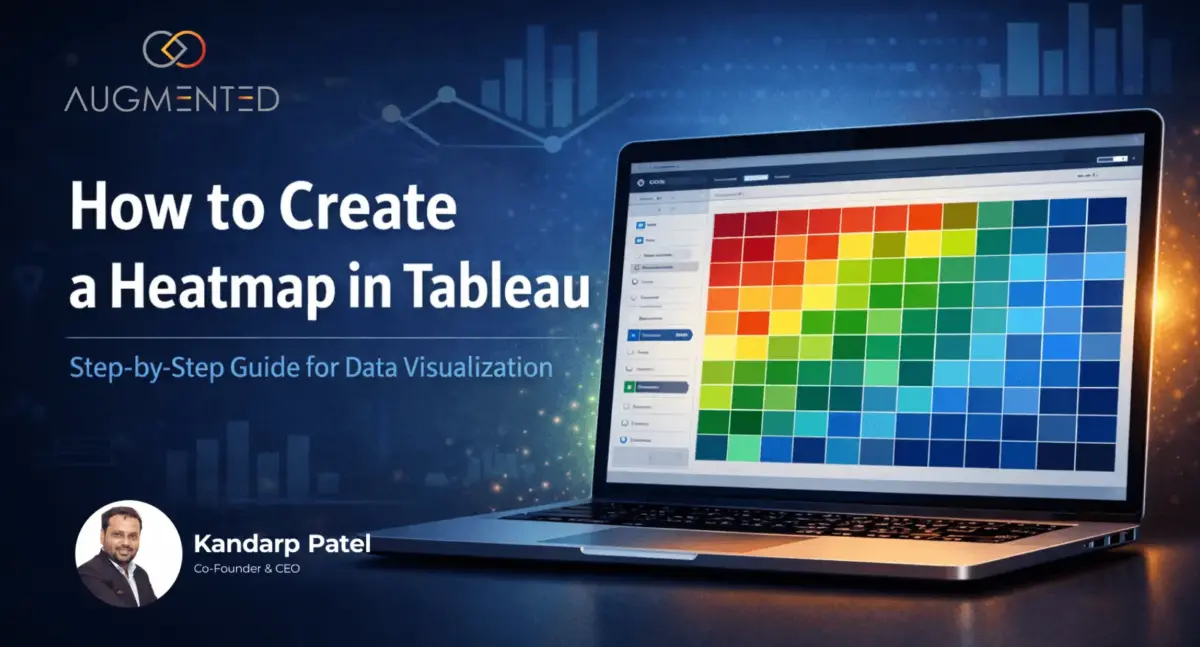
How to Create a Heatmap in Tableau?

Trying to find the data point you are looking for in Tableau can be truly puzzling. For easy recognition, you need a table that visually distinguishes your data.

This is precisely what the heatmap in Tableau addresses. Using colors, it represents both high and low numbers in easy-to-spot patterns.

This makes your data in Tableau look more engaging.

Wondering how you can implement it in your tables? Don’t worry, as I have shared everything you will require in this guide below.

Let’s begin!


What is a Tableau Heatmap?


Think of a Tableau heatmap as a chart showing data, similar to a weather map. Much like a weather map, it turns simple digits into colored squares to show visual comparisons. 

Instead of focusing on the data itself, you can easily understand if it’s higher or lower using colors.

How does Tableau Heatmap use these colors? Actually, it’s very simple:


  • Hot Colors (Red/Orange): Shows high values. 
  • Cool Colors (Blue/Green): Shows low values

Using these colors, your data is neatly organized into coloured squares. Each color represents the value inside the box. This creates a visual story that any reader can understand immediately.


When Should You Use a Heatmap? 


Having a deep understanding of when to use heatmap charts can ensure that you apply them only when needed.

In my experience, heatmaps are great for:


  • Comparing different data points like regions or products all at once. 
  • Finding your best and worst performers. 
  • Searching for patterns and groups that you may miss otherwise.

Note that Heatmaps are not the best way to understand each number. It is only helpful in identifying macro trends and patterns forming in your table.


How to Create a Heatmap in Tableau: 5 Easy Steps


Let’s understand how exactly you can create your own heatmap through the use of Tableau:


Step

What to Do in Tableau

Why You Do It

1

Drag your categories to Rows and Columns. (e.g., Region to Rows, Category to Columns).

This builds the grid. Each square will be one unique combination.

2

On the “Marks” card, change the mark type to Square.

This tells Tableau to use squares, which are perfect for heatmaps.

3

Drag your main measure (like Profit) to the Color button on the Marks card.

This makes the squares change color based on your data. High values get intense colors.

4

(Optional) Drag another measure (like Sales) to the Size button.

This makes the squares bigger or smaller, adding a second layer of information.

5

Click the Color shelf to pick a better color palette.

This makes your heatmap clearer. For profit, a “Red-Green Diverging” palette is great.


If you follow these steps, you can easily create your own heatmaps in Tableau. 


Just make sure that you use the right color palette and keep your data organised. This will help you create interactive dashboards in Tableau.


Tips for Creating a Clear Heatmap


Here are some things you should keep in mind while making a Heatmap in Tableau:


  • Keep the table straightforward. Too many rows and columns can make the heatmap appear messy. 
  • Use colors smartly. In a profit/loss table, use green for profit and red for loss in your heatmap. This will ensure that any reader can easily identify your data based on its color.  
  • You can use Tooltips to hide numbers inside the cells. This helps in making your heatmaps in Tableau cleaner. If a user needs to see the exact data behind a square, they can just hover their cursor over the cell.

Conclusion 


It is vital to learn how to create a heatmap in Tableau so that you can use it in your daily workflow. With our increasing dependence on data, we need the easy visualisation of insights and patterns provided by such Heatmaps.


But what if the data you are planning to use is very complicated? What if you require the assistance of an expert?


This is where our team at Augmented Systems steps in. We are data visualisation consultants who can show you exactly how you can tell your story through Tableau.


Our 6+ years of experience have made us highly efficient at partnering with global teams and businesses. We can help your teams learn how to use such technical capabilities and implement them effectively.


Ready to use heatmaps in your own Tableau tables? Contact us and schedule a quick call with our team today!


FAQs 

1. What is a Tableau heatmap?

A Tableau heatmap is a visualization that uses color intensity in a grid to show data values, making it easy to spot highs, lows, and patterns at a glance.

2. When should I use a heatmap in Tableau?

You should use a heatmap in Tableau when you need to compare performance across many categories (like products and regions) or quickly identify concentrations and outliers in a dense table of data.

3. How do I change the colors in my Tableau heatmap?

Click on the Color shelf on the Marks card. From there, you can select a new palette, reverse the colors, or edit the gradient to make your Tableau heatmap more transparent and more intuitive.

4. Can a data visualization consultant help me build better dashboards?

Yes. A professional data visualization consultant can help you design effective Tableau heatmaps and integrate them into dashboards that tell a clear story, ensuring your data drives actionable decisions.

5. What are data visualization services?

Data visualization services include expert help with the entire process. This includes preparing your data, building charts such as heatmaps in Tableau, and designing complete, interactive dashboards that meet your specific business goals.

Categories
Blog Data Visualization

Power Query and Power BI: A Perfect Combination for Data Analysis?

Overview

There is often confusion between Power Query and Power BI, and the benefits they provide when used together.

Here is a simple explanation:

Power Query is a strong data preparation tool that helps you organize your raw data in Power BI.

Power BI is a reporting platform that can transform this clean data into interactive visual insights and analytics.

Basically, Power Query helps prepare your data in Power BI, converting your raw data into a visual story.

Wondering how? Don’t worry, as in this blog, I will identify the unique benefits of Power Query in Power BI and how they can work together for accurate data visualization. 

___________________________________________________________________

Trying to understand the various tools provided by Microsoft can be frustrating. Even though they are incredibly powerful, beginners might find it hard to distinguish between their similar-sounding benefits.

This is precisely why many people often get confused between Power Query and Power BI. Since Power Query is an invaluable feature in Power BI, understanding its unique benefits is essential.

Using this blog, I will help you recognize the benefits of Power Query and Power BI and how they work together. It will help you understand how to use Power Query in Power BI to refine your data visualization workflow.


What is Power BI? 


Power BI is a powerful and complex data visualization tool. It helps you create interactive dashboards from your raw data.

The main benefit I found while using Power BI is how it presents complex analytics in a simple, easy-to-understand way. Using interactive charts and graphs, you can easily create and share reports from your data. Moreover, even complicated calculations are made simpler with the usage of DAX (Data Analysis Expressions).

Power BI features are designed to make your data-driven decisions easier by turning your categorized data into actionable visual insights.


What is Power Query in Power BI? 


Power Query is a data transformation tool that is built right into Excel and Power BI. In essence, it is a data cleaning assistant that helps you organize your raw data into a structured format.

The primary benefits of Power Query are to connect various data sources and clean up errors and duplicates in your bulk data. It offers easy-to-use features that help you format everything consistently.

The best part? Because every step you take is continuously recorded, you can simply click “Refresh” and repeat the entire process. Since I use this feature mainly to organize my finances, this automation is genuinely incredible. I can just hit “Refresh” every quarter and watch Power Query automatically categorize my data from past sources for a new financial quarter.

Main Benefits of Power Query in Power BI

  • Saves time by repeating mundane data cleaning and categorization.  
  • Ensures consistency by applying the same rules every time. 
  • Handles complexity by combining data from different sources. 
  • Reduces errors that often occur through manual copy-pasting.

How to Use Power Query and Power BI Together 


There is a reason why Power Query is built into Power BI. It’s because they are designed to work together.

You can think of Power Query as a Power BI connector that adds functionality to your dashboard. Using them, you will be able to structure your raw data and then turn it into engaging visualizations.

Let us see how you can achieve this in your own Power BI worksheet!


Steps to Optimize Your Workflow 


Below is what your typical workflow will look like using Power Query in Power BI for your data visualization:

  1. Open Power Query in your Power BI Desktop to import and clear your data from different sources. 
  2. Shape your data by removing blanks and adding the required table formatting inside Power Query. 
  3. Load the clean data into Power BI’s modeling space, readying your now categorized data for calculation and processing. 
  4. Switch to the Report view on your Power BI to design visualizations and build dashboards from your data. 
  5. Publish your final visualization to your team using Power BI online services.

Applications of Power BI in Power Query

With the combined power of Power Query and Power BI, you will gain access to a host of new business applications. From automating your everyday reporting to deep strategic analysis, Power Query in Power BI has a usable benefit for every industry.

Power Query in Power BI also empowers data visualization consultants and specialists to understand your business’s future. Using its features, you can easily clean your data and prepare it for insights.

Here are some of the most popular Power Query advantages in Power BI:


  • Business Intelligence: Use Power Query in Power BI to transform data and build interactive dashboards that track valuable insights. 
  • Financial Analysis: The combined power of Power Query and Power BI enables real-time forecasting and accurate budget tracking for your business. 
  • Marketing Analytics: Gain visual insights into how your customers engage with your business and measure the ROI of your campaigns. 
  • Operational Management: Use the benefits of Power Query to manage your supply chain and inventory data easily with automatic updates and optimizations. 
  • HR Analytics: Merge your payroll and recruitment data to create a unified dashboard that showcases workforce trends and numbers.

These are just some of the many applications of Power Query and Power BI in businesses. To ensure proper utilization of this advanced tool, you will require the help of a data visualization expert.

When to Get Professional Support from a Data Visualization Expert


Planning to use Power Query and Power BI in your workflow for the first time? Be warned, you are likely to face severe issues.

Converting raw data into clean data points is a challenge in its own right. But also feeding this categorized data into Power BI within the same workflow requires deep expertise in both tools.

Moreover, advanced features like DAX come with their own set of problems and challenges. This is where a data visualization specialist can help you move past regular issues.

Challenge

How Experts Can Help

Complex Calculations

Implementing the right DAX formulas for your specific business logic

Performance Issues

Optimizing reports to load quickly, even with large datasets

Advanced Visualizations

Creating custom charts that tell your data story effectively

Team Training

Getting your staff up to speed on best practices


Consider engaging the services of data visualization experts from reputable organisations such as Augmented Systems.

Our experts can help you build reliable solutions and workflows for your team. They can also help you identify new Power Query advantages and how you can use them for your own benefit.

With years of experience in supporting both new and existing businesses globally, Augmented Systems is your best software consultant in this evolving technology market. Leveraging advanced features such as DAX functions in Power BI, our experts can help you enhance your daily workflow.

Excited to optimize your daily output? Consult our team today, and Augmented Systems can help you understand how to use Power Query in Power BI within a single workflow.


FAQs


1. What is the main difference between Power Query and Power BI?

Power Query is a dedicated data transformation and cleaning tool, while Power BI is a comprehensive platform for data visualization and business intelligence. Think of Power Query as the tool that prepares and shapes your raw data, which Power BI then uses to build interactive reports and dashboards.

2. How do I use Power Query in Power BI?

You use Power Query in Power BI through the “Transform Data” button in the Power BI Desktop. This opens the Power Query Editor, where you can connect to sources, clean data, and apply transformations. The cleaned data is then loaded into Power BI for modeling and visualization, streamlining your entire workflow.

3. What are the key benefits of Power Query for a data visualization specialist?

For a data visualization specialist, the primary benefits of Power Query are automation and reliability. It saves hours by automating repetitive data cleaning, ensuring consistency, reducing manual errors, and handling complex data merges. This creates a solid, trustworthy foundation for building accurate Power BI reports.

4. Why is Power BI data transformation easier with Power Query?

Power BI data transformation is easier with Power Query because of its intuitive, point-and-click interface. Instead of complex coding, you can filter, merge, and reshape data visually. Every step is recorded, allowing you to refresh your data transformation with one click whenever the source data updates, ensuring your reports are always current.

5. When should I hire a data visualization consultant for Power BI and Power Query?

Consider hiring a data visualization consultant when you need to establish best practices, design complex data models, or create enterprise-level dashboards. They can architect efficient Power Query workflows and leverage advanced Power BI features to turn your data into a strategic asset, maximizing your return on investment.

Categories
latest story

Onboarding at Augmented Setting You Up for Purpose, People, and Progress

Categories
latest story

What No One Tells You About Going from 8 to 80?

Categories
latest story

A Sneak Peek into Augmented

Categories
latest story

Dreams don’t chase you, you chase them!

Categories
latest story

The Future of Work at Augmented

Categories
Story

Ensuring A Smooth Interview Experience

Categories
Story

I believed I could, so I did – A Story of Inifinite Self-Belief